Property Website Overview
Every listing auto-generates a public-facing property website with photos, videos, 3D tours, floor plans, amenities, and property details in a polished, branded layout. Share the link on yard signs, social posts, MLS, anywhere.
Written By David Dayan
Every listing auto-generates a public-facing property website with photos, videos, 3D tours, floor plans, amenities, and property details in a polished, branded layout. Share the link on yard signs, social posts, MLS, anywhere.
How they work
When you create a listing and start adding media, its property website is live. The website pulls straight from listing data, so any update, whether new photos, a new open house, or an edited description, shows on the site immediately.
Each website's URL is based on your org's listings subdomain + the listing's URL slug:
https://listing.yourcompany.photeria.io/123-main-streetSet a custom domain per listing for a fully branded URL. See Custom Listing Domains.
The Website Editor
The Website Editor is a full-screen editing environment where you customize every aspect of your property website with a live preview.
Opening the editor
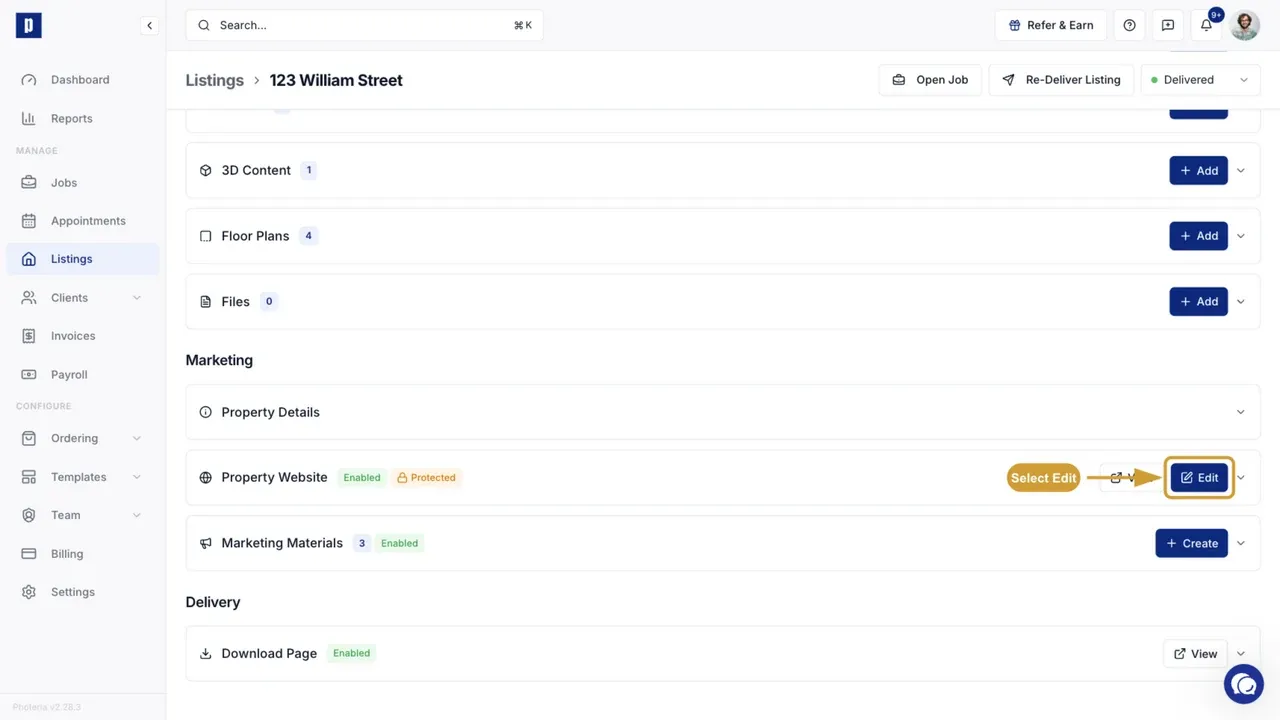
From the listing detail page, click the Website Editor button in the Property Website section. The editor opens full-screen.
Layout
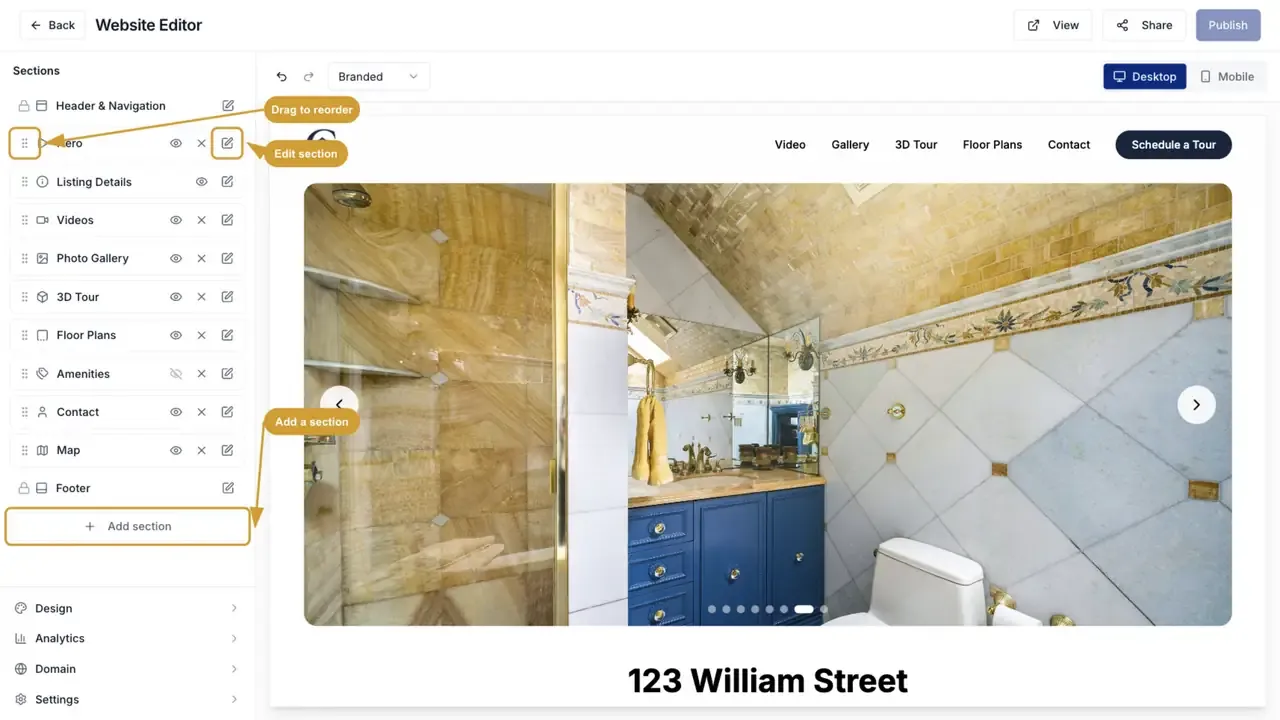
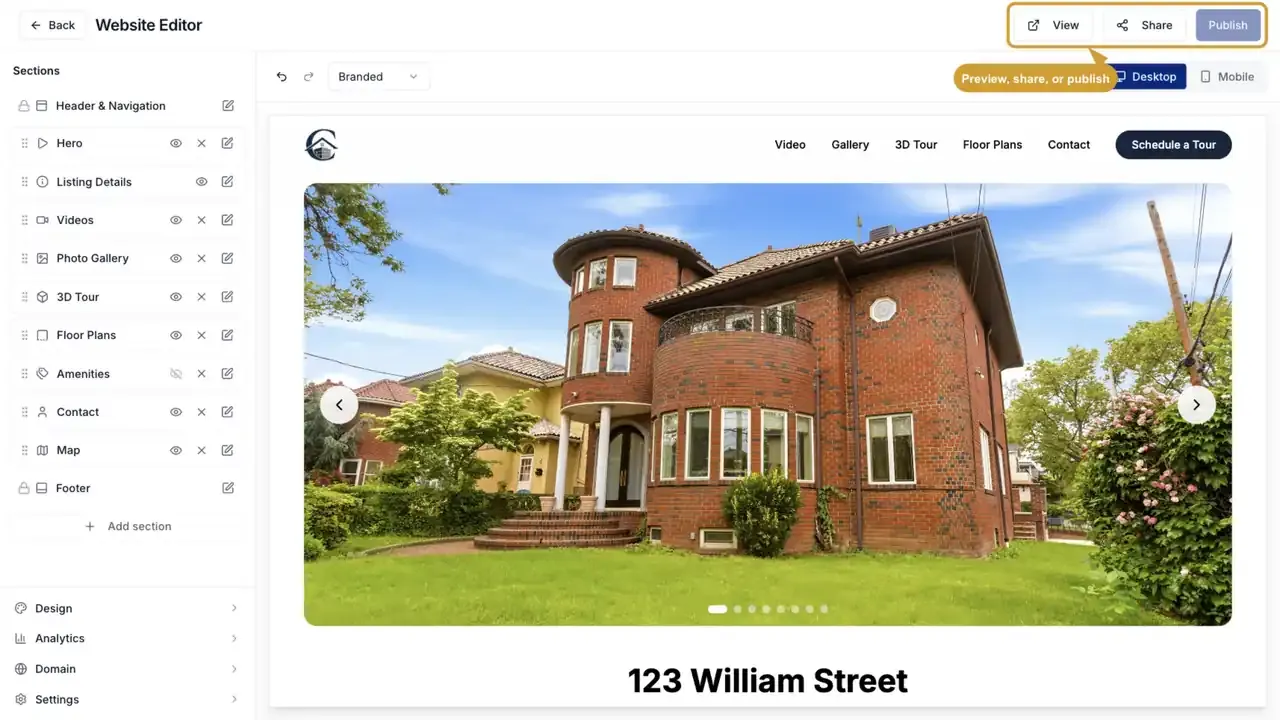
- Top bar - Back button, "Website Editor" title, and a Publish button to save all changes.
- Left sidebar - Scrollable panel with Presets, Settings, and Sections.
- Right panel - Live preview iframe showing real-time changes as you edit.
Live preview
Changes in the sidebar are reflected in the preview instantly, with no page reload needed. The preview toolbar offers:
- Mobile/Desktop toggle - switch between phone (375px) and full-width views.
- Undo (Ctrl/Cmd+Z) and Redo (Ctrl/Cmd+Shift+Z).
- Refresh - reload the preview.
- View preview - open in a new browser tab.
Publishing
Click Publish to save all changes atomically: settings, section configuration, section order, and slideshow selections. Changes are not live until you publish.
Theme Presets
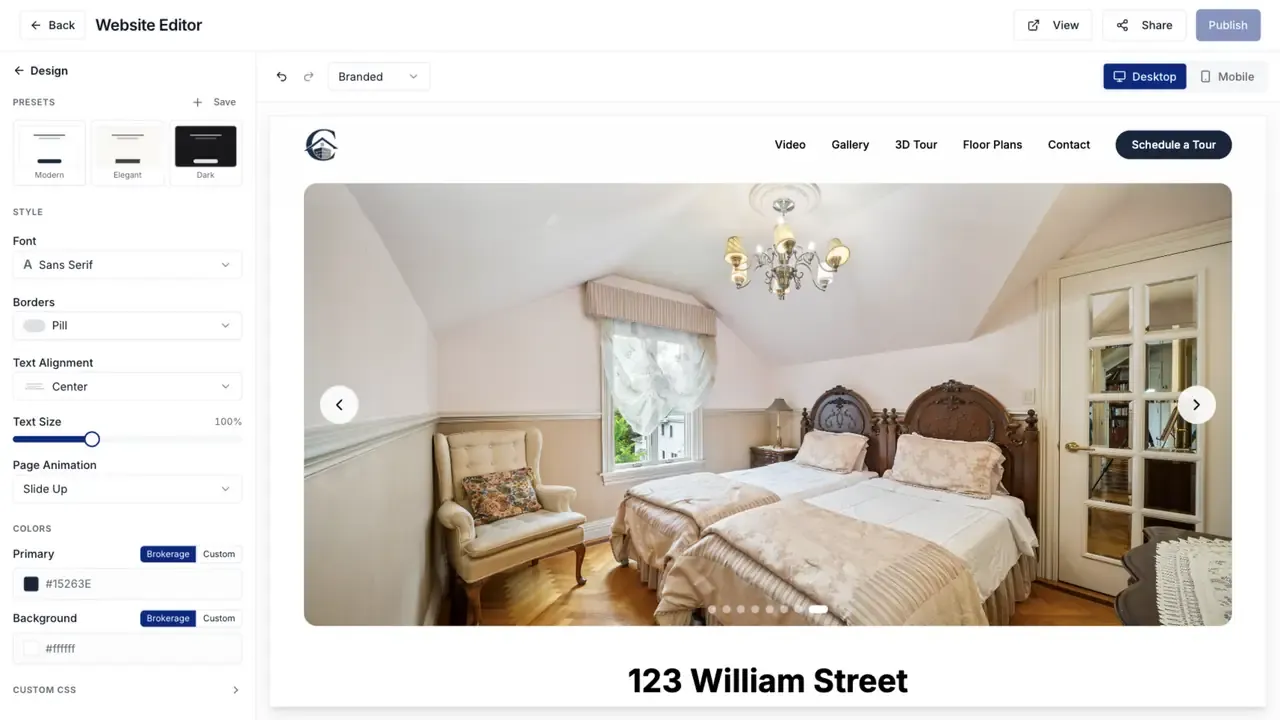
Presets let you apply a complete visual style to your property website with one click.
Built-in presets
- Modern - Pill-shaped borders, transparent header, framed hero with slideshow, contact form and schedule tour enabled.
- Elegant - Serif font, squared borders, transparent header, fullscreen hero with zoom transition, off-white background, stone primary color, fade page animation.
- Dark - Sans-serif, rounded borders, fullscreen hero, dark background, light primary color, masonry gallery.
Custom presets
Click + Save next to the Presets heading to save your current editor state as a custom preset. Custom presets can be deleted by hovering and clicking the X. Built-in presets cannot be deleted.
Design Settings
In the Settings group of the sidebar:
Colors
- Primary Color - accent color for buttons, links, and interactive elements.
- Background Color - page background.
Use "Brokerage" mode to inherit the brokerage default, or "Custom" to set a listing-specific color.
Website Style
Controls the border radius of all elements:
- Rounded - standard rounded corners (default)
- Pill - fully rounded, pill-shaped elements
- Sharp - no border radius, square corners
Font
Choose between sans-serif and serif typography.
Text Alignment
Controls the alignment of text content across the site.
Page Animation
How sections animate into view as visitors scroll:
- None - instant appearance
- Fade In - sections fade in from transparent
- Slide Up - sections slide up and fade in
Header Theme
- Transparent - header overlays the hero image
- Solid - header has a solid background
Header and footer border toggles are also available.
Sections
Default order and names:
- Hero - full-width image slideshow, static image, or video background.
- Listing Details - title, description, price, and quick facts.
- Images - responsive photo gallery.
- Videos - embedded players for hosted videos.
- 3D Content - embedded Matterport or other virtual tours.
- Amenities - property amenity tags displayed as styled chips.
- Floor Plans - floor plan images with zoom.
- Contact Info - agent details and optional contact form.
- Map - embedded map pin at the property address.
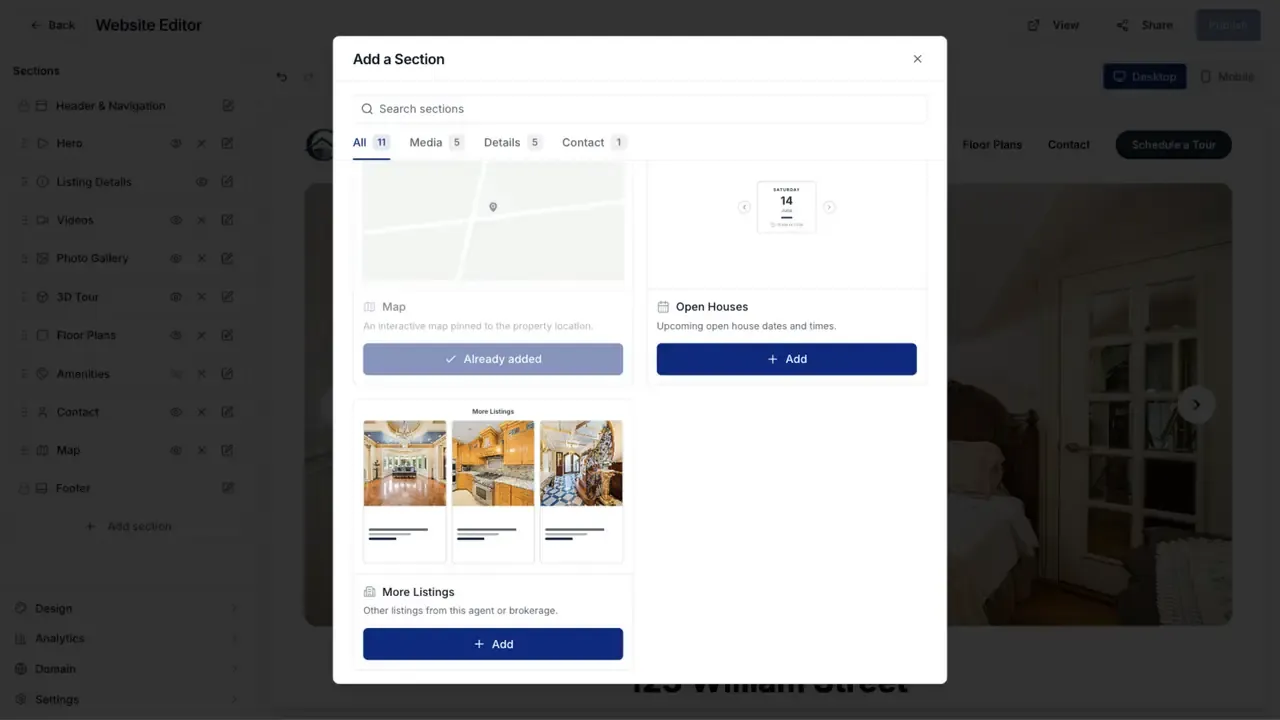
- Open Houses - upcoming open house dates and times.
Admins can also add a Files section for downloadable documents.
The page has a sticky header with the org's logo, quick-jump links to each visible section, and an optional Schedule a Tour button. The footer shows org branding.
Configuring sections in the editor
Each section in the sidebar shows:
- Drag handle - reorder by dragging up or down.
- Visibility toggle (eye icon) - show or hide without deleting.
- Delete button - remove the section (available on deletable sections).
- Expand chevron - reveals per-section configuration options.
An Add section popover at the bottom lets you add any section type not already present.
Header & Navigation settings
The Header/Navigation card in the sidebar controls:
- Show contact form - toggle the contact form on the website.
- Schedule Tour Button - shows a "Schedule a Tour" button in the header that opens a modal contact form where visitors can submit their name, email, phone, preferred date, and a message.
Hero Section
The hero section supports three modes:
Slideshow
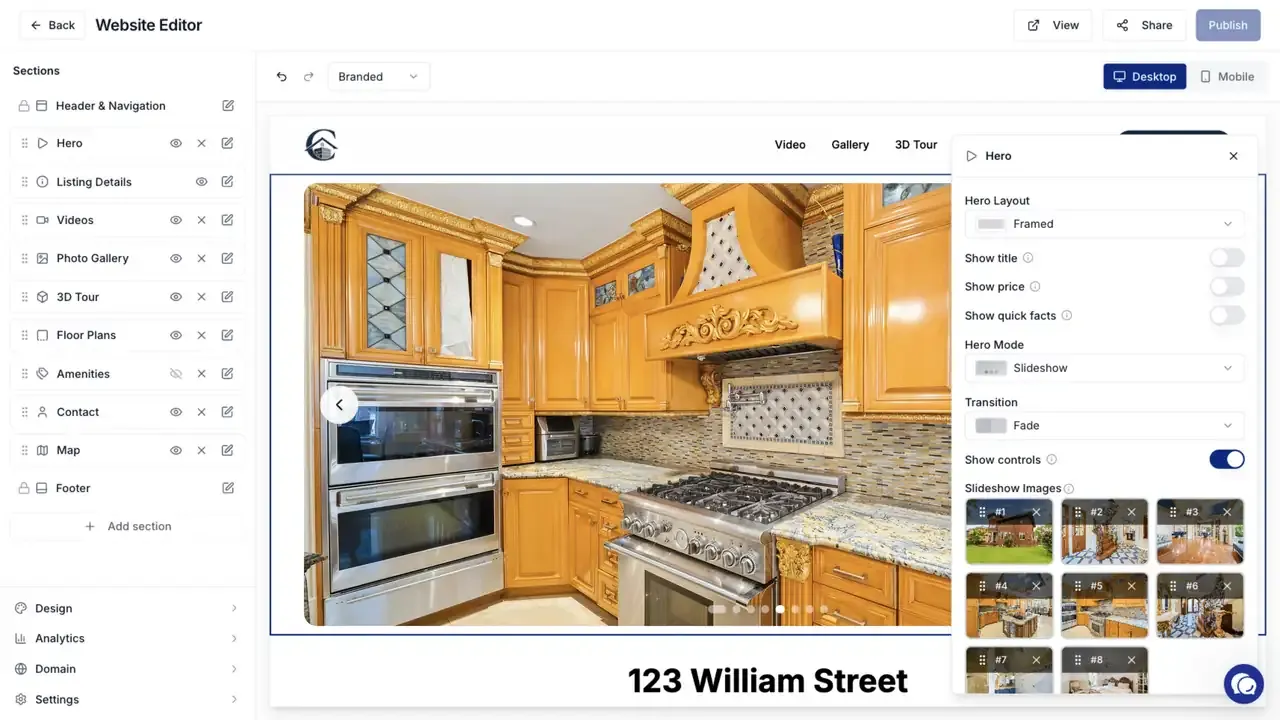
A rotating slideshow of selected listing images. Configuration options:
- Transition - Fade (default), Zoom (scale-in effect), or Slide (horizontal swipe).
- Show Controls - toggle navigation arrows and dot indicators on/off.
- Layout - Default (proportional), Fullscreen (fills the viewport), or Framed (inset card with rounded corners and padding).
- Slideshow Manager - select and reorder which listing images appear in the slideshow.
The slideshow auto-advances and pauses when the visitor interacts.
Static Image
A single image hero. Use the Hero Image Picker to choose which listing image to display.
Video
A full-bleed background video. Configuration:
- Video URL - YouTube, Vimeo, Dropbox, or direct MP4/WebM/MOV link.
- Fallback Image - shown while the video loads or on devices that don't autoplay.
- Show Play Button - when enabled, a centered play button appears over the fallback image. Clicking it opens a fullscreen video overlay.
Hero overlay toggles
Control what text overlays the hero image:
- Show Title - display the property title on the hero.
- Show Price - display the price on the hero.
Gallery Section
Three layout options:
- Grid - uniform image layout in a grid format.
- Masonry - staggered layout with images at their natural proportions.
- Carousel - horizontally scrollable gallery with arrow navigation.
All layouts open a full-screen lightbox when an image is clicked.
Details Section
Configuration options:
- Show Title - toggle the property title.
- Show Price - toggle the price display.
- Show Quick Facts - toggle the facts row.
- Facts Layout:
- Cards (Icons) - horizontal cards with icons, bold values, and labels.
- Table (Flat) - two-column table layout with labels on the left and values on the right, inside a rounded container.
Amenities Section
Displays property amenities as styled tag chips. Tags inherit the website style: pill-shaped in Pill mode, rounded otherwise. The section only appears when the listing has amenities set.
Amenities are managed on the listing detail page (see Managing Listing Details).
SEO and social sharing
Each property website is automatically optimized for search engines and social media sharing. When someone shares a listing link, a rich preview with the property image and details is shown automatically. Disabled or unpublished sites are hidden from search engines.
Enabling and disabling
Each listing has a Property Website Enabled toggle on its listing settings. When disabled:
- Visitors see a placeholder page.
- Search engines are told to deindex.
If downloads are locked behind payment, visitors may be directed to pay before accessing the full site.
Agent access to the Website Editor
By default, agents (clients) cannot edit property websites. Admins can enable editing per listing:
- Enable Website Editor toggle - on the listing detail page in the Property Website section. When enabled, the agent can open and use the full Website Editor for that listing.
- Enable Marketing Editor toggle - a separate toggle in the Marketing Materials section that controls whether agents can create marketing materials.
When the Website Editor is disabled for agents, they see a "Website Editor Disabled" message if they try to access it. Admins always have access regardless of this toggle.
Brokerage-level branding
Brokerages can have their own primary and background colors set in the brokerage profile. These colors act as defaults for all listings under agents in that brokerage. Individual listings can override brokerage colors with custom values in the Website Editor.
Listing-level colors override brokerage colors, which override your organization's default colors.
Permissions
Any team member with listing edit access can toggle the website and configure sections via the Website Editor.