Navigating the Dashboard
The dashboard is the first thing you see when you log in. It gives you a quick overview of your business and fast access to the tools you use most. This guide walks you through every section of the admin interface.
Written By David Dayan
The dashboard is the first thing you see when you log in. It gives you a quick overview of your business and fast access to the tools you use most. This guide walks you through every section of the admin interface.
The sidebar
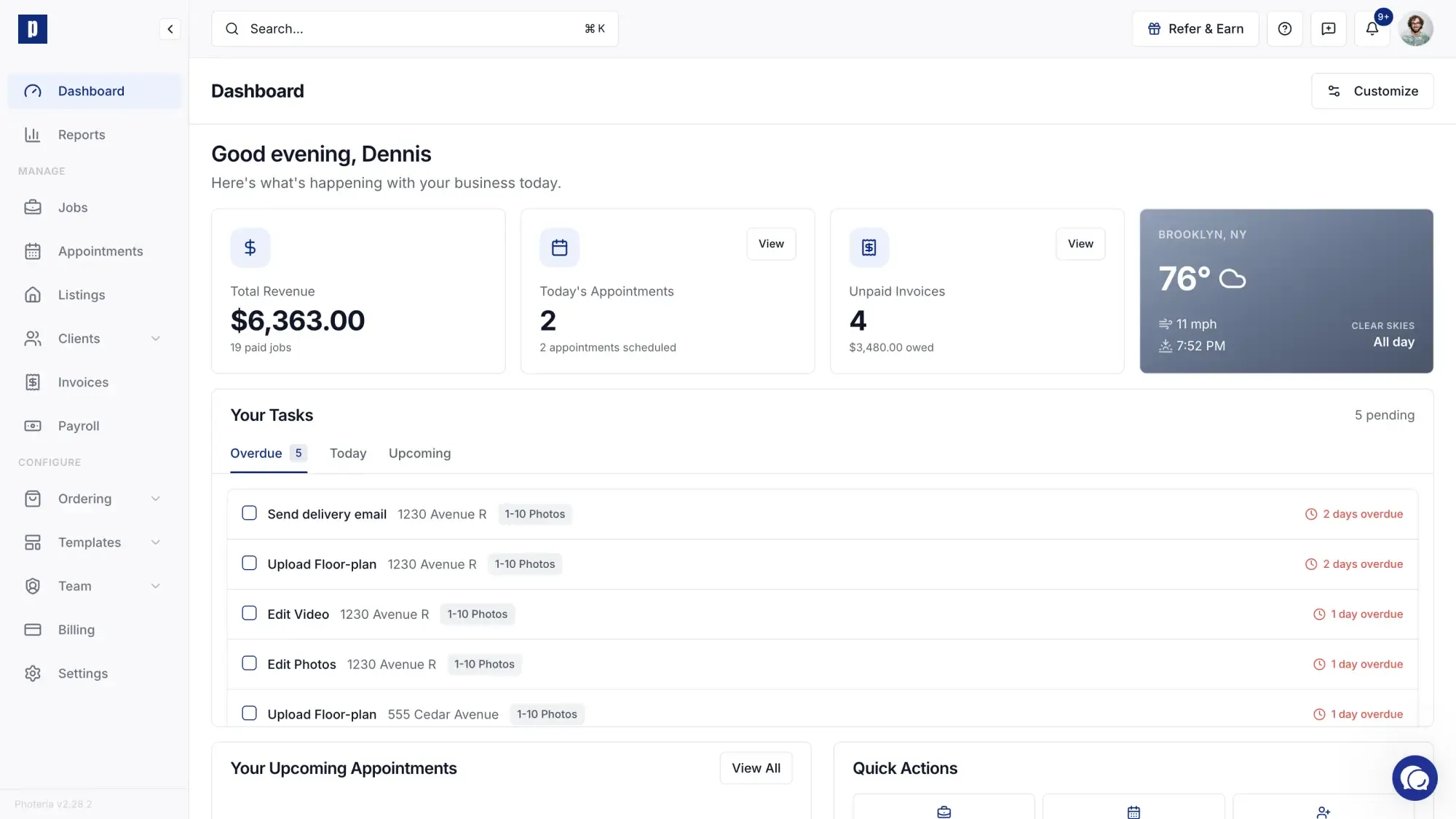
The sidebar on the left is your main navigation, grouped into three sections.
Top
- Dashboard - your home screen with widgets and quick actions. Click the logo at the top of the sidebar to return here at any time.
- Reports - revenue graphs, top clients, team performance, payment breakdowns, and CSV export.
Manage
Day-to-day work:
- Jobs - view, create, and manage all your photography jobs. Filter by status (All / Pending / In Progress / Completed / Archived), search by address or client, and filter by photographer, client, or brokerage.
- Appointments - a calendar of your shoots in day, week, or month view. Filter by team member, client, or brokerage. See The Appointments Calendar.
- Listings - browse all your property listings with media, property details, and links to the public property website.
- Clients - expandable group with two sub-pages:
- Agents - your directory of individual real estate agents
- Brokerages - companies that your agents belong to
- Invoices - every job invoice in one place. Tabs for All, Unpaid, and Paid.
- Payroll - review what each team member has earned and mark payouts as paid. Only appears if your role includes payroll access. See Payroll.
Configure
Business setup:
- Ordering - expandable group:
- Services - the services you offer and their pricing
- Packages - service bundles with optional discounts
- Questions - intake questions attached to services or packages
- Order Forms - the public booking pages clients use to place orders
- Catalogs - custom price lists with per-service overrides for specific agents or brokerages. See Custom Pricing Catalogs.
- Coupons - discount codes for your order forms. See Coupons.
- Tasks - task templates that auto-generate work items when services are added to jobs
- Templates - expandable group:
- Marketing - flyer, social, and brochure templates you can design and reuse
- Email - transactional email templates you can override per organization
- SMS - SMS templates (coming soon)
- Team - expandable group:
- Members - invite and manage staff members
- Roles - custom roles and permission sets
- Service Types - the skills/service categories a team member can be assigned
- Compensation - pay plans that define what team members earn. See Team Compensation.
- Billing - your Photeria subscription, credit balance, payment method, and platform invoices
- Settings - tabs for Company, Branding, Domain, Service Areas, Scheduling, Legal, Referrals, and Integrations
Refer and earn
Just above your profile menu, you'll see a Refer and earn free credits CTA. Clicking it opens the Referrals tab in Settings, where you can copy your referral link. Every company that signs up using your link gets $40 in credits and so do you.
Collapsing the sidebar
Click the chevron button near the top of the sidebar to collapse it into an icon-only mode. Hover over any icon to see a tooltip. Click the chevron again to expand.
Your profile menu
At the bottom of the sidebar, click your avatar and name to open:
- Edit Profile - update your name, photo, phone, address, working hours, and Google Calendar. The Profile page also has a Notifications tab for your notification preferences and an MCP tab to connect an AI assistant. Theme (Light / Dark / System) is under General.
- Sign Out - log out of your account
The top bar
Across the top of every page you'll find two tools:
- Search - click the search bar (or press βK on Mac / Ctrl+K on Windows) to jump to any job, appointment, listing, agent, brokerage, invoice, or team member from anywhere. See Global Search.
- Notification bell - opens your in-app inbox. A badge shows how many unread notifications you have. See Notifications.
Dashboard widgets
The dashboard is made of widgets arranged in three rows. You choose which ones appear.
Top row tiles
Up to four summary tiles:
- Total Revenue - revenue over a selected time period
- Scheduled Jobs - count of jobs with upcoming appointments
- Unpaid Invoices - count and total of unpaid invoices
- Weather - current weather for your area
- Active Listings - count of currently active listings
- New Clients - new clients gained recently
- Pending Deliveries - jobs that are shot but not yet delivered
Graphs
- Revenue Graph (30 days) - revenue trend for the last 30 days
- My Tasks - your pending tasks grouped into Overdue, Due Today, and Upcoming. Each task links to its job. Check the checkbox to complete a task instantly. Visible to users with task completion permissions.
Content widgets (two columns on large screens)
- Upcoming Jobs - the next jobs assigned to you (or the team)
- Quick Actions - one-click shortcuts for common tasks
Quick Actions shortcuts
One-click access to:
- New Job - opens the job creation dialog
- View Jobs - opens the Jobs page
- Add Client - opens the new agent form
- View Clients - opens the Agents page
- Listings - opens the Listings page
- Invoices - opens the Invoices page
Customizing your dashboard
Your dashboard layout is personal, so each staff member keeps their own layout.
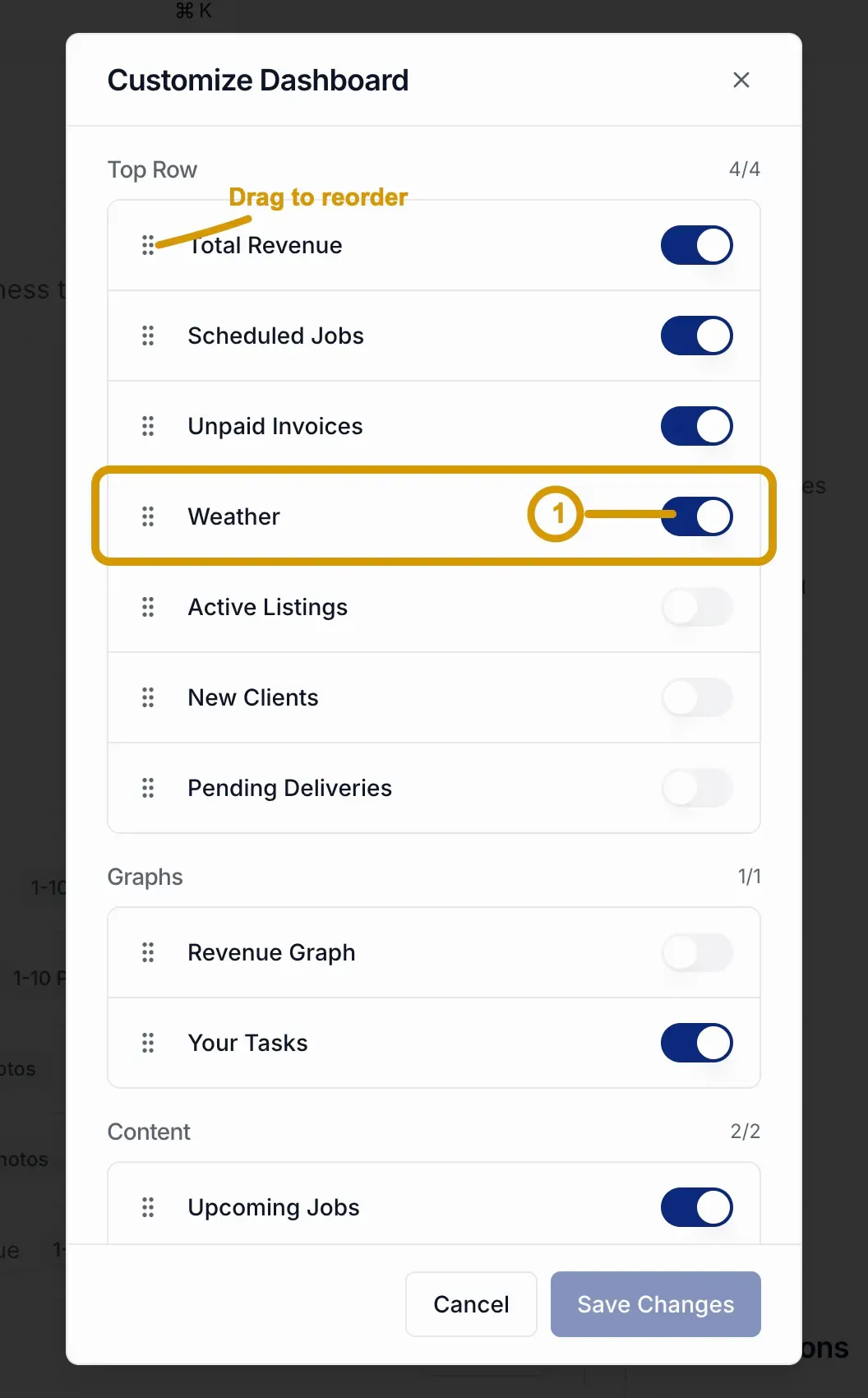
- Click Customize in the top-right of the dashboard.
- The Customize panel opens, showing all available widgets grouped by Top Row, Graphs, and Content.
- Use the toggle switches to show or hide individual widgets.
- Drag widgets within a group to change their order.
- Click Save Changes.
Your layout is saved to your profile, so the dashboard looks the same every time you log in on any device. Widgets you don't have permission to see (for example, revenue widgets without billing permissions) are automatically hidden.
Next steps
Now that you know your way around, head to Your First Job to create your first photography job.