Adding a Custom Domain to a Property Website
Buy a domain for a listing or connect one you already own, verify DNS, and manage its status.
Written By David Dayan
Adding a Custom Domain to a Property Website
Give a listing its own address, such as 123williamstreet.com, by buying a domain through Photeria or connecting one you already own.
Open the domain settings
- Open the listing's Website Editor.
- Select Domain.
- Select Add Custom Domain.
The Buy a Domain and Connect Existing tabs are two different setup paths.
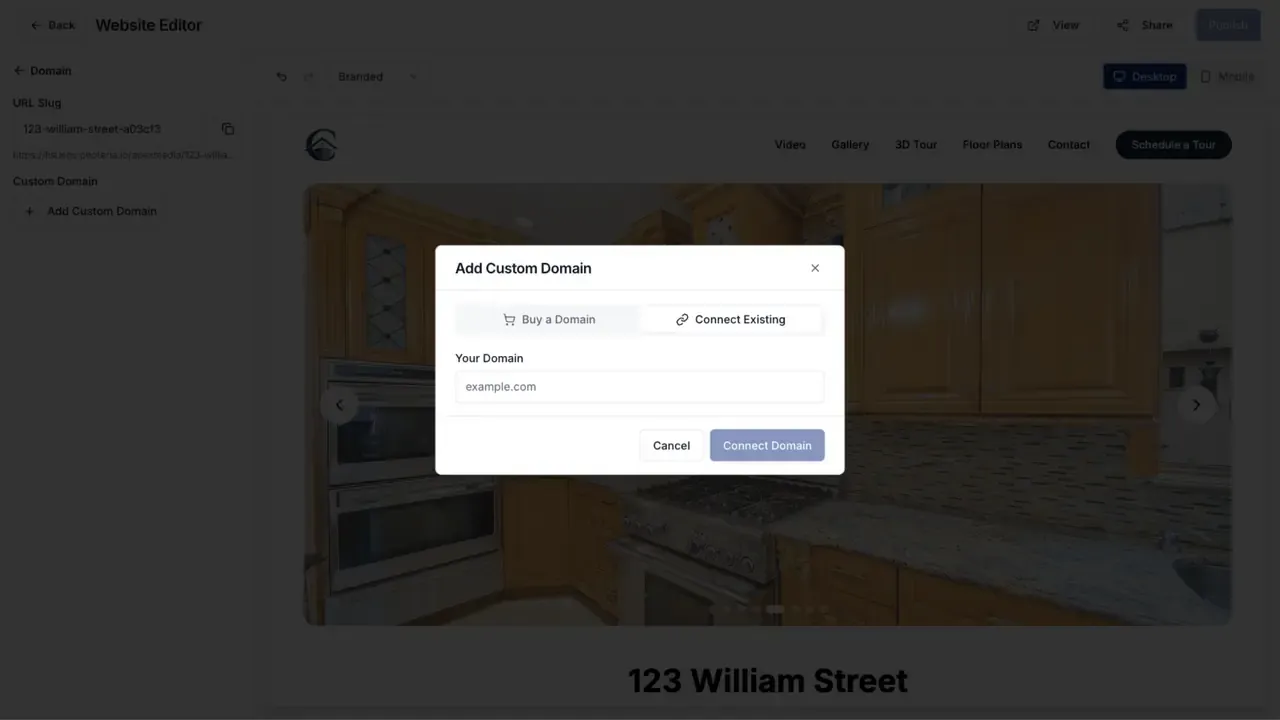
Buy a domain
- Open Buy a Domain.
- Choose an available suggestion or search for another
.comdomain. - Review the price and select Buy.
- Enter the payment details and complete the purchase.
Photeria registers the domain and configures it for the listing. The domain appears in the editor while setup finishes.
A domain purchased through Photeria stays assigned to the listing and cannot be removed from the editor.
Connect a domain you own
- Open Connect Existing.
- Enter the domain without
https://. - Select Connect Domain.
- Copy the DNS records shown by Photeria into the DNS settings at your domain provider.
- Return to the Website Editor and select Verify DNS.
Use the exact record names and values shown for your domain. The required values can differ by domain, so do not copy DNS values from another listing.
DNS changes usually appear within a few minutes. After the records are verified, the status changes to Provisioning SSL while the secure certificate is created, then Active when the domain is ready.
If verification shows a record mismatch, compare the expected and found values shown in the DNS check results, correct that record at your provider, and verify again.
Remove a connected domain
Open Domain and select Remove beside a domain that you connected. The property website returns to its default Photeria URL.
Purchased domains do not have the Remove action.