Global Search

Global search lets you jump to anything in your business from anywhere in Photeria, with no need to navigate to the right page first. Start typing a name, address, or number, and matching jobs, listings, agents, and more appear instantly. Pick a result and you're taken straight

Written By David Dayan

Global search lets you jump to anything in your business from anywhere in Photeria, with no need to navigate to the right page first. Start typing a name, address, or number, and matching jobs, listings, agents, and more appear instantly. Pick a result and you're taken straight to it.

You can open global search two ways:

  • Keyboard shortcut - press ⌘K (Mac) or Ctrl+K (Windows). This works from any page.
  • Search bar - click the Search bar at the top-left of the screen. On smaller screens this appears as a search icon button.

Press Esc at any time to close search.

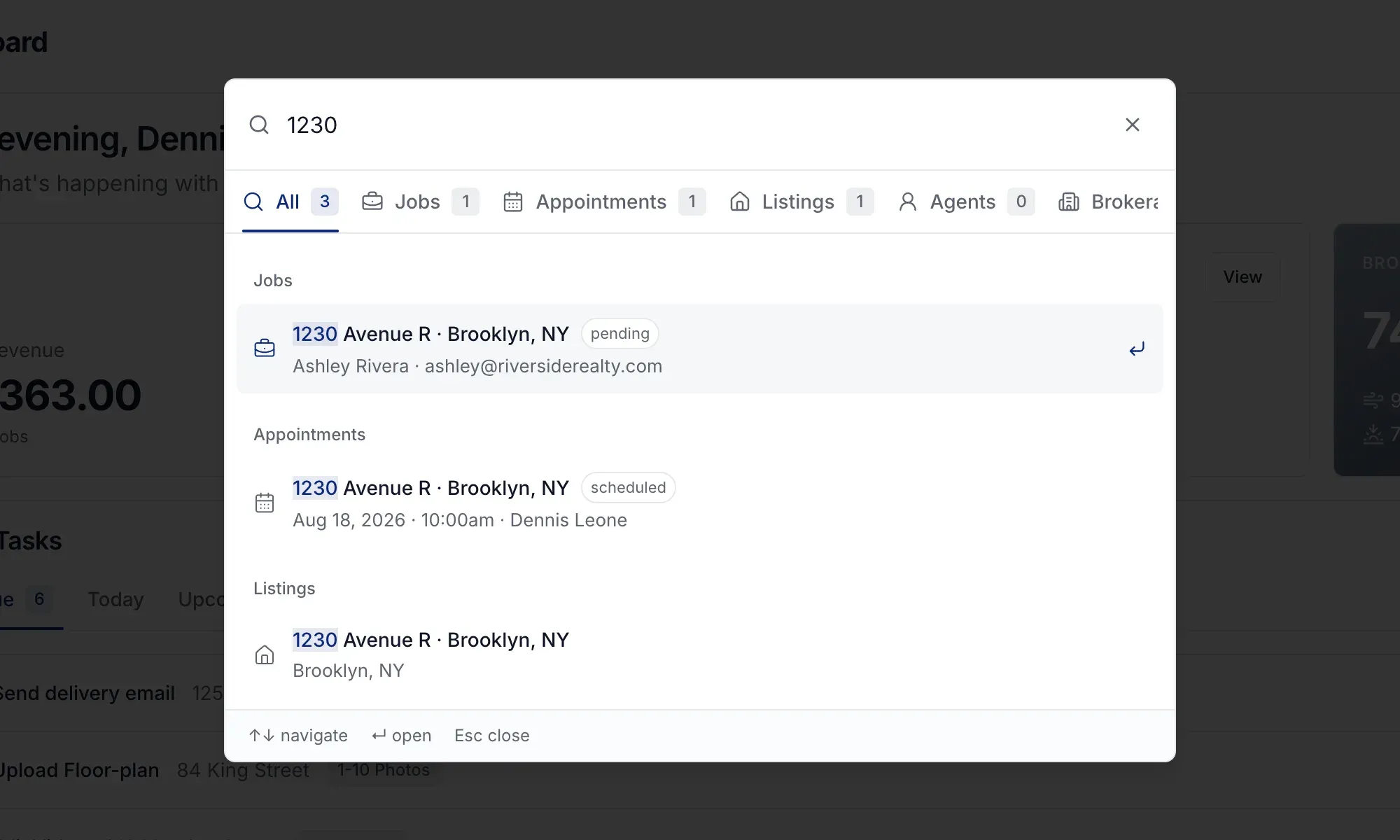
Search looks across your whole organization at once. Results are grouped by type:

  • Jobs
  • Appointments
  • Listings
  • Agents
  • Brokerages
  • Invoices
  • Team members

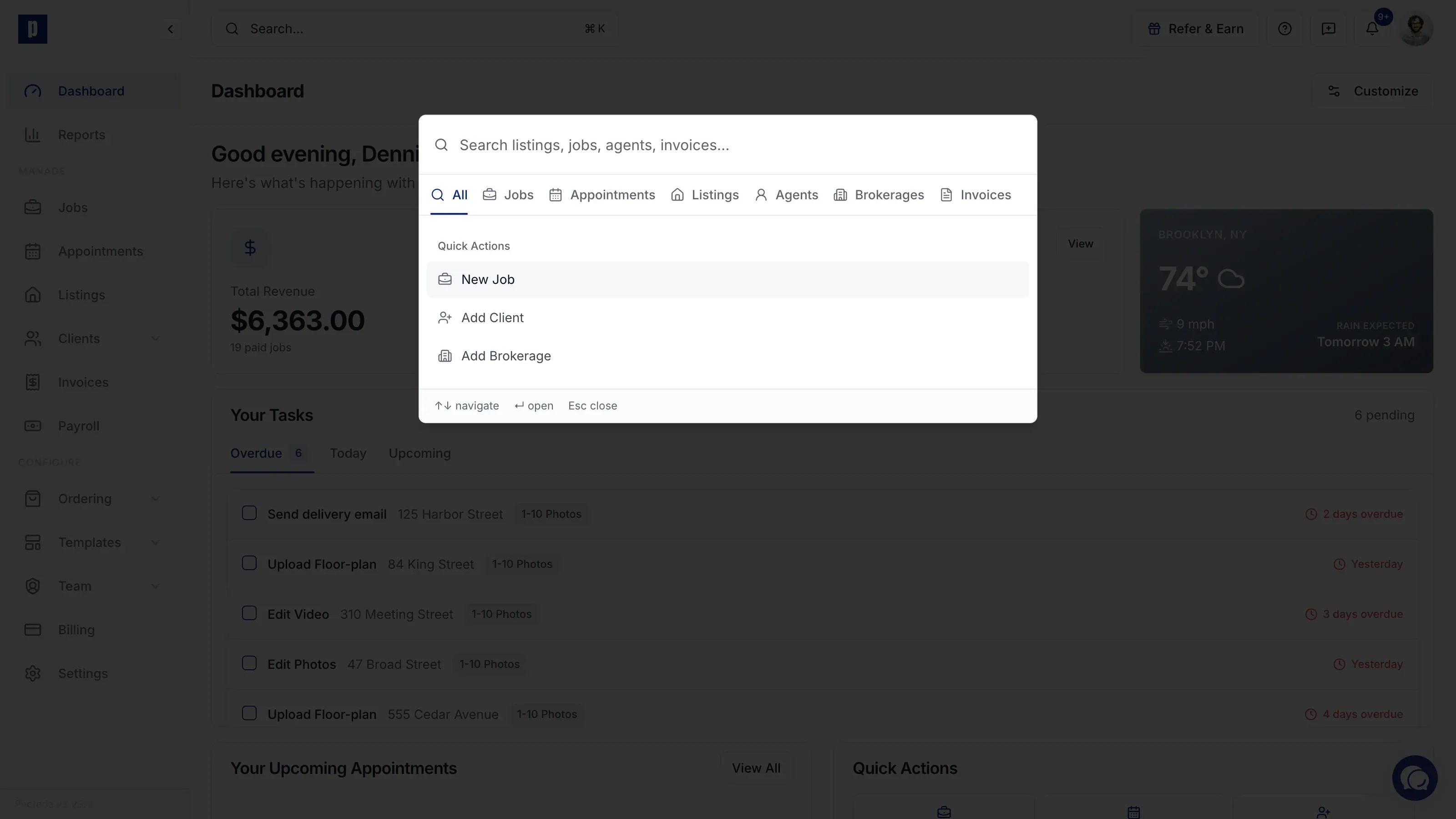
When you first start typing, results from every type show together. To narrow things down, click a category tab (Jobs, Listings, Agents, and so on) at the top of the search window. Each tab shows a count of how many matches it has.

Searching and opening a result

  1. Open search with ⌘K / Ctrl+K or the search bar.
  2. Type what you're looking for: an address, client name, brokerage, invoice, and more.
  3. (Optional) Click a category tab to filter results to one type.
  4. Click a result, or use the / arrow keys to highlight one and press Enter.
  5. You're taken straight to that record's page.

Quick actions and recent searches

Before you type anything, the search window shows shortcuts to common tasks:

  • New Job
  • Add Client
  • Add Brokerage

Below that, your Recent searches appear so you can re-run one with a single click. Hover over a recent search and click the × to remove it.

Tips

  • Searches cover more than just titles. For example, a job can be found by the client's email even when it isn't shown in the result.
  • If nothing matches, try a different spelling, or remove a category filter to broaden your search.