Creating and Assigning Pricing Catalogs
Create negotiated service and package prices, then assign them to agents or brokerages.
Written By David Dayan
Pricing catalogs let you give an agent or brokerage negotiated prices without changing your standard service and package prices.
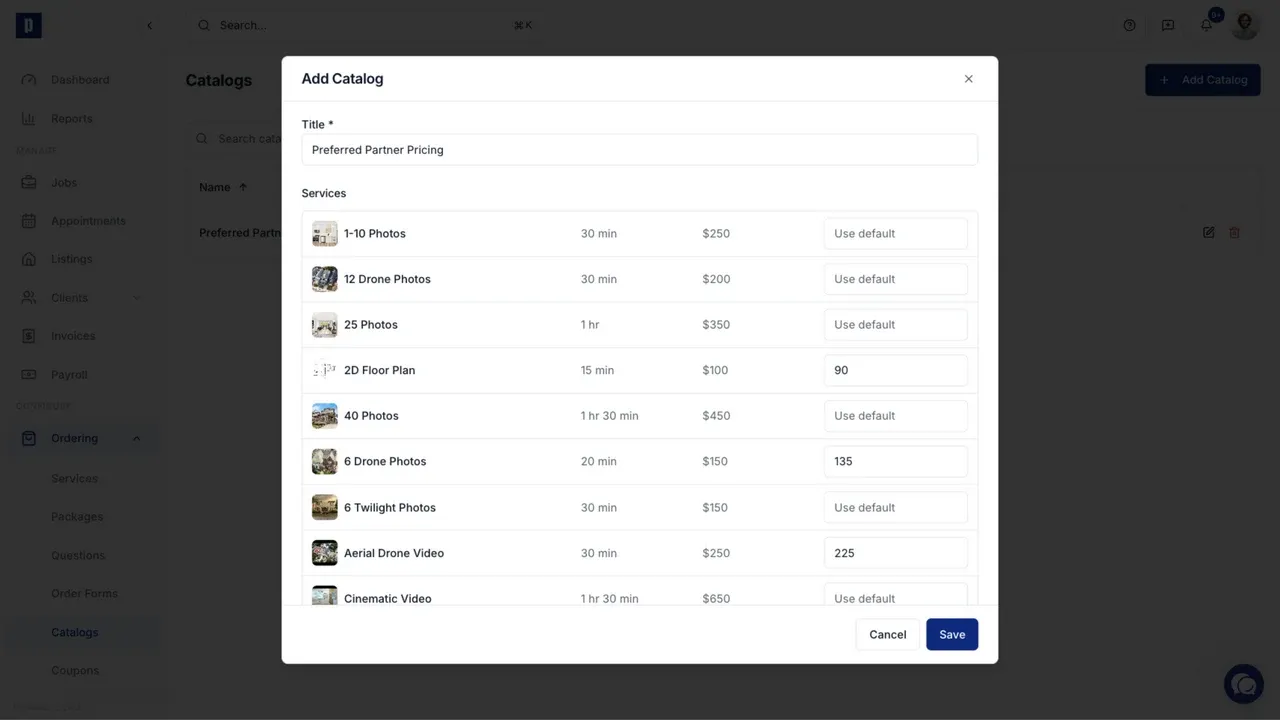
Go to Ordering → Catalogs, then click Add Catalog.
Set the catalog prices
- Give the catalog a name that identifies the pricing arrangement, such as Preferred Partner Pricing.
- Enter a price only for services that should differ from the standard price.
- Leave Use default in place for services that should continue using the standard price.
The standard price remains visible beside each item, making it easy to compare the override before saving.
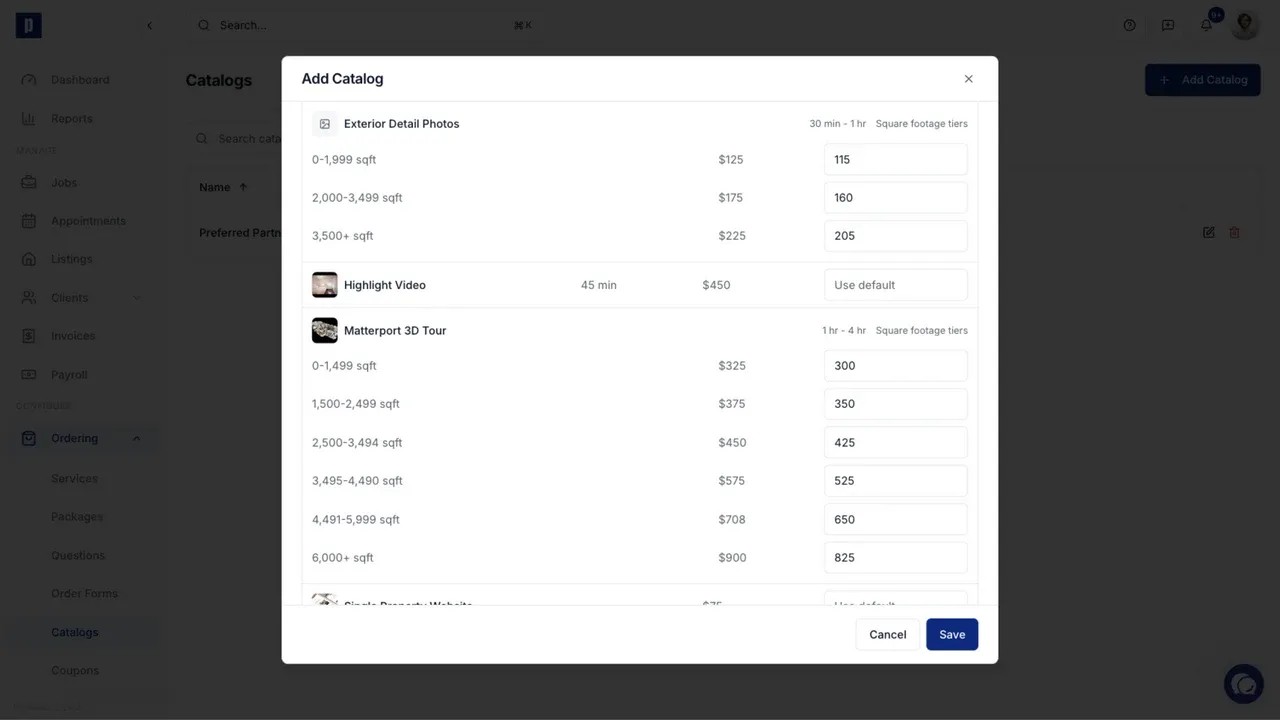
Override square footage tiers
Services with square footage pricing can have a separate override for each tier. Enter the negotiated price beside each tier that should change.
Override package prices
The Packages section works the same way. Enter a catalog price for a package that should change, or leave Use default to keep its standard price.
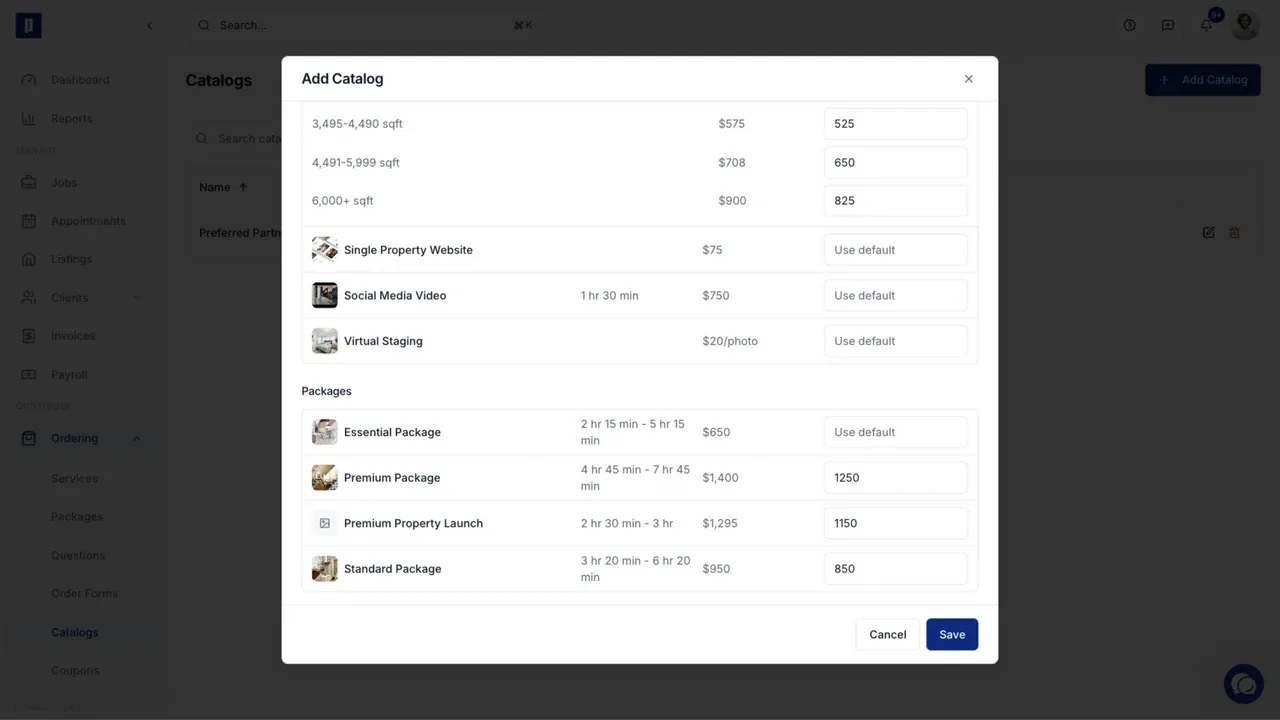
Click Save when the catalog is complete.
Assign the catalog
To assign a catalog to an agent:
- Open Clients → Agents and select the agent.
- Scroll to Settings and open Ordering.
- Choose the catalog.
- Click Save Changes.
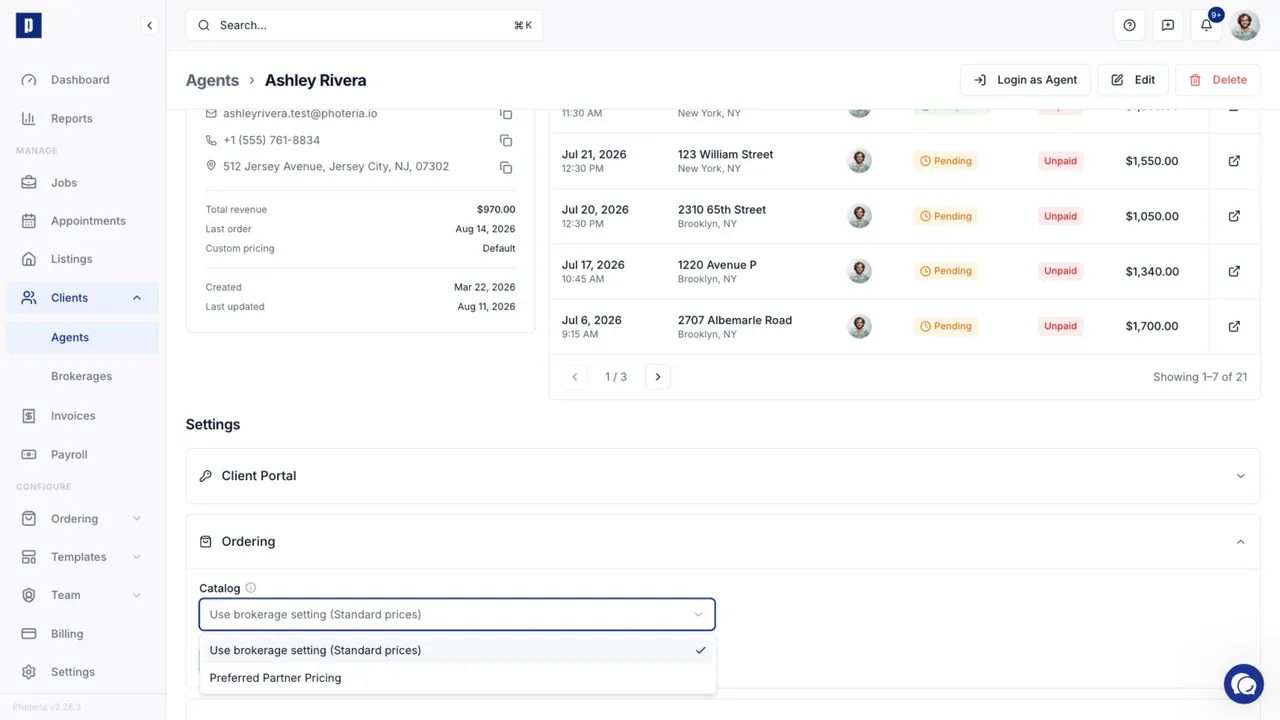
An agent can use the brokerage's catalog or have a different catalog assigned directly. To set brokerage pricing, open Clients → Brokerages, select the brokerage, and use its Ordering settings.
Orders for that agent or brokerage use the catalog prices wherever an override exists. Items left on Use default continue using your current standard prices.