Building and Publishing a Property Website
Build a listing website with sections, customize its design, preview it, and publish it.
Written By David Dayan
Each listing can have a public property website for its photos, videos, 3D tours, floor plans, property details, amenities, open houses, and contact information.
Open the Website Editor
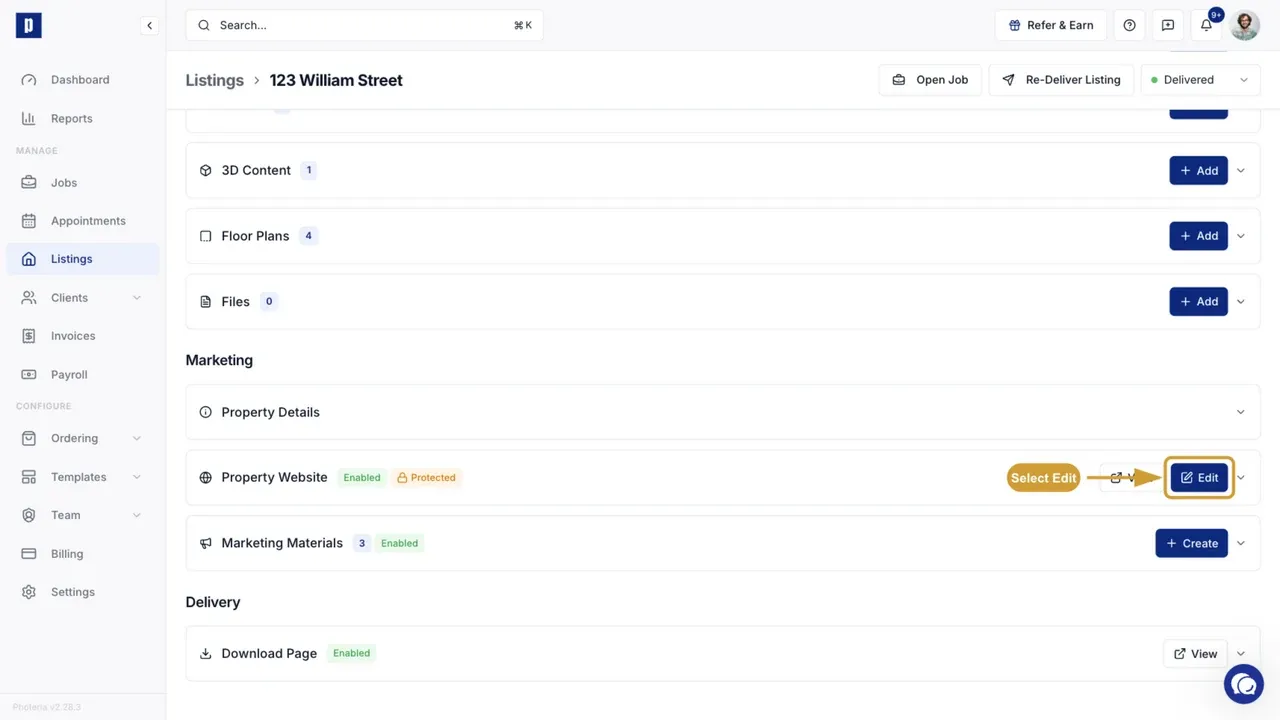
- Open Listings and select the listing.
- Find Property Website.
- Turn on Enabled if the website is currently disabled.
- Select Edit.
The Website Editor combines the section list with a live preview of the page.
Build the page with sections
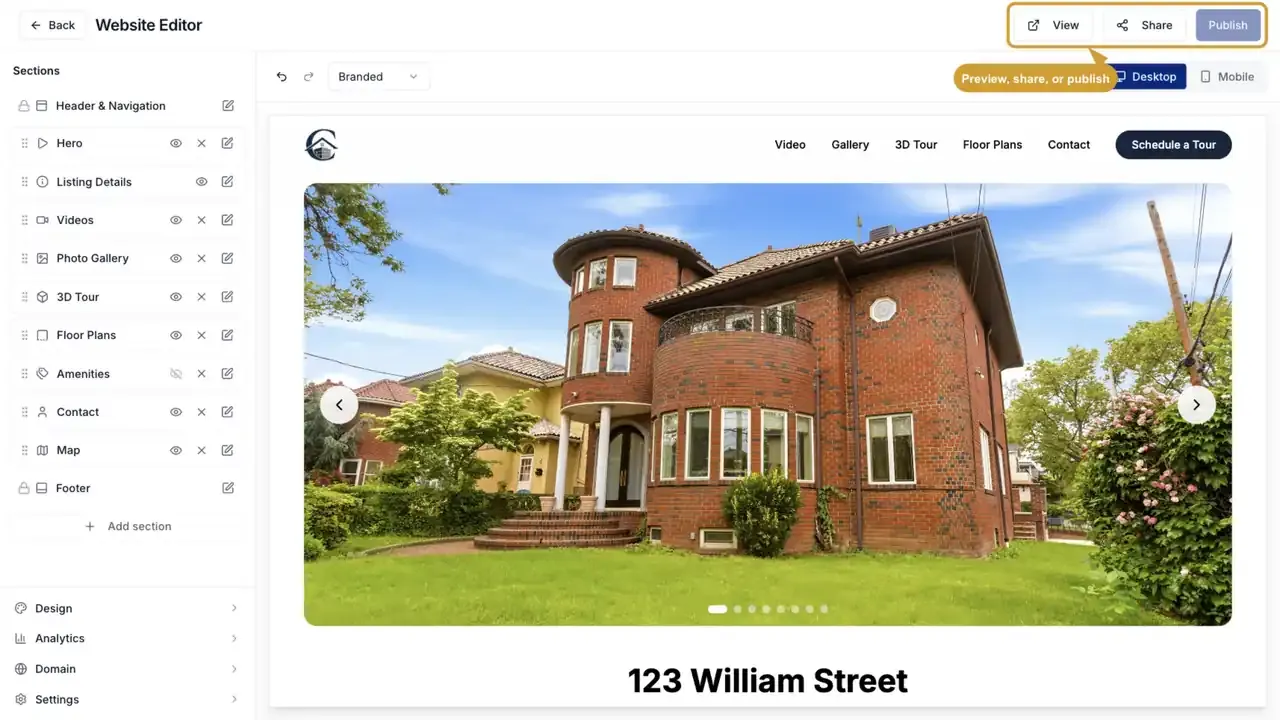
The left side of the editor controls the order and contents of the website:
- Drag the handle beside a section to move it.
- Use the eye control to show or hide it.
- Select the X to remove a section that can be added again later.
- Select the edit control to change that section's content and layout.
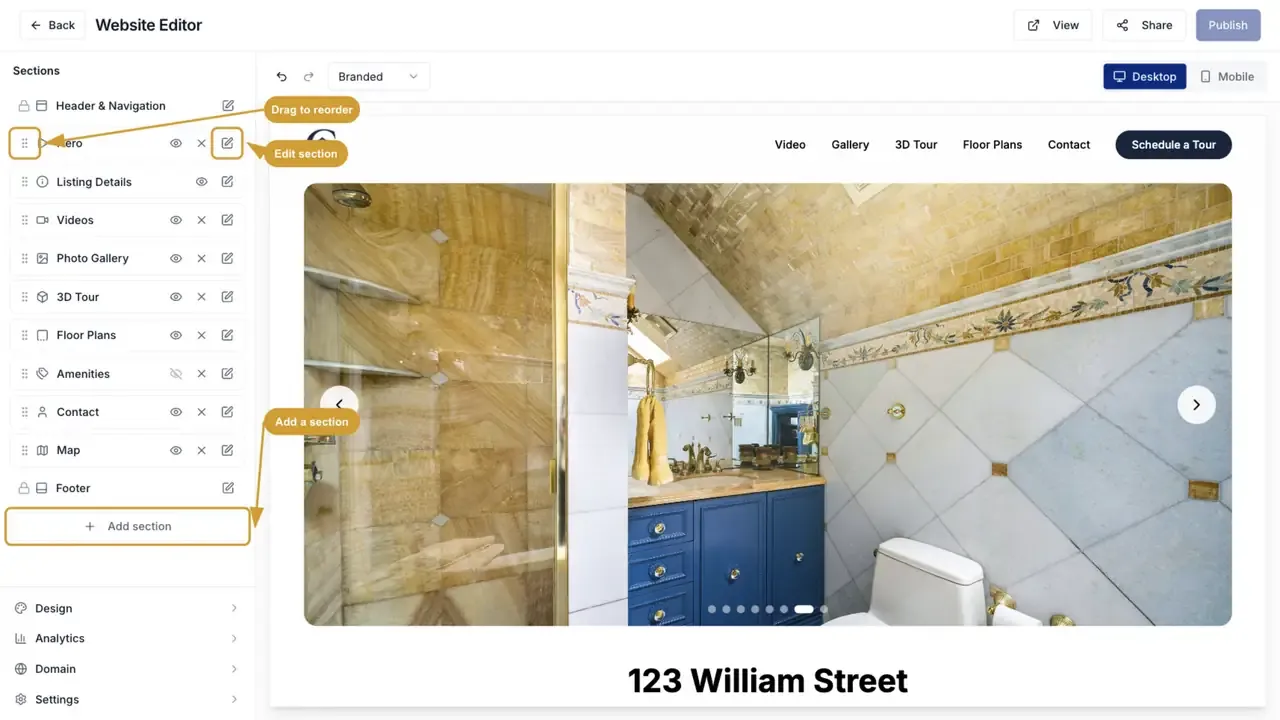
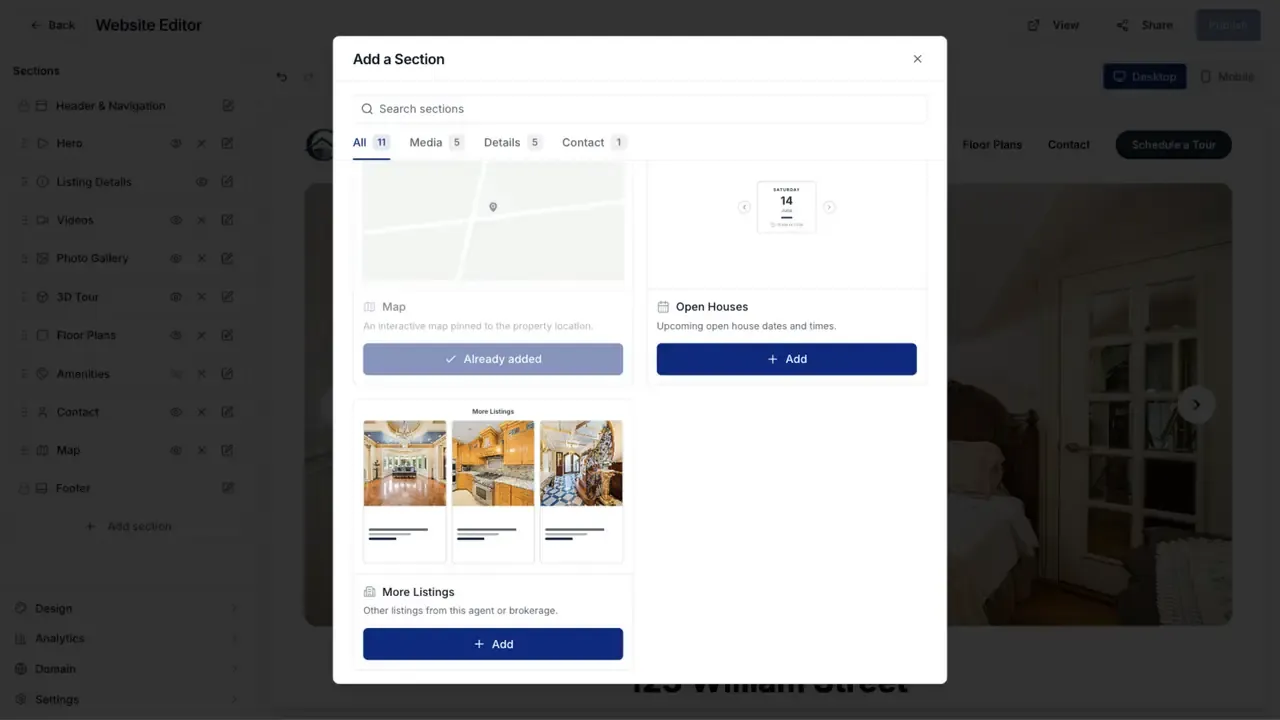
Select Add section to add content that is not already on the page. Available sections include Hero, Photo Gallery, Videos, 3D Tour, Floor Plans, Amenities, Files, Contact, Map, Open Houses, and More Listings.
The picker separates sections by type and shows Add only for sections that are not already on the page.
A section with no content stays hidden from the public website until the listing has something to show there.
Customize a section
Select a section's edit control to change the options that belong to it. The preview updates while you work.
For example, the Hero section lets you choose its layout, decide whether to show the title, price, and quick facts, select a slideshow, static image, or video, and arrange the slideshow images.
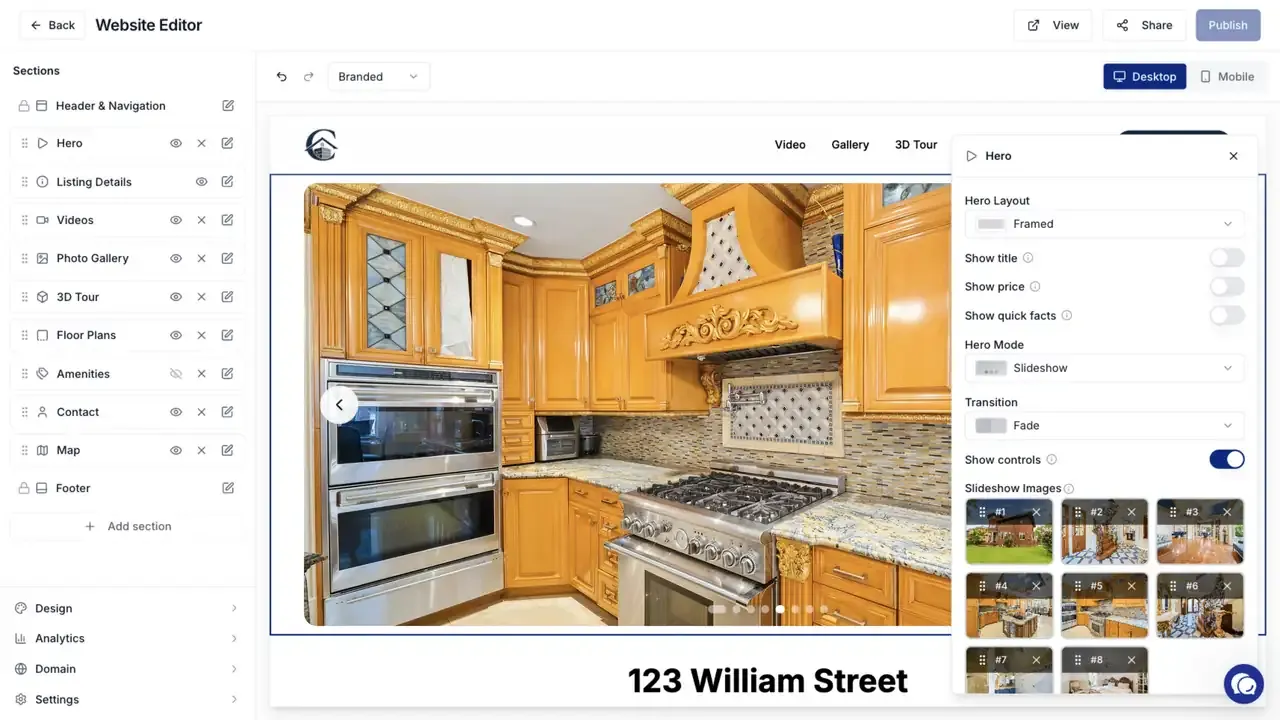
Use the desktop and mobile controls above the preview to check both layouts.
Change the overall design
Open Design to set the website colors, font, element style, text alignment, header style, and page animation. You can apply a built-in preset or save the current design as a preset for other listings.
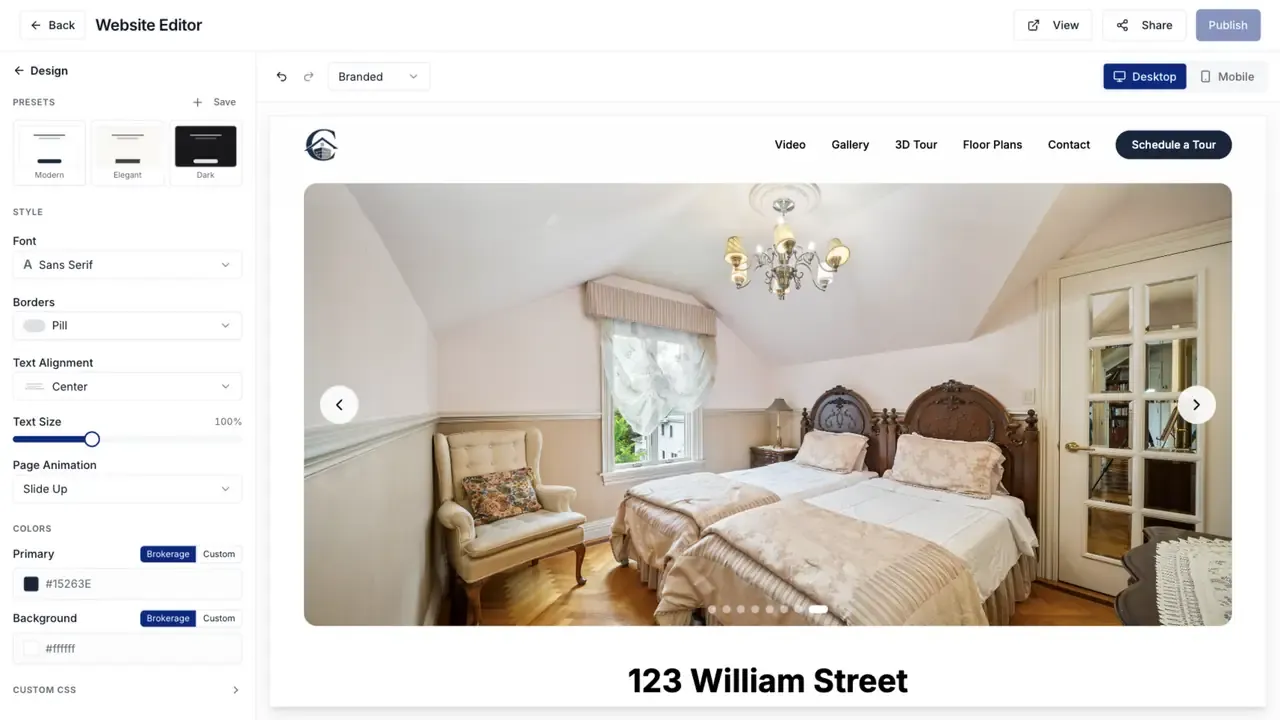
Use the preview selector to switch between the branded website and the MLS-friendly version.
Publish and share
Changes made in the Website Editor are drafts until you select Publish. After publishing:
- Select View to open the public website.
- Select Share to share or copy its link.
- Open Domain to buy a listing domain or connect one you already own.
See Adding a Custom Domain to a Property Website for domain setup.
Control access
Open Settings in the Website Editor to turn the property website on or off and manage its availability.
An administrator can also control whether a client may use the Website Editor from the listing's Property Website card.