Using and Customizing the Dashboard
Use the dashboard to see what needs attention, open common workflows, and arrange widgets around the way you run your business.
Written By David Dayan
The dashboard gives you a quick view of what needs attention and shortcuts into your daily work. You can choose which widgets appear and arrange them around the way you run your business.
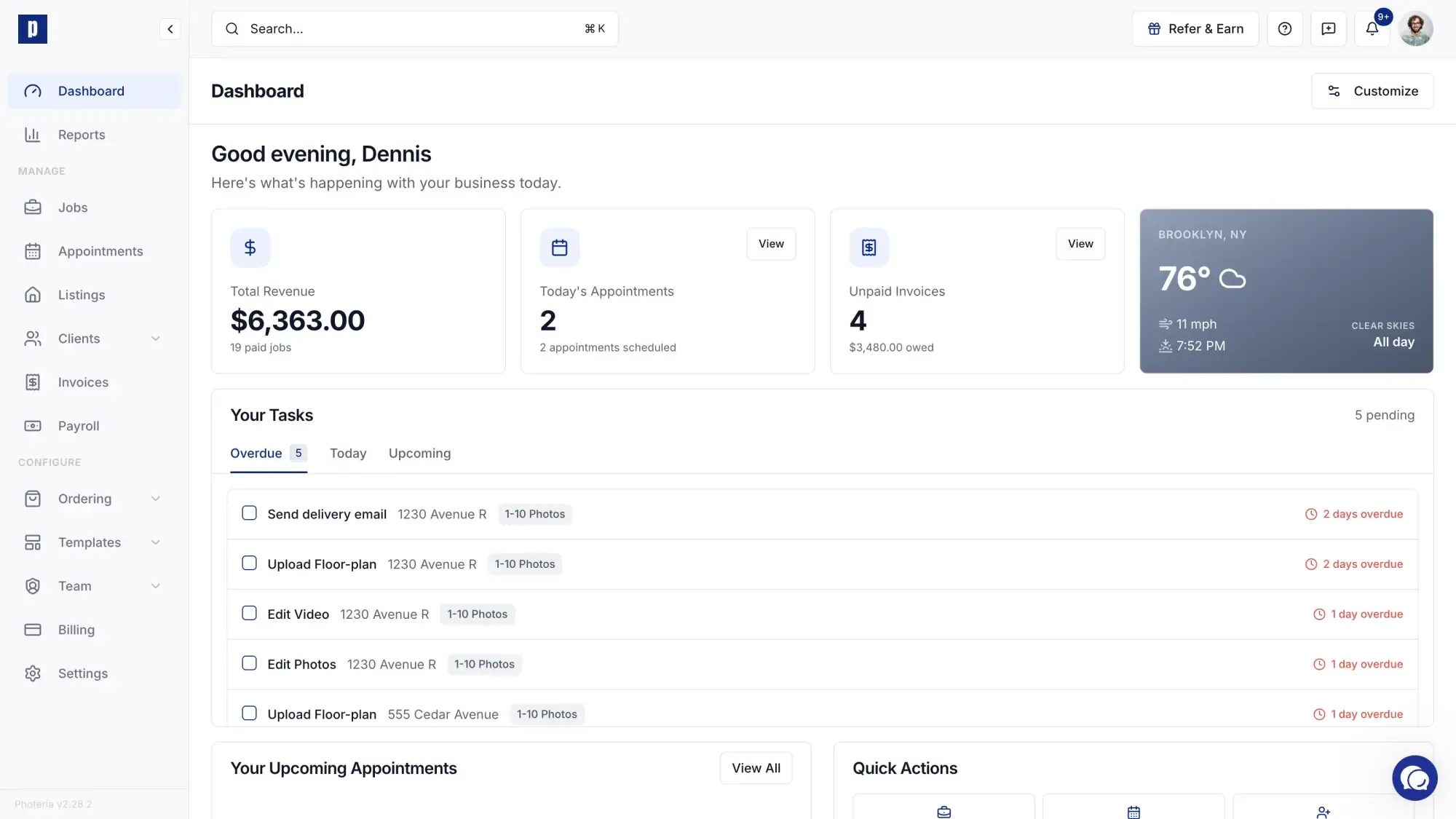
Use the dashboard to plan your work
Summary widgets show information such as revenue, today's appointments, unpaid invoices, and weather. Your available widgets depend on your role and permissions.
Use Your Tasks to move between overdue, due today, and upcoming work. Upcoming Appointments shows what is next on your schedule, and Quick Actions gives you direct access to common tasks such as creating a job or adding a client.
Customize your dashboard
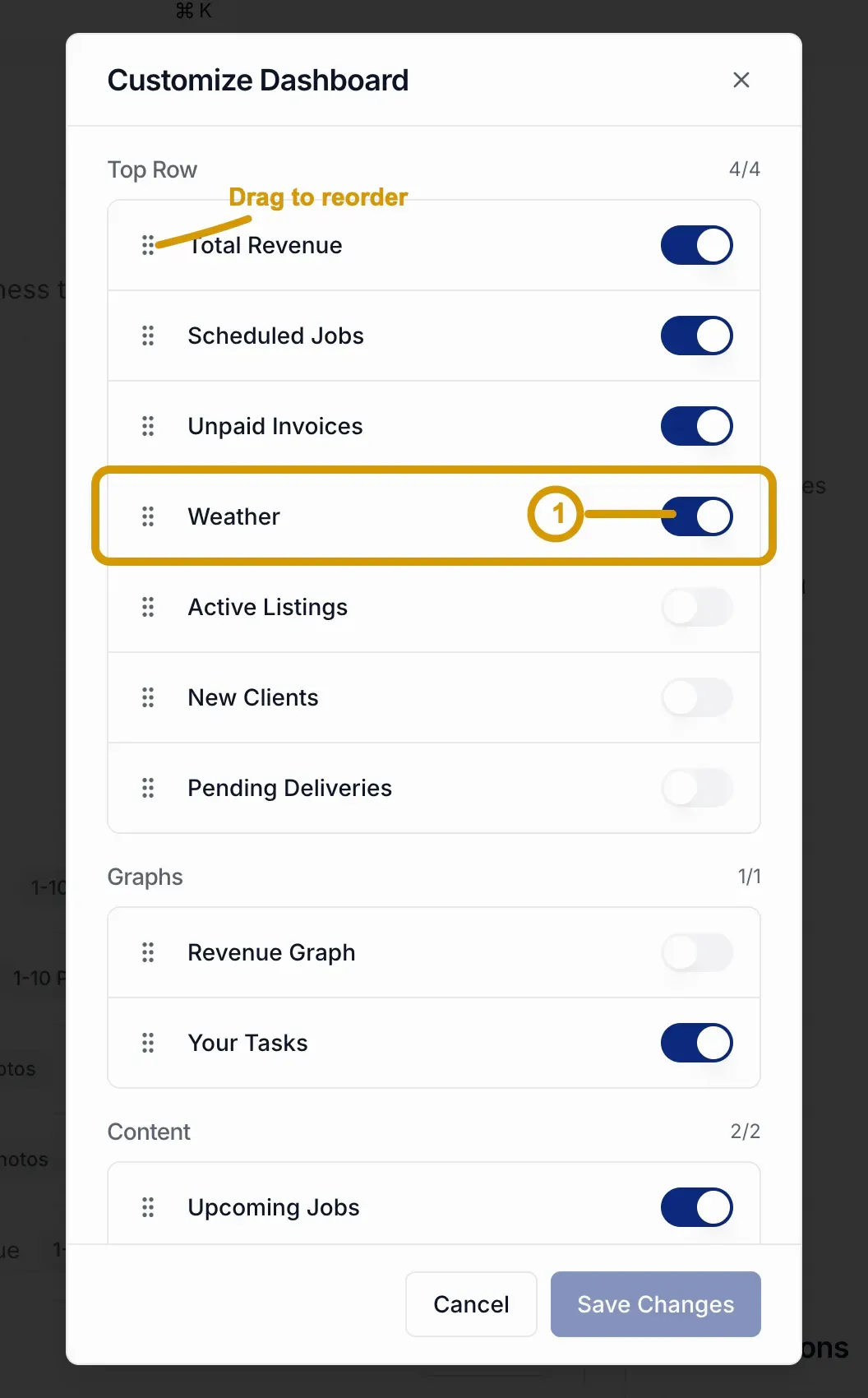
- Click Customize in the top-right.
- Turn widgets on or off. Some choices become unavailable when a section has reached its display limit.
- Drag the handle beside a widget to change its position.
- Click Save Changes.
Your layout is personal and follows you across devices. Widgets you do not have permission to see are hidden automatically.
Next steps
- Use Global Search to find a specific job, client, appointment, listing, invoice, or team member.
- Follow Your First Job to create your first photography job.