Recording a Manual Payment
Record cash, check, bank transfer, and other payments received outside online checkout.
Written By David Dayan
Recording a Manual Payment
Record a manual payment when a client pays outside the online checkout, such as by cash, check, bank transfer, or another agreed method.
Add a payment
- Open Invoices and select the invoice.
- Select Add Payment.
- Enter the amount received.
- Choose the payment method.
- Confirm the payment date.
- Add a note when you need to keep a check number, reference number, or other detail with the payment.
- Select Add Payment.
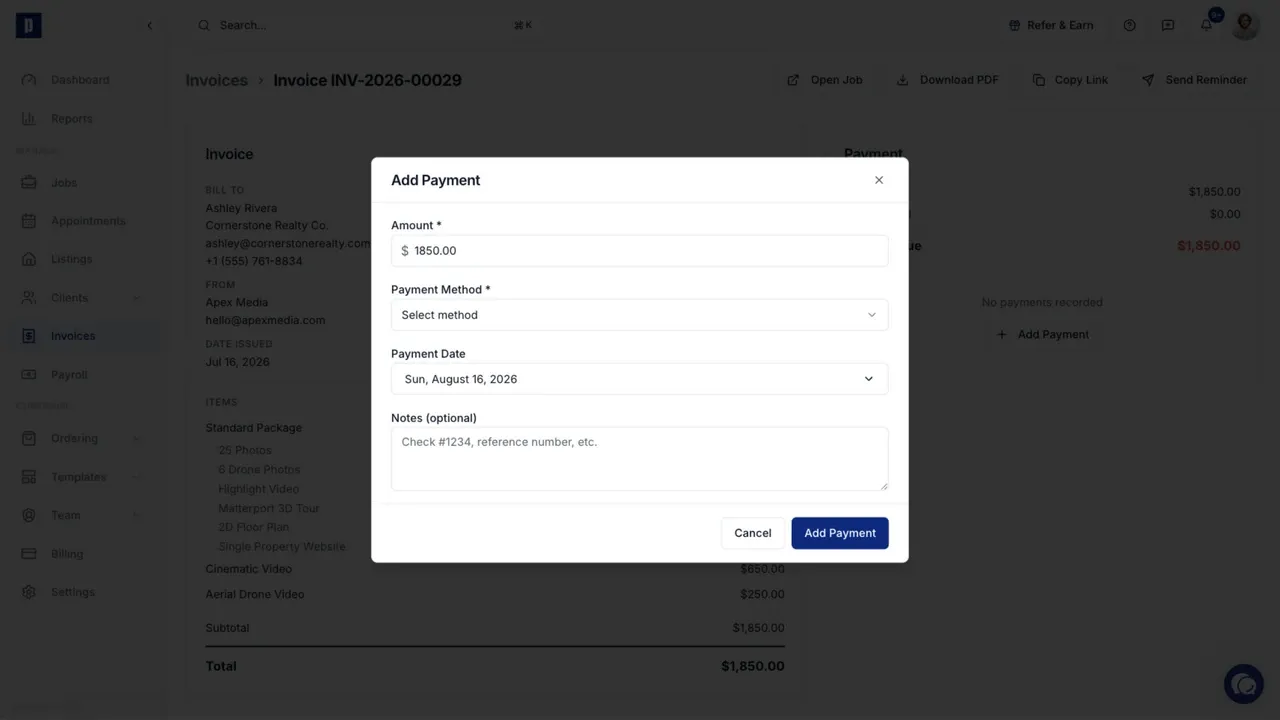
Choose Other when the method is not listed, then enter a clear label for it.
The invoice becomes Partial when a balance remains and Paid when the full amount has been recorded.
Correct a manual payment
Open the payment from the invoice to edit or delete a payment that your team recorded manually. Payments confirmed by an online payment processor cannot be changed this way.
You need Invoices: Manage permission to add, edit, or delete a manual payment.