Client Invoicing
Client invoices are what you bill your real estate agents for photo services. Client invoices live on the Invoices page in the sidebar and on each job's detail page.
Written By David Dayan
Client invoices are what you bill your real estate agents for photo services. Client invoices live on the Invoices page in the sidebar and on each job's detail page.
This is separate from platform billing (what you pay Photeria). For that, see How Billing Works.
When invoices are created
Invoices are not created automatically when a job is booked. An invoice is created in one of two ways:
- Automatically - when the listing is activated (goes live), invoices are generated for all jobs linked to that listing, and invoice numbers are assigned.
- Manually - on the job detail page, click the Create Invoice button. This appears when a job doesn't have an invoice yet.
Until an invoice is created, the job won't appear on the Invoices page.
Invoice numbers
Invoice numbers follow the format INV-YYYY-NNNNN (e.g., INV-2026-00042). They are assigned when the invoice is created.
The Invoices page
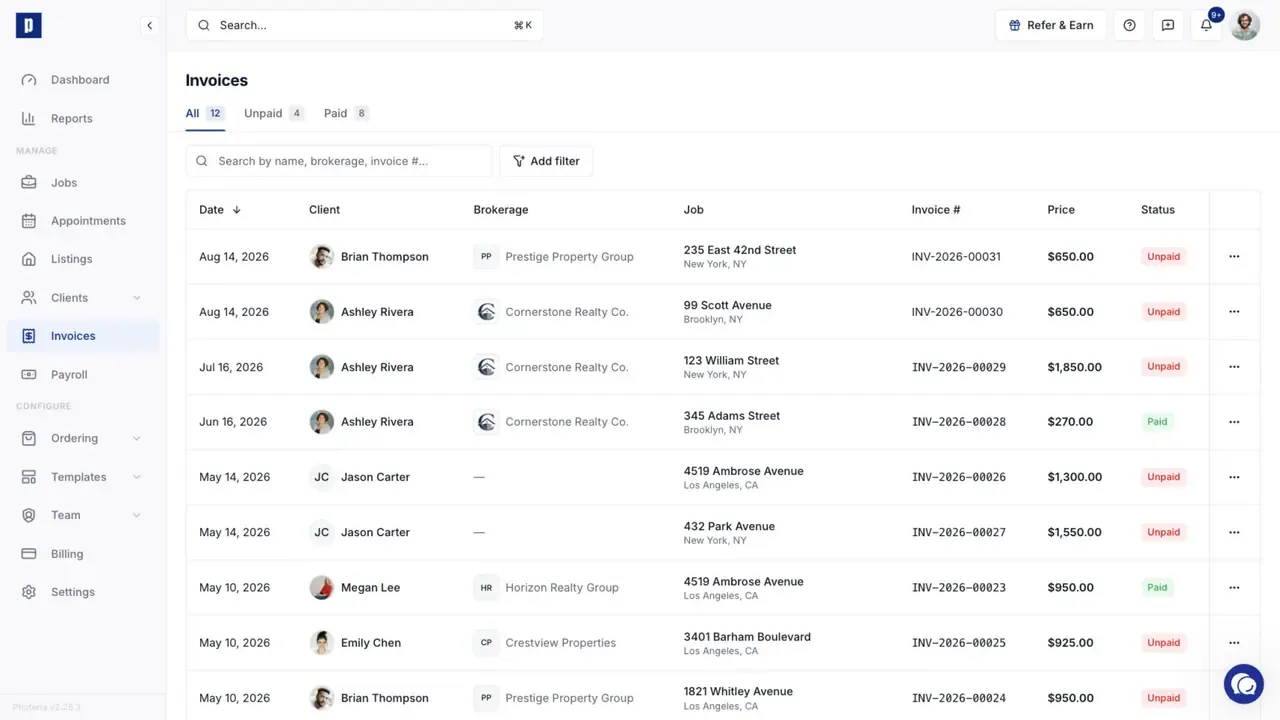
Open Invoices from the sidebar under Manage. It lists every job that has an invoice.
Tabs
- All - every invoice
- Unpaid - status Unpaid or Partial
- Paid - fully paid
Each tab shows a count badge.
Columns
- Date - when the invoice was created
- Name - client agent (with avatar)
- Brokerage - firm with logo, if assigned
- Invoice # - invoice number
- Price - total invoice amount
- Status - Unpaid / Partial / Paid
Filters
- Search - agent name, brokerage, invoice number, email, property street
- Client - filter by a specific agent
- Brokerage - filter by firm
Row actions
- Copy link - copies the public invoice URL to your clipboard
- Send email - opens the Compose Email dialog pre-filled with invoice data (disabled if the client has no email)
Clicking a row opens the invoice detail page.
Invoice detail page
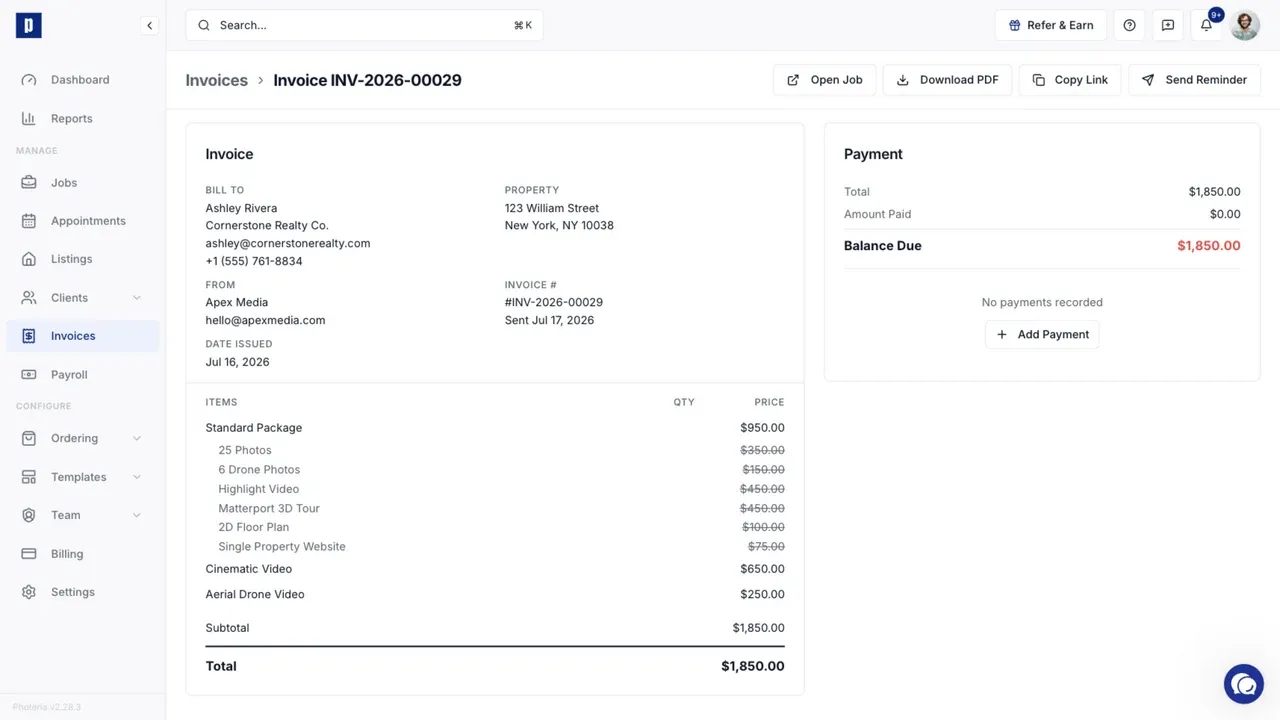
The invoice detail page has two columns:
Left column: Invoice card
A full invoice breakdown showing:
- Header - "Invoice" title with a payment status badge (Paid / Unpaid / Partial)
- Bill To - agent name, brokerage, email, phone
- Property - street address, city/state/zip
- From - your company name, email, phone
- Invoice # and date issued
- Line items - packages (with included services shown as indented sub-rows), standalone services with quantity, and fees
- Totals - Subtotal, Discount (if any), Tax (if any), Total (bold)
Right column: Payment panel
- Balance summary - Total, Amount Paid, Balance Due
- Payment history - each recorded payment shows amount, method (user-friendly label), date, and notes. Stripe payments are tagged with a "Stripe" badge. Non-Stripe payments have edit and delete icons.
- Add Payment button at the bottom
Header actions
In order: View Job, Download PDF, Copy Link, Send Invoice (or Send Reminder after the first send).
Payment status
Payment status updates automatically as you record payments:
- Unpaid - no payments recorded
- Partial - some payments recorded but less than the total
- Paid - fully paid
Building the invoice on a job
The invoice is built from line items on the job. There are three line-item types:
- Services - individual offerings (interior photos, drone video, etc.)
- Packages - bundles of services at a discount
- Fees - custom one-off charges (rush, travel, etc.)
Plus Subtotal, Discount, Tax, Total, Amount Paid, and Balance Due summary lines.
See Services, Packages, and Fees for the full rundown of line items and discounts.
Tax
Tax is displayed on invoices when the amount is greater than zero. You can set or adjust the tax amount manually:
- Open the invoice detail page.
- The tax amount is shown in the totals section.
- Adjust as needed, and the total updates to reflect the new tax amount.
Zero-tax rows are hidden from all invoice surfaces (detail page, PDF, email).
Sending an invoice to a client
From the job detail page or the invoice detail page:
- Click Send Invoice (or Send Reminder if previously sent).
- The Compose Email dialog opens pre-filled with invoice details.
- The To field is pre-populated with the agent's email but can be edited: add, remove, or change recipients.
- Review the subject, body, and sender.
- Click Send to deliver immediately, or use the schedule picker to send later.
The client gets a branded email with a link to the public invoice page. On that page they can pay online (if Stripe is connected) or see how to pay offline.
After the first send, the button label changes to Send Reminder.
Payment receipt emails
When a payment is recorded on a job, a payment receipt email is automatically sent to the agent (if they have an email on file). This can be disabled per organization under Settings → Email Templates ("Payment Receipt").
Recording a payment
From the invoice detail page:
- Click Add Payment.
- Fill in:
- Amount - how much was paid
- Method - Cash, Check, Bank Transfer, Credit Card, or Other
- Custom label - when "Other" is selected, a text input appears for a custom label (e.g., "Venmo", "Zelle", "PayPal")
- Date - when it was received
- Notes - optional (check number, reference, etc.)
- Save.
The payment status updates automatically. You can edit or delete non-Stripe payments from the payment history list.
Online payments (Stripe Connect)
If your organization has connected a Stripe account, clients can pay invoices online from the invoice page. The invoice is marked Paid automatically when the payment goes through.
Set this up under Settings → Integrations. See Stripe Payments.
Downloading invoice PDFs
Both the admin invoice detail page and the client-facing invoice page have a Download PDF button in the header. The PDF includes:
- Your company logo (or name)
- Invoice number and date
- Bill To and From details
- Full line-item breakdown with packages, services, and fees
- Totals with discount, tax, and balance due
- A "PAID" badge if fully paid
The file downloads as Invoice-{number}.pdf.
Permissions
- Invoices: Read - view invoices and the Invoices page
- Invoices: Manage - edit line items, record payments, send invoices, create invoices
If some buttons don't appear, your role doesn't include that permission.