Company Settings

Your company settings are the foundation of your account. This is where you manage your organization name, contact details, regional preferences, and social media links. These details appear throughout your portal and on client-facing pages.

Written By David Dayan

Your company settings are the foundation of your account. This is where you manage your organization name, contact details, regional preferences, and social media links. These details appear throughout your portal and on client-facing pages.

To get started, head to Settings from the sidebar and make sure you're on the Company tab.

Company Information

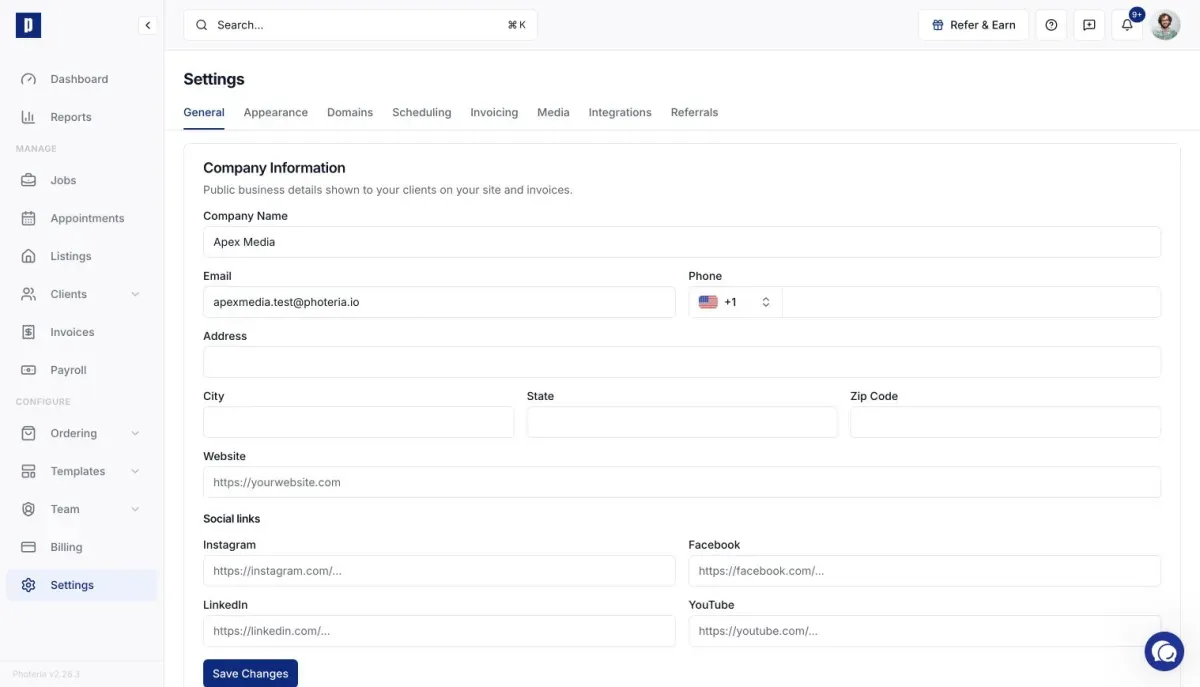
The Company Information card holds the basic details about your business.

Fields

  • Company Name - Your organization's display name. This shows up in the portal header, emails, and invoices.
  • Tagline - A short phrase or slogan for your business. This appears alongside your company name in certain places.
  • Email - Your main business email address. Clients may see this as a way to reach you.
  • Phone - Your business phone number. The field formats your number automatically as you type.
  • Address - Your street address.
  • City, State, Zip Code - The rest of your mailing address, displayed in a three-column layout.
  • Website - Your company's website URL. Enter the full URL including https://. Spaces are automatically stripped when typing or pasting.

How to save

Click Save Changes at the bottom of the card to save.

Regional Settings

Regional settings control how dates, times, and currency are displayed across your account.

Timezone

Choose the timezone that matches your business location. This affects appointment scheduling, order timestamps, and any time-based displays. The available options are:

  • Eastern Time (ET)
  • Central Time (CT)
  • Mountain Time (MT)
  • Arizona (MST)
  • Pacific Time (PT)
  • Alaska (AKT)
  • Hawaii (HST)
  • Atlantic Time (AST)

Currency

Currency is currently set to USD (US Dollar). Additional currencies will be supported in the future.

Click Save Changes at the bottom of the Regional Settings card to apply your changes.

Social Media

The Social Media card is where you add links to your company's social profiles. These links appear on your property websites and public-facing pages.

Available platforms

  • Instagram - Enter the full URL to your Instagram profile (e.g., https://instagram.com/yourcompany).
  • Facebook - Enter the full URL to your Facebook page (e.g., https://facebook.com/yourcompany).
  • LinkedIn - Enter the full URL to your LinkedIn company page (e.g., https://linkedin.com/company/yourcompany).
  • YouTube - Enter the full URL to your YouTube channel (e.g., https://youtube.com/@yourcompany).

All social media fields accept full URLs. Spaces are automatically removed when you type or paste.

Click Save Changes at the bottom of the Social Media card when you're done.

Make sure to save each section before moving on to a different settings tab.