Managing Marketing Templates
Marketing templates are the designs your agents use to make flyers, social posts, brochures, and other property marketing. Your staff build the templates; agents create designs from them in the client portal. Find them under Templates → Marketing.
Written By David Dayan
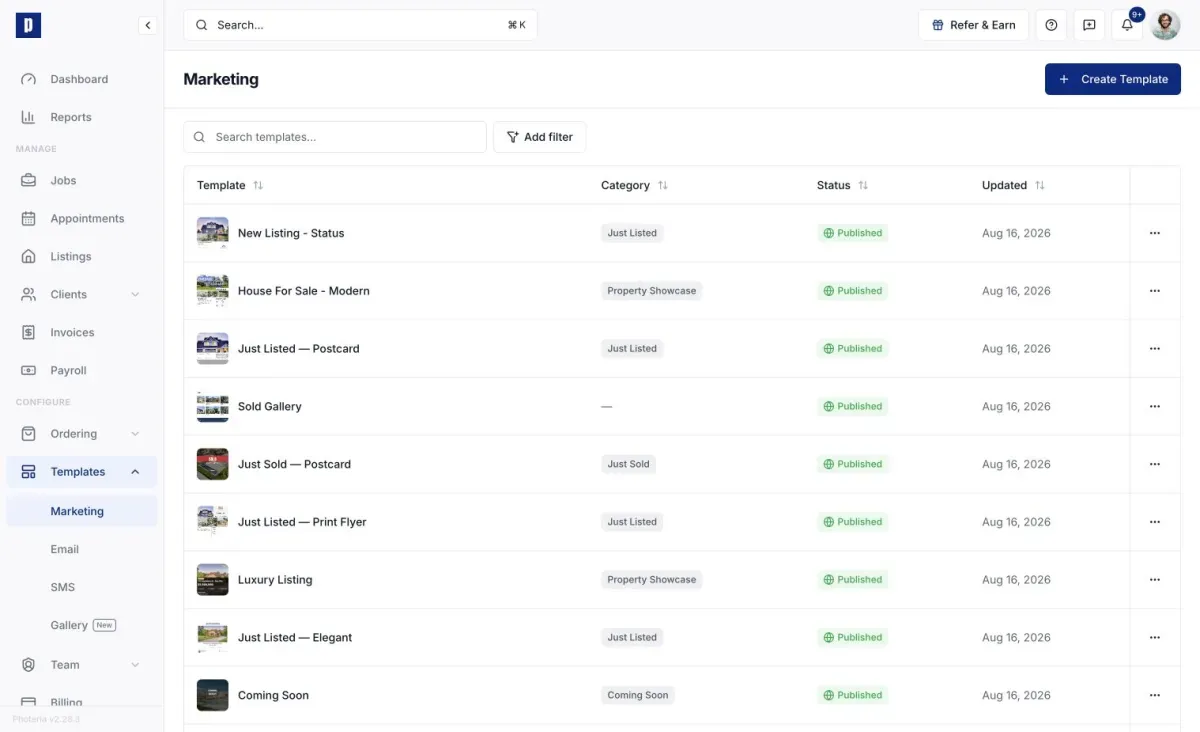
Marketing templates are the designs your agents use to make flyers, social posts, brochures, and other property marketing. Your staff build the templates; agents create designs from them in the client portal. Find them under Templates → Marketing.
This is a staff-only page.
Where templates come from
Two sources sit on the page:
- Your Designs - templates owned by your organization.
- Global templates - a shared starter library, read-only and not owned by any org. Clone one with Use Template to get an editable copy in your org as a new draft.
Creating a template
Click Create Template and set:
- Name - shown to agents.
- Type - Image (a still design) or Video (a slideshow with transitions).
- Category - groups the template for agents (Instagram, Facebook, YouTube, LinkedIn, Print). Choose Custom to add a new category name on the spot.
- Size - a canvas preset (like Instagram Post 1080×1080 or Letter Portrait 2550×3300), or Custom for your own dimensions up to 4000 × 4000 px.
You can also start by cloning a global template or by using a Create Blank tile at the end of a global category group. Cloning keeps the source template's size.
Editing and tagging
Editing opens the same editor agents use, plus staff-only features. The key one is tagging: bind canvas elements to dynamic data fields like address, price, photos, agent name, and brokerage logo. When an agent creates a design from the template, those bindings resolve automatically against their listing. Tag everything dynamic before publishing so agents get ready-to-send designs with no manual edits.
Unlike agent designs, templates save manually. Click Save in the editor.
Publishing
Status controls agent visibility:
- Draft - staff only, hidden from agents. Keep works-in-progress here.
- Published - agents can use it.
Toggle status from the card or its menu. Unpublishing hides a template from agents but leaves existing designs untouched.
Other actions
From a template's menu you can duplicate it (as a new draft), open Settings to rename it, change its category and status, and control visibility (all agents, or specific brokerages/agents), or delete it. Deleting is permanent, but existing agent designs based on it keep working.
Best practices
- Use descriptive names like "Just Listed: Instagram Story" so agents find the right one fast.
- Tag all dynamic fields before publishing.
- Preview as an agent via impersonation to confirm the design renders correctly with real listing data.