How Clients Place Orders

When clients visit your order form, they walk through a guided 6-step process to choose services, provide property details, and schedule their shoot. This article explains each step from the client's perspective so you know exactly what your customers experience.

Written By David Dayan

When clients visit your order form, they walk through a guided 6-step process to choose services, provide property details, and schedule their shoot. This article explains each step from the client's perspective so you know exactly what your customers experience.

Accessing the order form

Clients reach the order form through a direct link, typically in the format https://yourdomain.com/order/your-slug. If they visit /order without a specific slug, what they see depends on how many public order forms you have: if you have exactly one, they're sent straight to it; if you have several, they see a page listing your public order forms to choose from; and if you have none, they see a "Booking Unavailable" message.

The 6-Step Order Wizard

The order process is split into six clearly labeled steps. A progress bar at the top shows where the client is in the process. The steps are: Services, Questions, Property, Contact, Schedule, and Review.

Step 1: Services

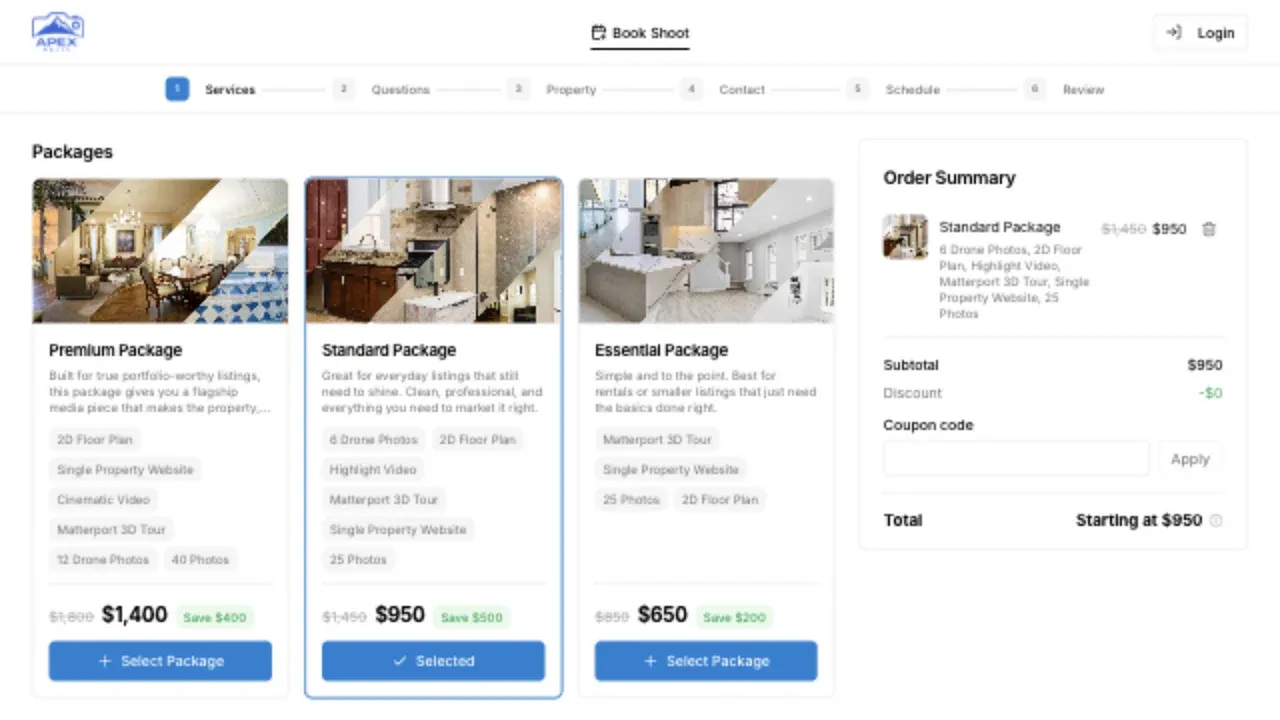
This is where clients pick what they want. The page shows two sections:

Packages appear at the top as featured cards. Each package card shows:

  • The package name, description, and price
  • A badge (if configured, like "Most Popular")
  • A strikethrough "original" price showing how much the client saves
  • A media carousel if you've uploaded images or videos

Clients can click a package to select it, which pre-selects all the services included in that bundle.

Services appear below, organized by category. Each service card shows:

  • The service name, price, and duration
  • A thumbnail from the service gallery
  • For quantity-based services, a quantity selector with +/- buttons

Clients click a service card to toggle it on or off. If they've already selected a package, services that are included in the package show a checkmark and can't be deselected individually. Clients can still add extra services on top of their package.

Clicking the info button on any service or package opens a detail popup with the full gallery and description.

Variable pricing note: If a service or package uses square-footage-based pricing, clients see "Starting at $X" until they enter the property square footage in Step 3. Once square footage is provided, prices update to show the exact amount.

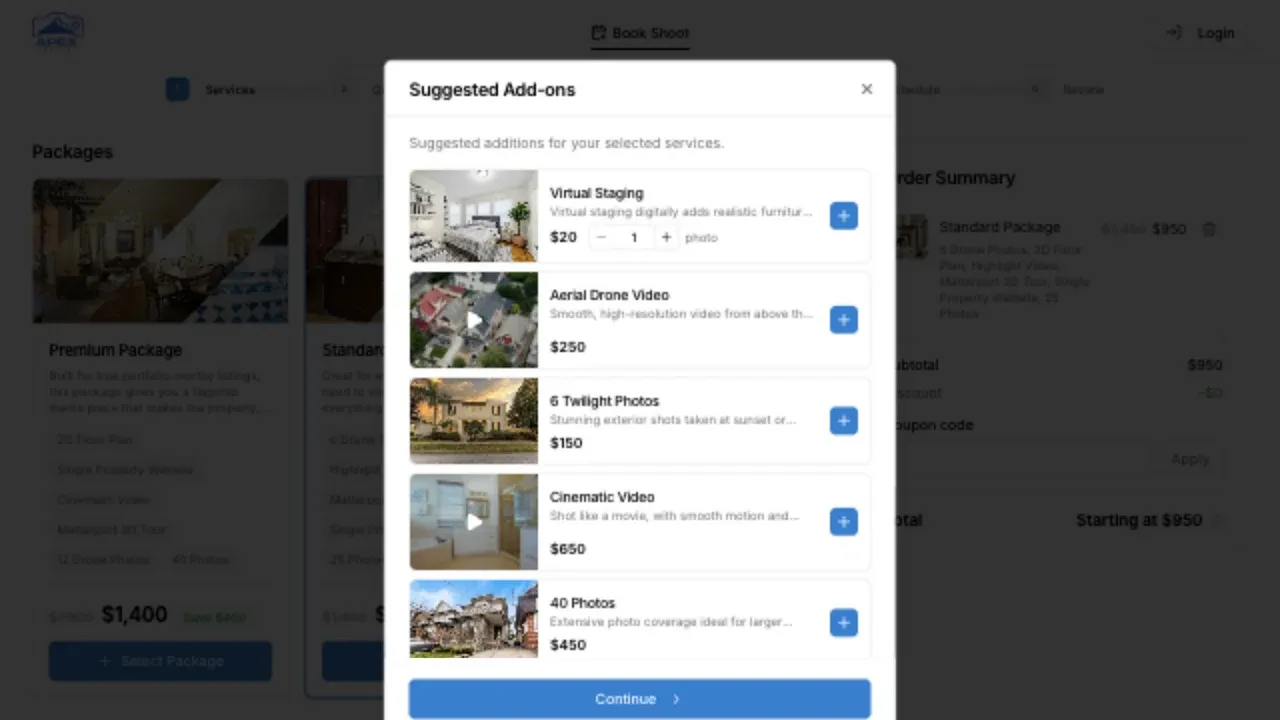
Add-on suggestions: After selecting services, if any of the chosen services or the selected package has recommended add-ons configured, a popup appears suggesting those extras before moving on. Clients can add or dismiss the suggestions.

Step 2: Questions

If any of the selected services have associated questions, clients see them in this step. Questions can be:

  • Text fields for free-form answers
  • Number inputs (which may adjust the price per unit entered)
  • Single select radio-style choices (some options may add to the price)
  • Multi select checkbox-style choices (multiple options can be picked)

If a question has a skip option enabled, clients see a checkbox they can tick to opt out (e.g., "Choose the song for me").

This step is skipped entirely if none of the selected services have questions linked to them. The wizard jumps straight from Services to Property.

Step 3: Property

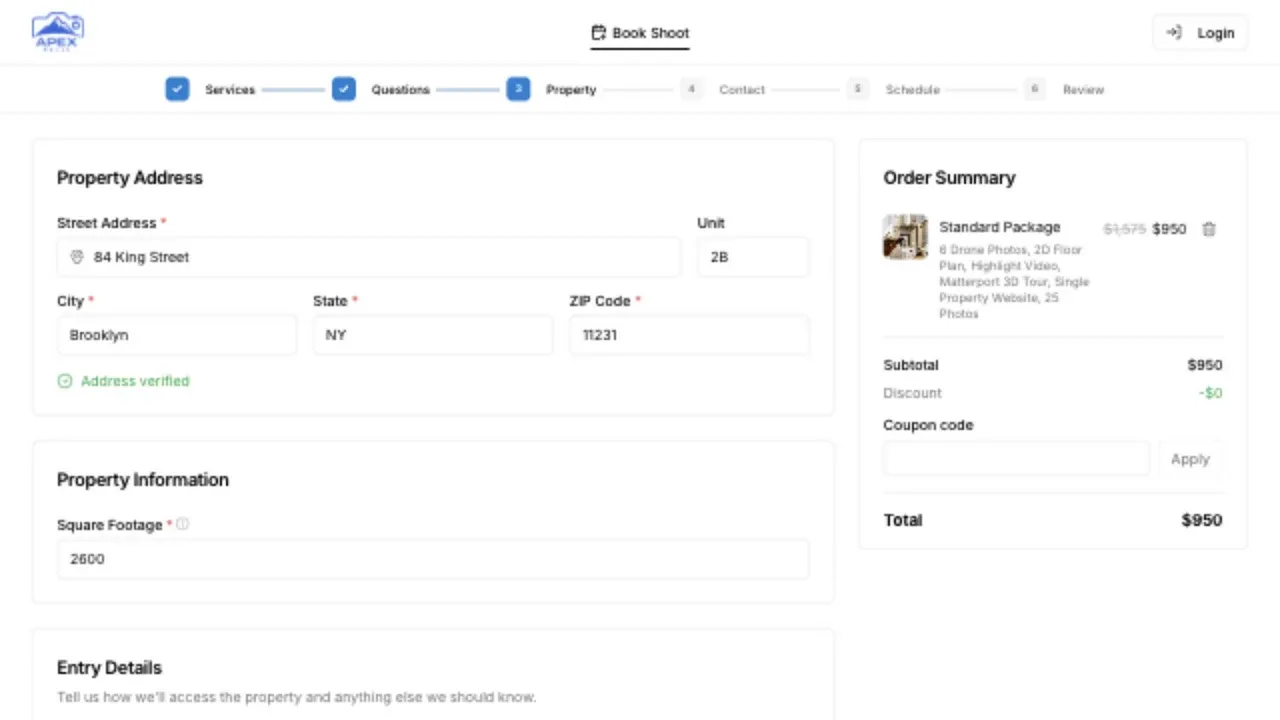
Clients enter the property details:

  • Property Address: Start typing and pick from the autocomplete suggestions.
    • If the address is outside your service areas, the client sees a notice.
    • If the area has a travel fee, it's automatically added to the order total.
  • Unit/Suite Number: Optional, for multi-unit properties.
  • Square Footage: Required if any selected service uses square-footage-based pricing or duration. When entered, all prices on the order update to reflect the exact tier.
  • Entry Method: How the photographer will access the property (Agent Entry, Lockbox, or Owner Entry).
    • If "Lockbox" is selected, a Lockbox Code field appears.
  • Notes: A text area for any special instructions.

Step 4: Contact

Clients provide their contact information:

  • First Name and Last Name
  • Email
  • Phone Number (with a phone input that handles formatting)
  • Company/Brokerage (optional)

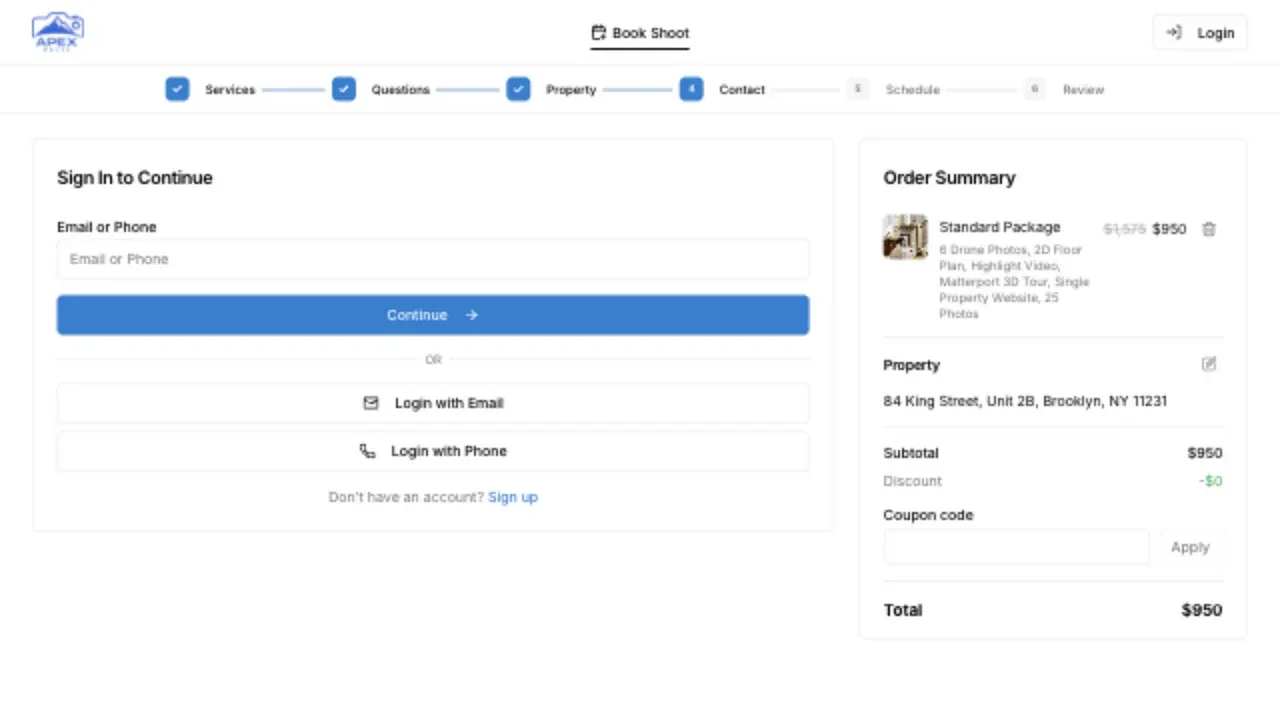
If the client is already logged in, these fields are pre-filled from their profile. If not, they'll need to sign in or create an account before proceeding. An authentication dialog appears when needed.

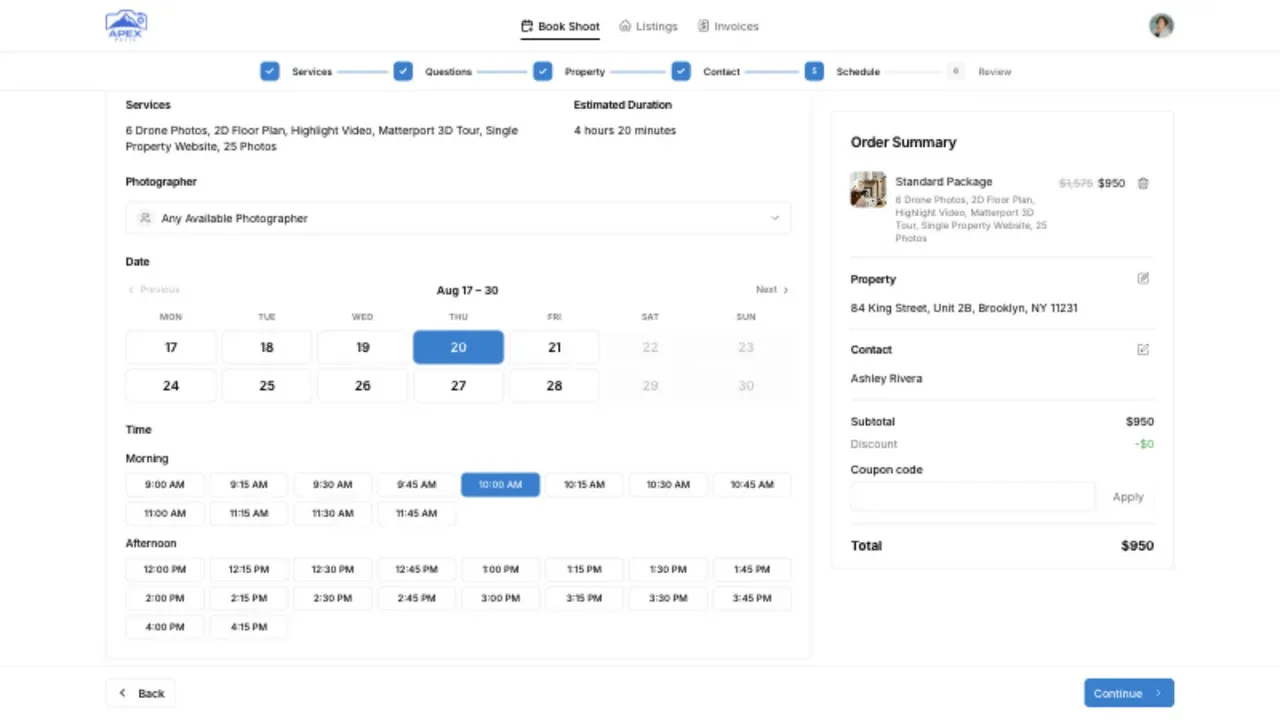
Step 5: Schedule

Clients choose when they'd like the shoot:

  • Date: A date picker showing available dates.
  • Photographer: If your organization has enabled photographer selection, an optional dropdown appears to request a specific photographer, or leave it as "Any Available Photographer."
  • Time: Available time slots are shown grouped by morning, afternoon, and evening. Only slots that fit the total duration of the booked services are shown.

Clients only see times that are actually open based on photographer availability.

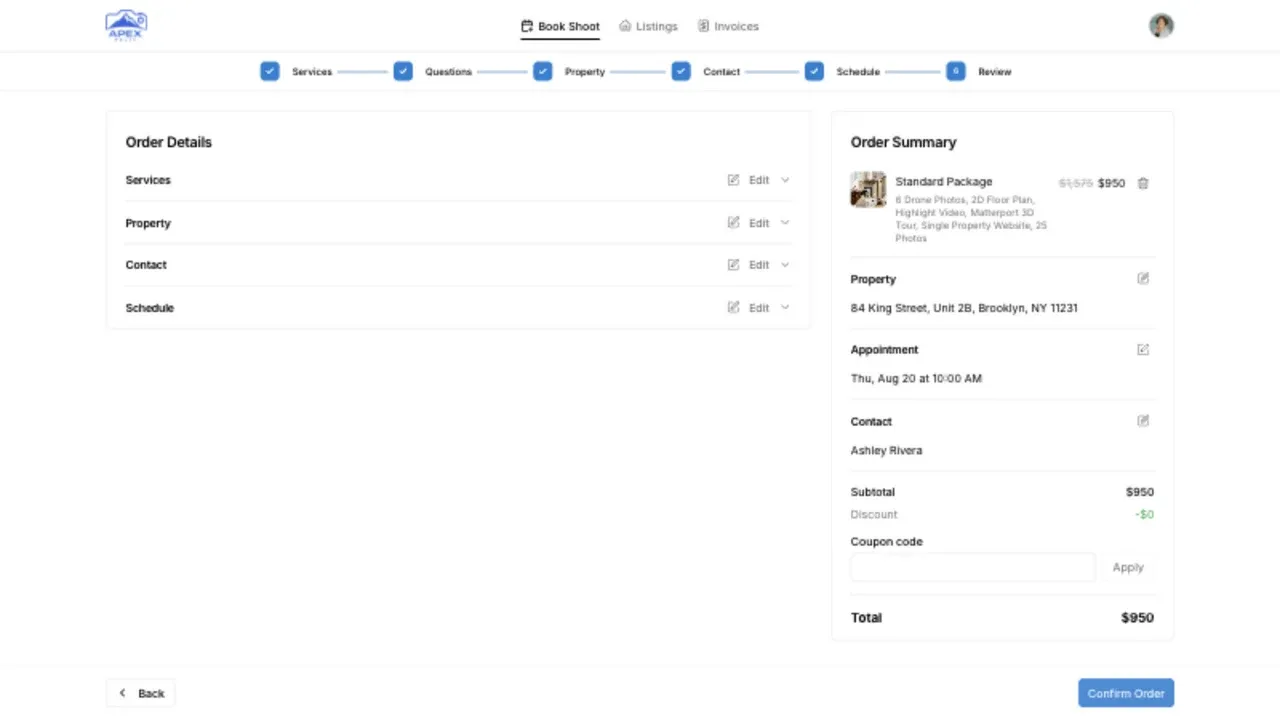
Step 6: Review

The final step shows a complete summary of the order:

  • Selected package (if any) with its discounted price and the savings amount
  • Individual services with their prices (and quantities for quantity-based services)
  • Question responses and any associated price adjustments
  • Travel fee (if applicable)
  • Total price
  • Property address and details
  • Contact information
  • Scheduled date and time

Clients can use the Back button to return to any previous step and make changes. If your organization has terms of service configured, clients must check an agreement box before submitting.

Once they click Submit Order, the order is created and they see a confirmation. If payment is required, they're taken to the payment flow.

Tips for a Great Client Experience

  • Keep your order form focused. Offer 2 to 3 packages and a manageable list of individual services.
  • Use clear service names and descriptions so clients understand what they're getting.
  • Upload high-quality gallery images for services and packages. Visual examples help clients make decisions.
  • Set up your service areas so clients get instant feedback on whether you cover their location.
  • Keep questions to a minimum. Only ask what's truly needed for the shoot.