Viewing and Downloading Listings
How clients browse their listings and download photos, videos, floor plans, and virtual tours from the portal.
Written By David Dayan
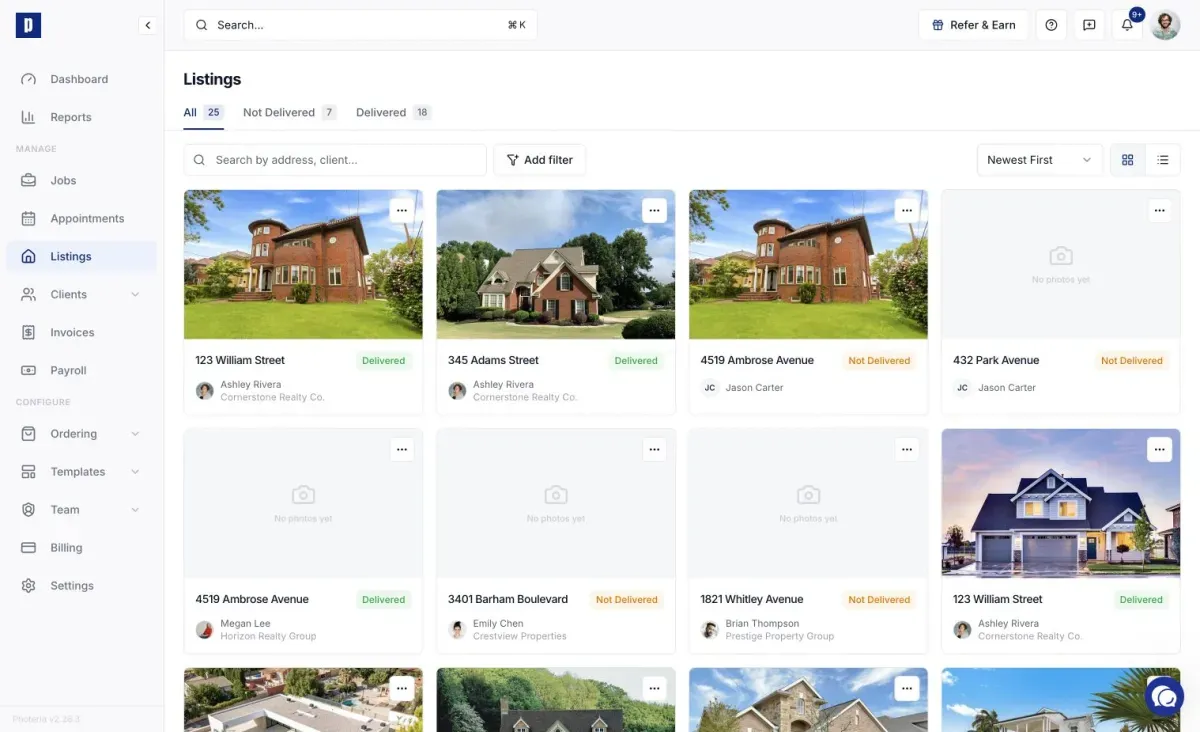
How clients browse their listings and download photos, videos, floor plans, and virtual tours from the portal.
Finding a listing
Open Listings from the header to see every listing on the account. Search by address, sort, and filter by status. Each card carries a job-progress badge:
- Pending - shoot booked, not yet done.
- In Progress - shoot done or underway, media being processed.
- Completed - media delivered and ready.
Quick actions on a card jump to downloads, the property website, or marketing materials when those are enabled for the listing.
Downloading media
Open a listing to reach its download page, where delivered media is grouped into tabs (Photos, Video, 3D Scans, Floor Plans, Files) depending on what exists.
To download photos, check the ones you want (or Select All) and click Download Selected. A single photo downloads on its own; multiple are bundled into a ZIP. Per-thumbnail download buttons work too. Floor plans download the same way.
Videos and 3D tours are usually hosted externally (YouTube, Vimeo, Matterport) and play or open in place rather than downloading.
Download with logo
If your brokerage has a logo on file, a Download with Logo toggle overlays it on each photo as you download. You can set the corner, size, and opacity, and the thumbnails preview the result live.
Payment-locked downloads
If the listing has an unpaid invoice, full-resolution downloads are locked and watermarked previews stay visible. Use Pay Now to settle the invoice; once the charge succeeds, downloads unlock automatically. See Paying Invoices.
Property website
When a listing has a website enabled, the download page lets you copy or share its link, or open it in a new tab, handy for passing along to a client.