Viewing and Paying Client Invoices
Find, review, pay, download, and share invoices from the client portal.
Written By David Dayan
Open Invoices in the client portal to review balances, open an invoice, pay online, or share an invoice link with the person responsible for payment.
Find an invoice
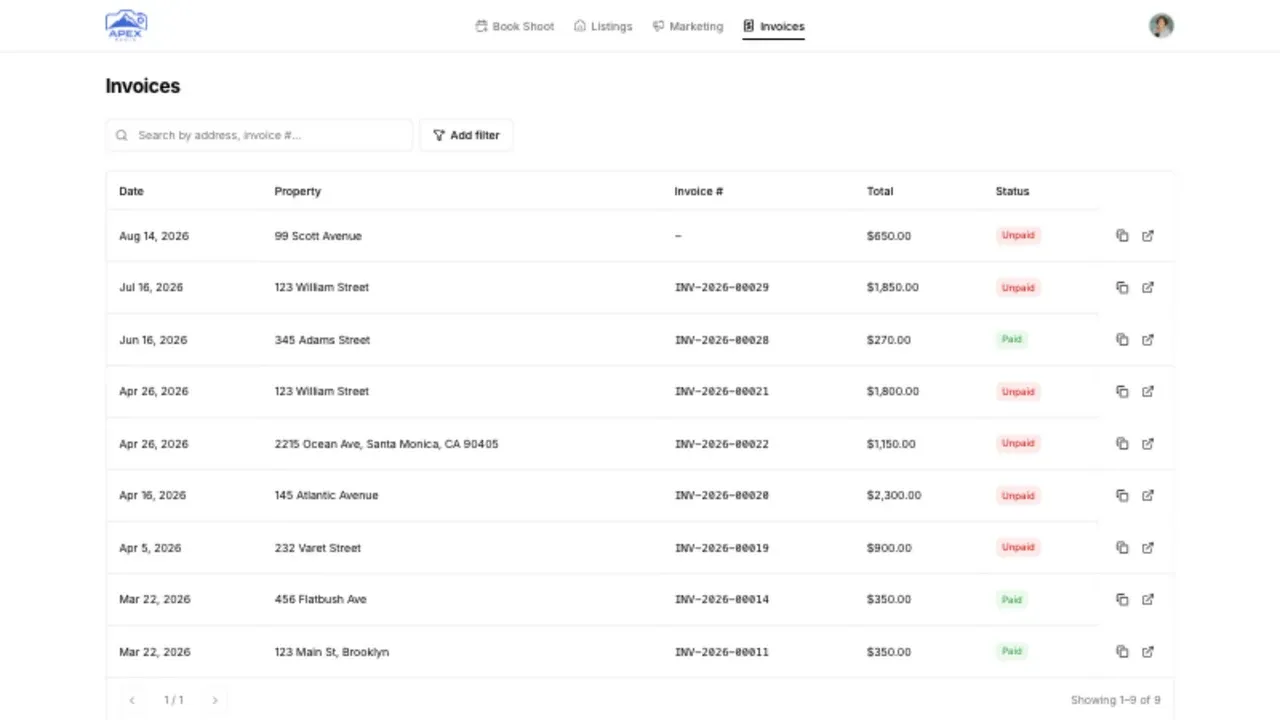
The invoice list shows the property, invoice number, total, and payment status. Search by property address or invoice number, or use Add filter to narrow the list.
Select an invoice row or the view control at the end of the row to open it.
Review the invoice
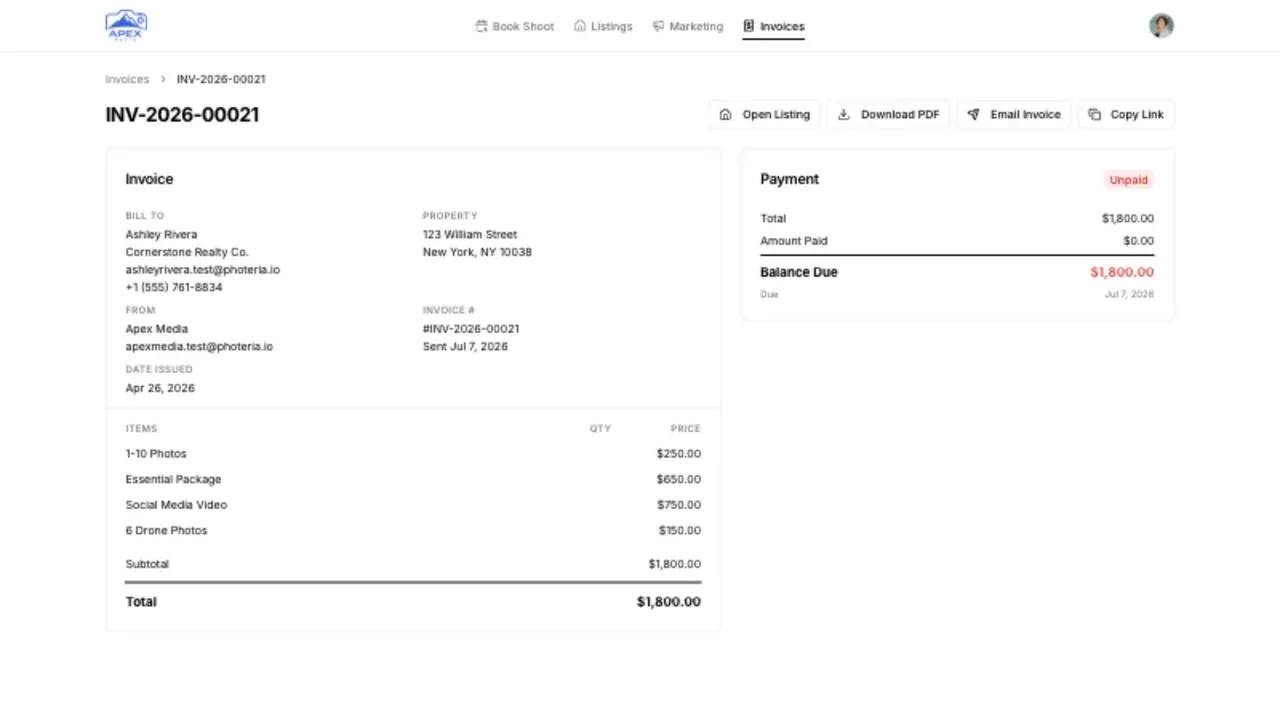
The invoice page shows the billed client, property, line items, total, payment history, and current balance.
Use the actions above the invoice to:
- Open the related listing when you are signed in.
- Download a PDF.
- Email the invoice.
- Copy a public link for the person handling payment.
Pay an unpaid balance
Available payment choices appear in the Payment card when the invoice has a balance due. The choices depend on the photographer's payment settings and may include:
- A saved card or a new credit or debit card.
- Pay at close through Titus for an eligible property.
Select the payment method, complete the requested details, and submit the payment. Keep the invoice open while Photeria confirms it. The balance and status update after the payment is confirmed.
If Pay at Close is sent for review, return to the same invoice later. Do not submit the payment again while Titus is reviewing the application.
Pay several invoices together
When card payments through Stripe are available and the account has more than one unpaid invoice, select Pay All from the invoice list. Review the included invoices and total before submitting the card payment.
Pay at Close is completed on one invoice at a time.
Share an invoice
Select Copy Link and send the link to the person responsible for payment. The invoice link opens without a portal login, so it can be used by an office manager or another payer.
Payment does not complete
If a card payment is declined, try another card or contact the card issuer. If the payment was submitted but the invoice still shows a balance, refresh the invoice after a few minutes before trying again.