The Appointments Calendar
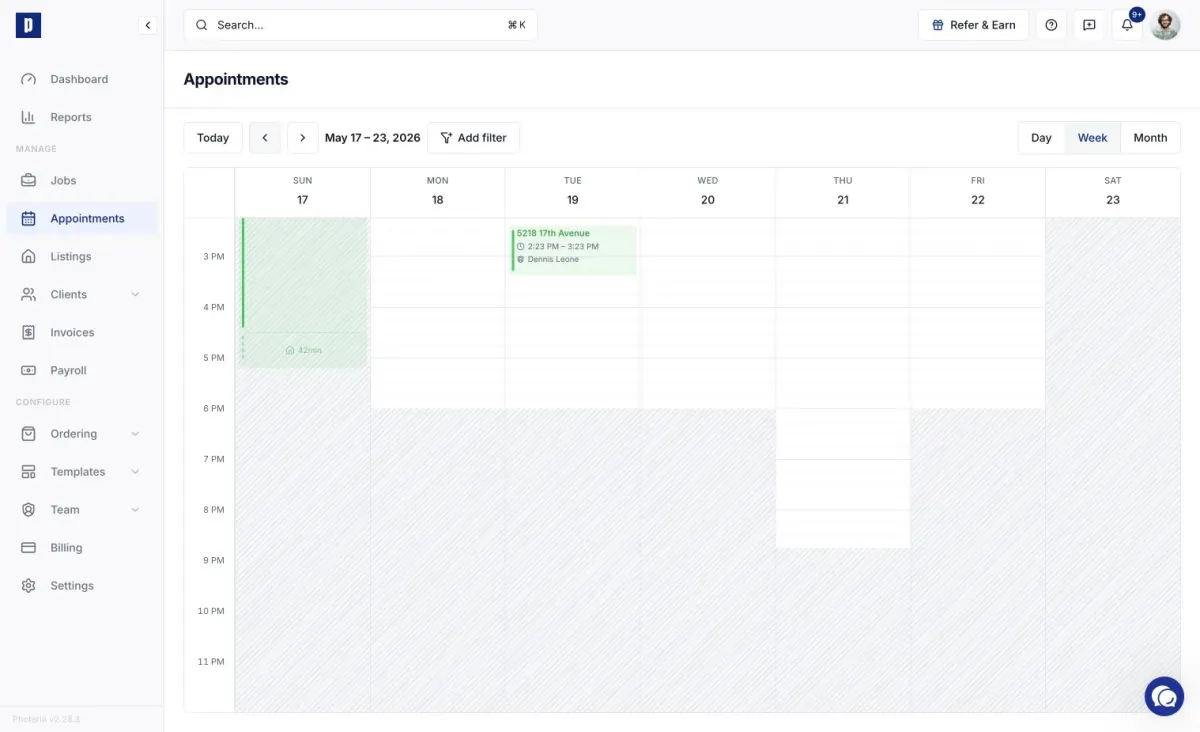
The Appointments calendar is your visual schedule of every upcoming shoot. It plots each appointment on a time grid, shows the drive time between properties, and shades the hours when no photographer is free, so you can read your week at a glance and spot open slots. Find it
Written By David Dayan
The Appointments calendar is your visual schedule of every upcoming shoot. It plots each appointment on a time grid, shows the drive time between properties, and shades the hours when no photographer is free, so you can read your week at a glance and spot open slots. Find it under Appointments in the sidebar.
Views and navigation
Switch between Day, Week (the default), and Month with the toggle in the toolbar. In Month view, click a day to jump to its Day view. Use Today and the arrows to move around, and click any appointment to open its job.
Appointments are color-coded by status: Scheduled (blue) is booked, Arrived (orange) means the photographer is on-site, and Shot (green) means on-site work is done.
Drive time
In Day and Week views, each appointment shows the estimated drive to the property, and the photographer's last stop of the day shows the drive home. This makes it easy to see how a day stacks up with travel accounted for.
Availability shading
In Day and Week views, hours when no photographer is available are shaded with a hatch pattern, so the clear areas are when someone can take a booking. Availability comes from each photographer's working hours and their connected Google Calendar busy times. Filter to a single team member and the shading updates to that person. See Photographer Availability for how this is driven.
Filtering
Narrow the calendar by Team, Client, or Brokerage. Filtering to one team member also switches the availability shading to theirs. Archived jobs never appear on the calendar.
Where appointments come from
The calendar reflects appointments already scheduled on your jobs. To learn how appointments get created and how automatic scheduling picks times and photographers, see Understanding Jobs and Scheduling Settings.