Understanding Jobs
Jobs are the core of your workflow in Photeria. Every photography order is a job, and everything else, clients, properties, appointments, listings, invoices, and tasks, flows through it.
Written By David Dayan
Jobs are the core of your workflow in Photeria. Every photography order is a job, and everything else, clients, properties, appointments, listings, invoices, and tasks, flows through it.
What a job ties together
A property - address, square footage, and access details
A client - the ordering agent and an optional secondary agent
One or more appointments - dates, times, and assigned photographers
Services, packages, and fees - the order and its total
An invoice - what is owed, paid, and the payment record
Tasks - internal work items for staff, generated from templates linked to services
A linked listing - where you upload media and deliver to the client
When you create a job, Photeria creates its listing automatically. The two share the address, so editing it on one updates the other.
Three independent statuses
A job carries three statuses that work independently. Understanding the difference is the key to tracking your business accurately.
Job progress is yours to set: Pending, In Progress, Completed, or Archived. It does not automatically change based on appointments.
Appointment status is per appointment: Scheduled, Arrived, or Shot. It tracks on-site progress and does not change job progress.
Payment status is automatic: Unpaid, Partial, or Paid, based on payments recorded against the total. A $0 total counts as Paid.
For how to use these together, see Tracking Job Status.
Delivery
Delivery lives on the listing, not the job. Sending the delivery email marks the listing delivered, and you can re-deliver any number of times. See Delivering a Job.
Finding jobs
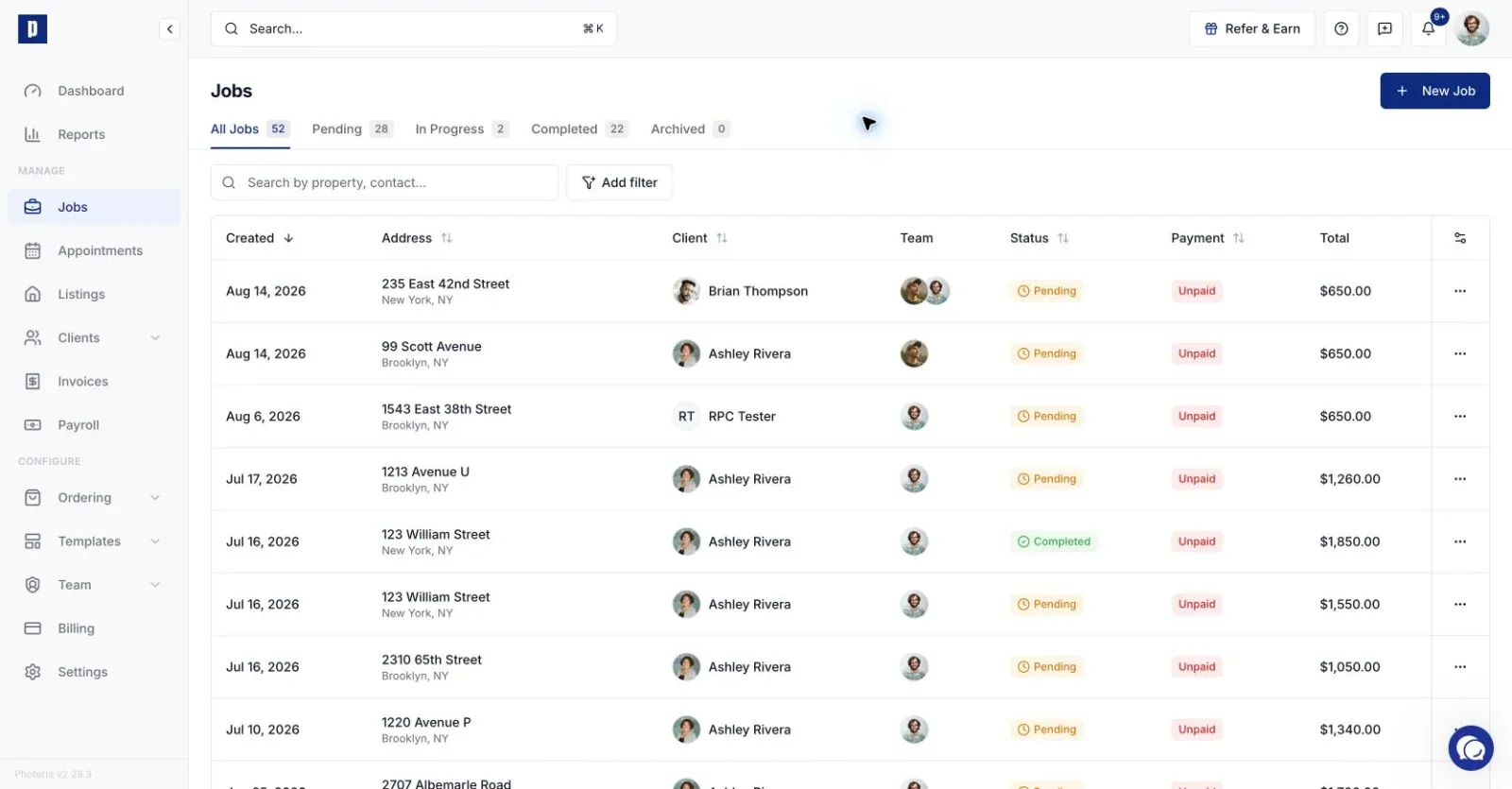
The Jobs page lists everything, with tabs for each progress state. Search by address or client, and filter by photographer, client, or brokerage.
Archiving vs. deleting
Archive hides a job from the active list but keeps everything. You can unarchive it any time.
Delete permanently removes it. Jobs with recorded payments cannot be deleted, so archive those instead to protect your records.
See Task Management for details on the task system.