Photographer Availability
Availability drives scheduling. Each team member sets their working hours and, optionally, connects Google Calendar so Photeria only offers times they're actually free.
Written By David Dayan
Availability drives scheduling. Each team member sets their working hours and, optionally, connects Google Calendar so Photeria only offers times they're actually free.
Availability is per-user, managed from Edit Profile → Schedule (click your avatar in the top bar). Admins can adjust Accepting Orders and service areas on behalf of others.
Working hours
Set each day to Working or Off and give it a start and end time. Days set to Off produce no bookable slots. The defaults are Monday to Friday 9 AM to 5 PM with weekends off, so adjust them to match your real schedule.
Google Calendar
Connecting Google Calendar lets Photeria see your existing events so jobs aren't booked on top of them. Click Connect Google Calendar, sign in, and grant access. Two settings then matter:
- Block Availability From - turn on the calendars whose events should block scheduling (your primary, shared team calendars), and leave off ones like birthdays or holidays that shouldn't.
- Save Jobs To - which calendar new appointments are written to, usually your primary.
If the connection ever stops working, a warning appears on the Schedule tab; click Reconnect. Disconnecting keeps your working hours in force but stops Google events from blocking you.
Accepting Orders
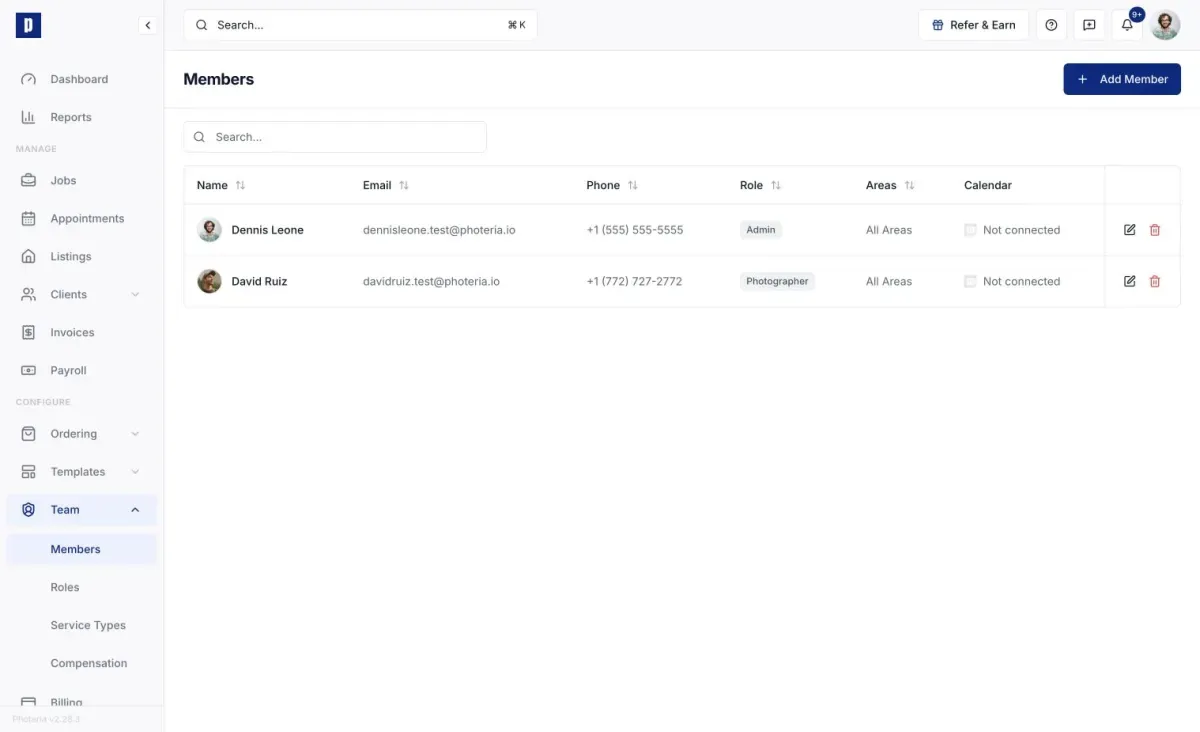
This toggle (set per member under Team → Members) decides whether someone appears in the photographer dropdown at all. It's separate from working hours: Off means "don't offer me for any jobs right now," whatever the schedule says. Useful for non-shooting staff or long leaves.
Service Areas
Service areas restrict where a member works, set on their member profile (an admin task). Leave All Areas on to work everywhere, or pick specific areas so they're only offered for jobs inside them. Manage the catalog at Settings → Scheduling, in the Service Areas section.
What makes a member available
For someone to be offered for a job, all of these must line up:
- Accepting Orders is on
- Working Hours cover the job time
- Google Calendar is free then (if connected)
- Service Areas cover the property
- Service Types match the job's services
These come together at scheduling time. When a client books through your order flow, Photeria offers only workable slots, also accounting for drive time between a photographer's other stops that day, and greys out dates with no slot. When you add an appointment yourself, you pick the date, time, and photographer, and Photeria warns you of conflicts.
The Appointments calendar is a read-only view of what's booked, not a place to schedule from. See The Appointments Calendar.