Keeping Notes on an Agent
Notes turn an agent's profile into a lightweight CRM. Instead of one cramped field, you keep a running history of separate, dated entries, preferences, call summaries, special instructions, anything worth remembering. Each note records when it was created and last edited, so you
Written By David Dayan
Notes turn an agent's profile into a lightweight CRM. Instead of one cramped field, you keep a running history of separate, dated entries, preferences, call summaries, special instructions, anything worth remembering. Each note records when it was created and last edited, so you always have a timeline of your relationship with that client.
Where to find them
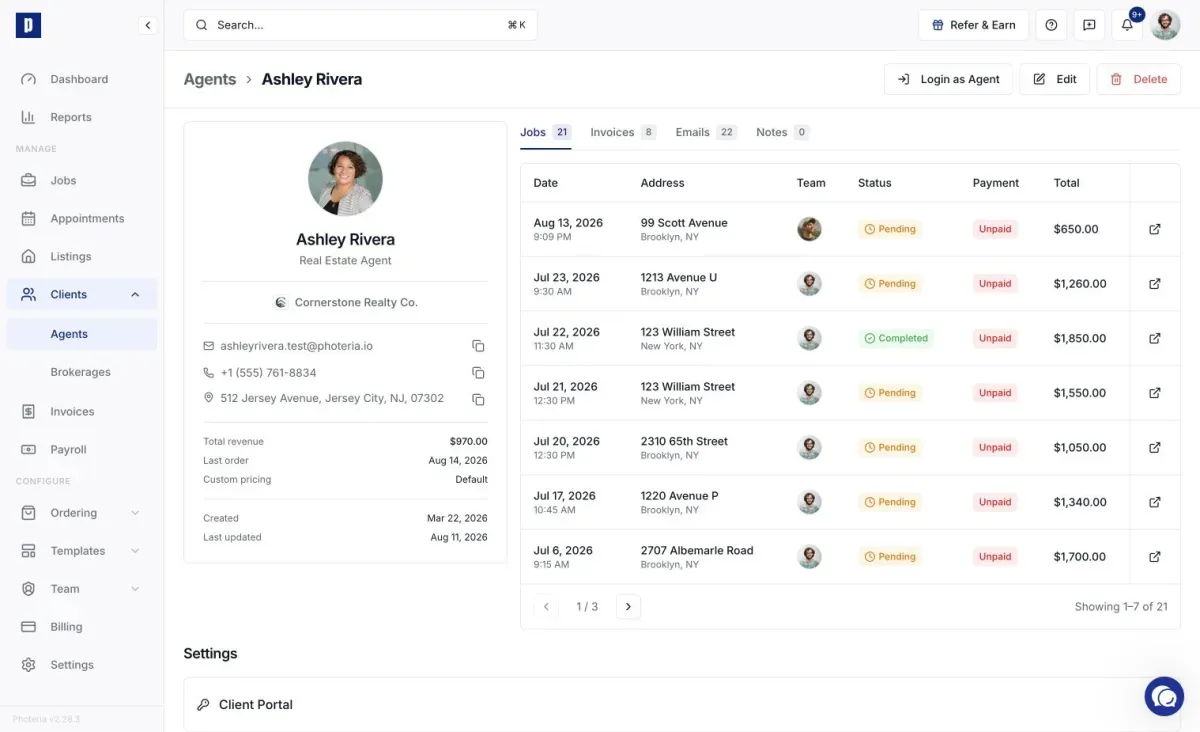
Open an agent's detail page (click their name on the Agents page) and select the Notes tab. Sort by recently edited or date created to surface what you need.
Adding, editing, and deleting
To add a note, click Add a note, optionally give it a title, write the body using the formatting toolbar (bold, lists, links, and more), and save. You need either a title or some text to save.
To edit, open a note, make changes, and save; Photeria warns you if you try to close with unsaved changes. To delete, open the note, use the more (⋯) menu, and choose Delete. Deletion is permanent.
Why use notes
Keeping each call or request as its own dated entry beats relying on memory or burying everything in one block of text, and sorting by date makes it easy to find the latest update or trace how a relationship has developed.