Managing Clients
Manage agents and brokerages, update client details, and access client records.
Written By David Dayan
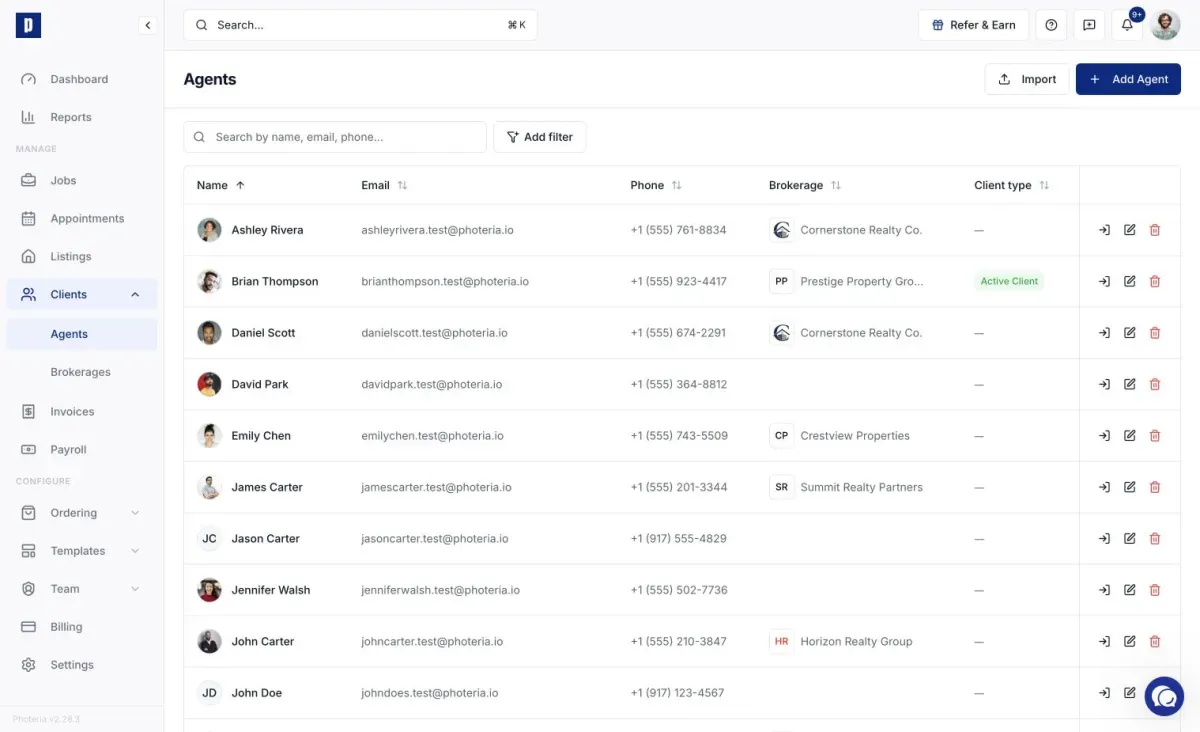
Your clients are the real estate agents and brokerages you work with. They live under Clients in the sidebar, split into two pages: Agents (individual agents) and Brokerages (the firms they belong to). Each has its own search, filters, and add/edit/delete.
Agents
Add an agent with Add Agent. First name, last name, email, and phone are required, and the email must be unique within your organization. You can also add a photo, title, brokerage, address, social links, and internal notes (staff-only; these show on every job for the agent).
Edit an agent from the pencil icon on their row. Clicking their name opens a detail page with all their jobs, invoices, and contact info at a glance.
Deleting an agent with no jobs asks you to type "delete" to confirm. If they have jobs, Photeria blocks deletion to protect your records and tells you how many are linked; reassign those first.
If your role has Clients: Impersonate, a key icon lets you open a session as that agent for support and troubleshooting. They aren't notified.
Brokerages
Add a brokerage with Add Brokerage. Only the name is required; email, phone, website, and address are optional. Under branding you can set a logo, a watermark (applied to media delivered for this brokerage), and brand colors.
Deletion is blocked while agents are still assigned, so reassign them first.
Linking agents to brokerages
Assign an agent to a brokerage from either the agent's edit dialog or the brokerage side. It's worth doing because it lets you filter agents by firm, apply the brokerage's branding and watermark to delivered media, group agents in reports, and see agent counts per firm.
Notes and account managers
Each agent's detail page has a Notes tab that turns their profile into a lightweight CRM, with a dated history of preferences, calls, and instructions. See Agent Notes.
Agents can also invite an account manager to help run their account, set up from their own portal. See Account Managers.
Where clients show up
Agent and brokerage records are used across Photeria: an agent is the client on a job (with their notes on every job card), their contact info and photo can appear on the public property website, they're linked to the invoices they ordered, and they feed reports like top clients and brokerage performance.
Permissions
- Clients: Read - view agents and brokerages
- Clients: Create - add new ones
- Clients: Manage - edit and delete
- Clients: Impersonate - log in as an agent
If a button is missing, your role lacks that permission; ask an admin to adjust it.