Client Invoicing
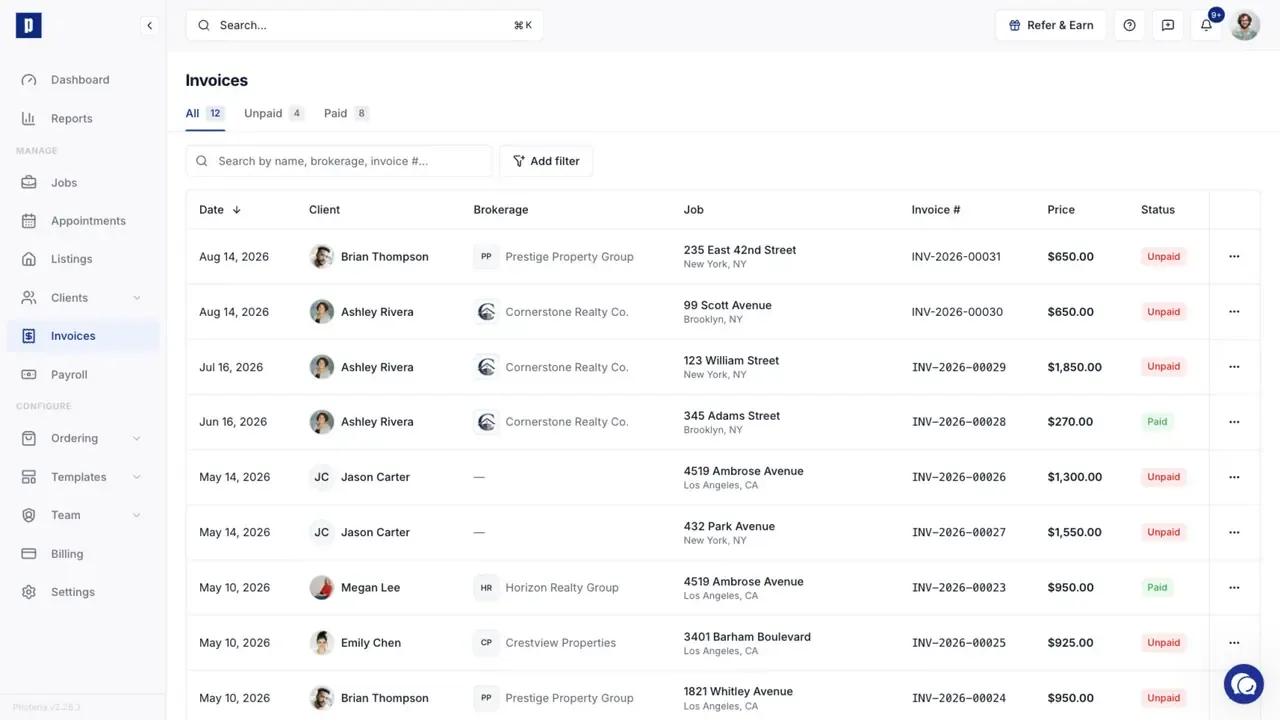
Client invoices are what you bill your real estate agents for photo services. They live on the Invoices page and on each job's detail page.
Written By David Dayan
Client invoices are what you bill your real estate agents for photo services. They live on the Invoices page and on each job's detail page.
This is separate from platform billing (what you pay Photeria). For that, see How Billing Works.
When invoices are created
Booking a job does not create an invoice. An invoice appears one of two ways:
- Automatically when the listing is activated (goes live). Invoices are generated for every job on that listing.
- Manually by clicking Create Invoice on a job that doesn't have one yet.
Until an invoice exists, the job won't show on the Invoices page. Invoice numbers follow the format INV-YYYY-NNNNN (for example, INV-2026-00042) and are assigned at creation.
Building the invoice
An invoice is built from line items on the job:
- Services - individual offerings like interior photos or drone video
- Packages - bundles of services at a discount
- Fees - one-off charges like rush or travel
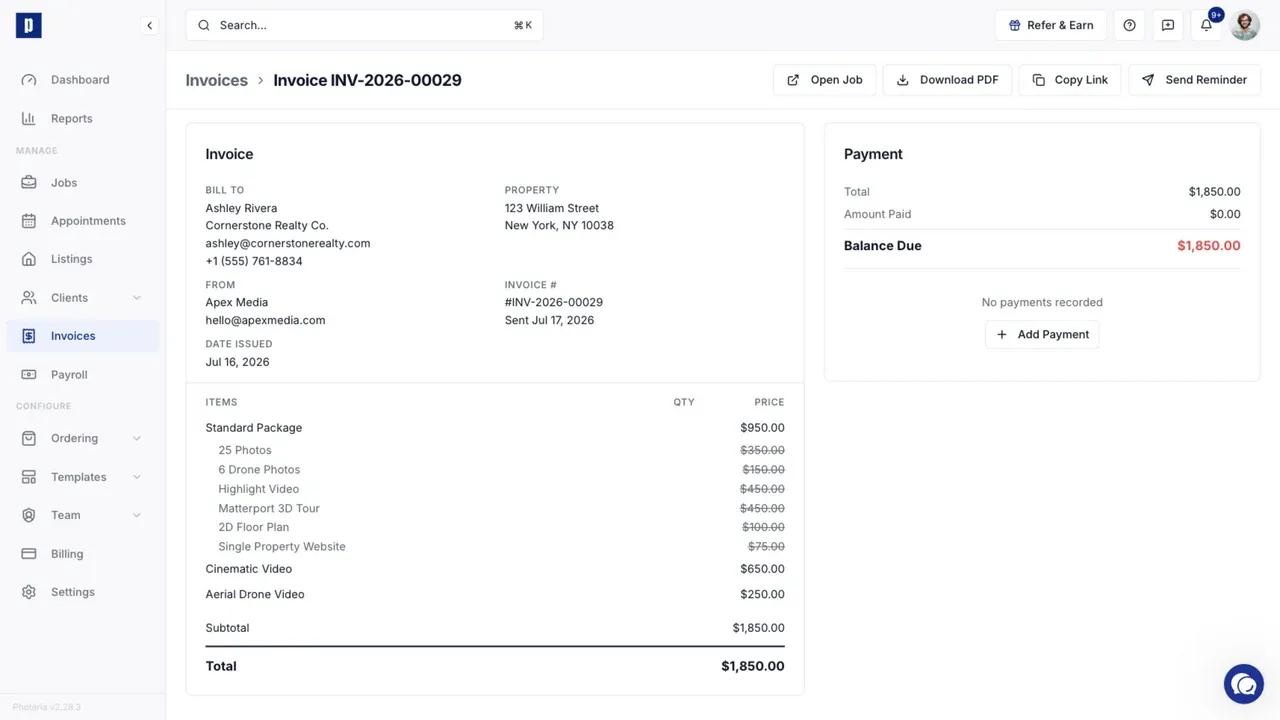
See Services, Packages, and Fees for the full rundown, including discounts. To add tax, set the amount on the invoice detail page; the total updates to match. Tax only shows when it's greater than zero.
Sending an invoice to a client
From the job or invoice detail page, click Send Invoice (it becomes Send Reminder after the first send). A pre-filled email opens; adjust recipients, subject, or body, then send now or schedule it for later.
The client gets a branded email linking to a public invoice page where they can pay online (if Stripe is connected) or see how to pay offline.
When you record a payment, a receipt email is sent to the agent automatically. You can turn this off under Settings β Email Templates ("Payment Receipt").
Recording a payment
On the invoice detail page, click Add Payment and enter the amount, method (Cash, Check, Bank Transfer, Credit Card, or Other), date, and any notes. Choosing Other lets you label it (Venmo, Zelle, and so on).
The payment status updates automatically:
- Unpaid - no payments recorded
- Partial - paid less than the total
- Paid - fully paid
You can edit or delete payments you recorded by hand. Payments collected through Stripe are locked.
Online payments (Stripe Connect)
Connect a Stripe account and clients can pay invoices online from the public invoice page, which marks the invoice paid automatically. Set this up under Settings β Integrations. See Stripe Payments.
Downloading invoice PDFs
Both the admin invoice page and the client-facing page have a Download PDF button. The PDF includes your branding, the full line-item breakdown, totals, and a "PAID" badge when fully paid.
Permissions
- Invoices: Read - view invoices and the Invoices page
- Invoices: Manage - create invoices, edit line items, record payments, and send invoices
If some buttons don't appear, your role doesn't include that permission.