Understanding Listings

Listings are where your deliverables live. Every property you photograph has a listing, and every listing holds photos, videos, 3D tours, floor plans, files, and a public property website. This guide walks you through what a listing is, how it connects to jobs, and how delivery

Written By David Dayan

Listings are where your deliverables live. Every property you photograph has a listing, and every listing holds photos, videos, 3D tours, floor plans, files, and a public property website. This guide walks you through what a listing is, how it connects to jobs, and how delivery works.

What is a listing?

A listing represents a single property in Photeria. It holds all the content about that property:

  • Photos - interior, exterior, aerials
  • Videos - walkthrough tours, drone footage
  • 3D tours - Matterport, iGuide, or any embeddable 3D content
  • Floor plans - images or PDFs
  • Files - anything else (marketing PDFs, feature sheets, etc.)
  • Listing details - title, description, price, and quick facts (beds, baths, sqft)
  • Open houses - upcoming showing dates
  • A public property website that showcases it all

How listings connect to jobs

A job is the work order that gets created when a shoot is booked. Every job has a linked listing. The job is the "who, when, and how" of the shoot; the listing is the "what" you deliver.

When a job is created, its listing is created automatically with the same address. After the shoot, you upload photos and other media to the listing, then deliver it to the client.

Delivery: binary, not stages

Unlike jobs (which have four progress states), listings have exactly two delivery states:

  • Not Delivered - the listing hasn't been sent to the client yet
  • Delivered - you've clicked Deliver Listing and the client has been notified

Delivery is triggered by sending the delivery email from the listing detail page. You can re-deliver any number of times after that; each re-delivery sends a fresh email but the listing stays marked Delivered.

Finding your listings

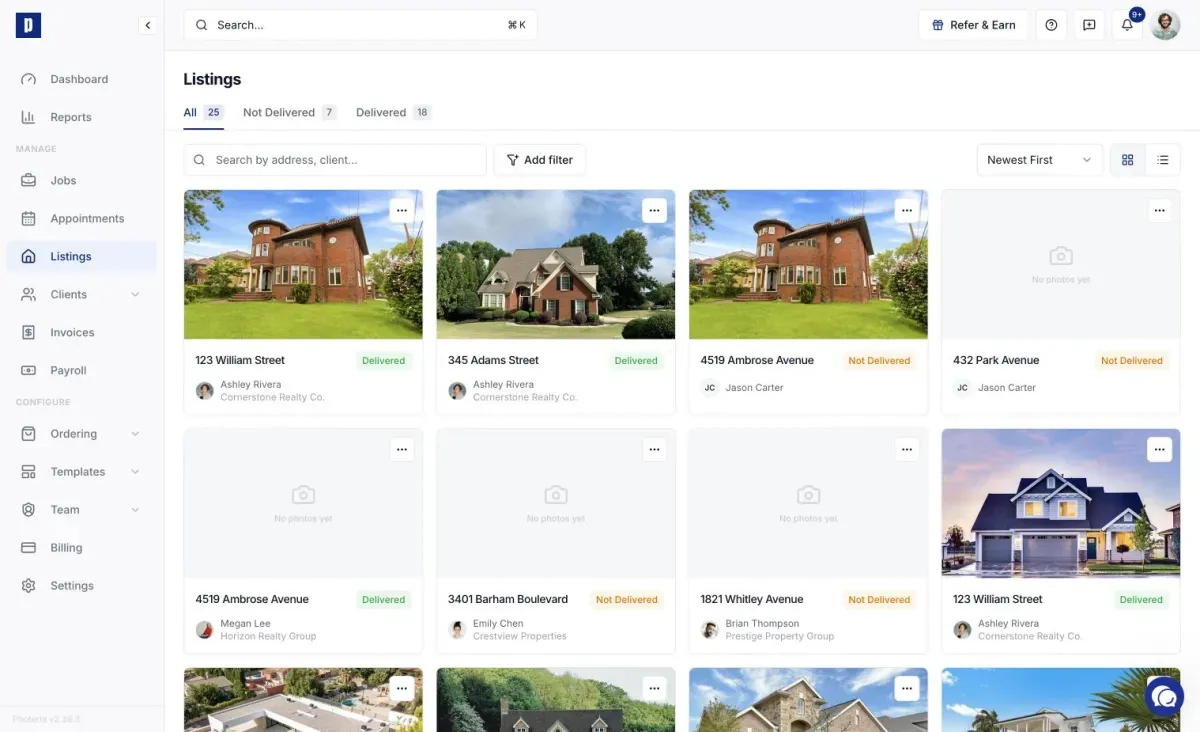
From the sidebar, click Listings to open the grid view. Each card shows:

  • The cover image (first visible photo, or the slideshow hero)
  • The property address
  • Delivered / Not Delivered badge
  • The assigned agent and brokerage

Tabs

  • All Listings - every listing, regardless of delivery state
  • Not Delivered - listings waiting to be sent
  • Delivered - listings already sent

Filters

  • Search - address or agent name
  • Photographer - listings where the job was shot by a specific team member
  • Client - listings for a specific agent
  • Brokerage - listings for a specific firm

Opening a listing

Click any listing card to open the detail page. This is where you:

  • Upload and manage media (photos, videos, 3D, floor plans, files)
  • Customize listing sections (order, visibility, titles)
  • Edit listing details (title, description, price, quick facts)
  • Manage open houses
  • Configure the property website (URL slug, colors, layout, custom CSS, custom domain)
  • Preview and deliver to the client

At the top of the detail page:

  • Cover image banner with the property address
  • Delivered / Not Delivered badge
  • Primary and optional secondary agent avatars
  • Preview button - opens the property website in a new tab
  • Deliver Listing / Re-Deliver Listing button - sends the delivery email and marks the listing delivered

Listings are tied to jobs

Some things about a listing aren't editable on the listing detail page because they live on the job:

  • Property address - edit it on the job's Property card
  • Agent assignment - edit it on the job's Client card
  • Invoice and payments - managed through the job's Invoice card

Everything else (media, sections, listing details, website settings) is managed directly on the listing.