Listing Settings and SEO

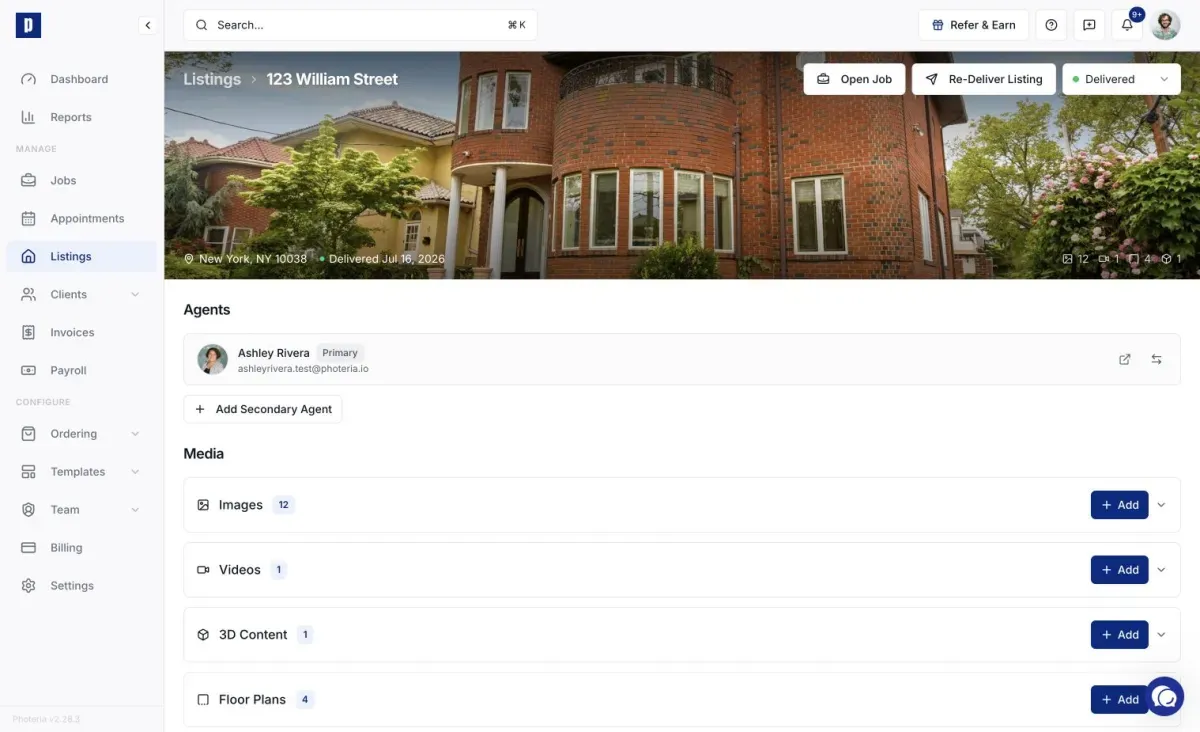
Listing settings control the visibility, URLs, and design of your property website. Most design customization happens in the Website Editor (see Property Website Overview), while toggles and URLs are on the listing detail page.

Written By David Dayan

Listing settings control the visibility, URLs, and design of your property website. Most design customization happens in the Website Editor (see Property Website Overview), while toggles and URLs are on the listing detail page.

Visibility Toggles

On the listing detail page, you'll find these toggles:

Download Page

  • Toggle: Enables or disables the client download page.
  • URL: The link your client uses to download the original, full-resolution files. Click to copy.

Require Payment

  • Toggle: When enabled, downloads are locked until the invoice for this job is paid.
  • Use this if you want to ensure payment before releasing the files.

Property Website

Found in the Property Website expandable card under the Marketing section:

  • Toggle: Enables or disables the public property website for this listing.
  • When disabled, visitors see a placeholder page and search engines are told to deindex.

Marketing Materials

Found in the Marketing Materials expandable card under the Marketing section:

  • Toggle: Enables or disables the marketing design tools for this listing.
  • When enabled, clients can access marketing templates and design tools for the property.

URL Slug

The URL slug is the part of the property website URL that identifies this listing. For example, if your listings domain is listings.yourdomain.com, the full URL would be listings.yourdomain.com/your-slug-here.

The slug is set in the Property Website section on the listing detail page, or in the URL & Domain panel of the Website Editor.

To edit the slug:

  1. Click into the slug input field.
  2. Type your desired slug (lowercase letters, numbers, and hyphens only).
  3. Save your changes (in the Website Editor, click Publish).

Tips for good URL slugs:

  • Use the street address, like 123-main-street.
  • Keep it short and descriptive.
  • Avoid special characters.

Custom Domain

Individual listings can have their own custom domain for a fully branded URL. Set this up in the Property Website section on the listing detail page, or in the URL & Domain panel of the Website Editor.

See Custom Listing Domains for the full guide.

Design Settings (Website Editor)

All visual customization is done in the Website Editor, a full-screen editing environment with live preview. Open it from the listing detail page by clicking Website Editor in the Property Website section.

The editor includes:

Colors

  • Primary - accent color for buttons, links, and interactive elements. Defaults to the agent's brokerage color.
  • Background - page background color. Defaults to the brokerage background color.

Colors can be set to "Brokerage" (inherit the brokerage default) or "Custom" (override per listing).

Layout Options

  • Font - Sans Serif or Serif.
  • Website Style - Rounded (default), Pill (fully rounded), or Sharp (square corners).
  • Header Style - Solid (colored header bar) or Transparent (floats over the hero).
  • Text Alignment - controls text alignment across the site.
  • Page Animation - None, Fade In, or Slide Up.

Section-Specific Settings

  • Quick Facts Layout - Cards with Icons (default) or Flat Table.
  • Gallery Layout - Grid, Masonry, or Carousel.
  • Hero Mode - Slideshow, Static Image, or Video.
  • Hero Layout - Default, Fullscreen, or Framed.
  • Slideshow Transition - Fade, Zoom, or Slide.

All changes are saved atomically when you click Publish in the editor.

See Property Website Overview for the full Website Editor guide.

SEO

Each property website is automatically optimized for search engines and social media sharing. When someone shares a listing link on Facebook, LinkedIn, or other platforms, a rich preview with the property image and details is shown automatically.

Disabled or unpublished sites are hidden from search engines.

Best Practices

  • Always set a URL slug before delivering a listing for a clean, shareable URL.
  • Match the colors to the agent's brokerage branding for a professional look, or let brokerage colors cascade automatically.
  • Enable the Property Website toggle before sending the delivery email so the link works immediately.
  • Use Require Payment for jobs where you want to ensure payment before file access.
  • Use the Website Editor's live preview to verify the site looks right before publishing.