Editing Photos
Photeria includes a built-in photo editor so you can make quick fixes to listing images without leaving the app or opening separate software. Adjust the look of a shot, crop it, blur out sensitive details, or add text, then save the result straight back to the listing.
Written By David Dayan
Photeria includes a built-in photo editor so you can make quick fixes to listing images without leaving the app or opening separate software. Adjust the look of a shot, crop it, blur out sensitive details, or add text, then save the result straight back to the listing.
Opening the Editor
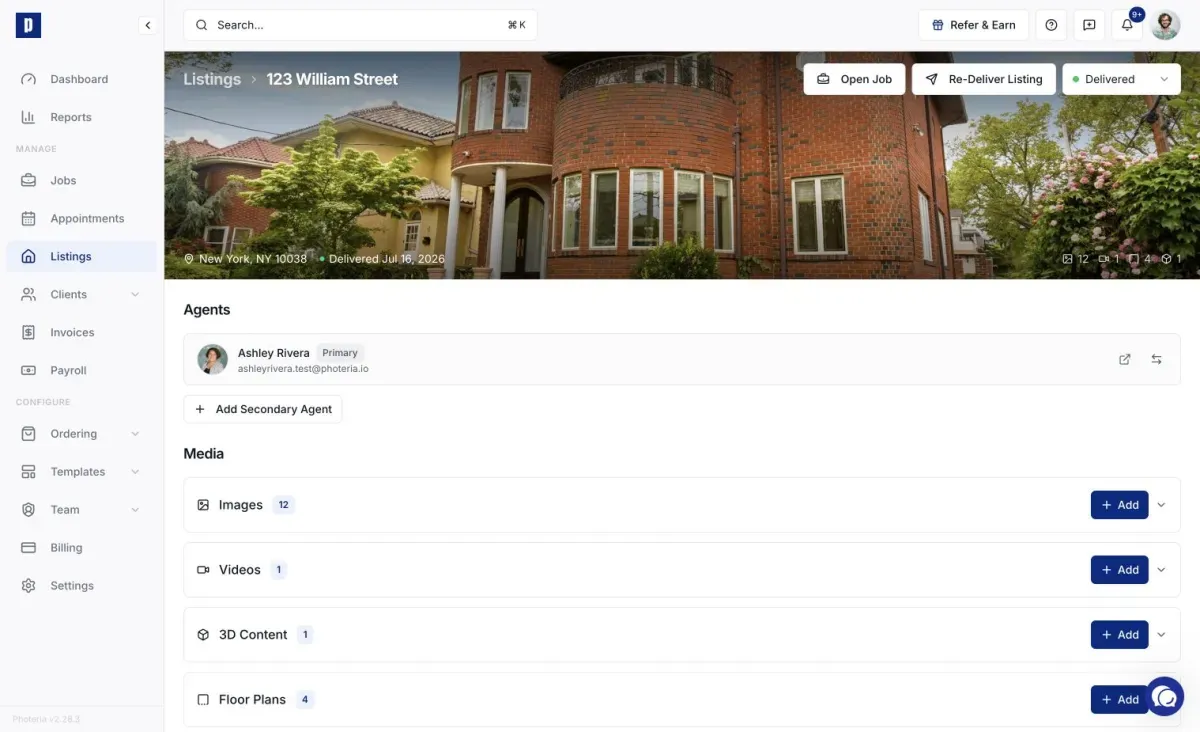
- In your listing, expand the Images section.
- Hover over the photo you want to edit to reveal its action buttons.
- Click the Edit photo button (the wand icon).
- The editor opens in a full-screen window with your photo on the left and editing tools on the right.
The tools are grouped into four tabs: Adjust, Crop, Blur, and Text. You can use any combination of them before saving.
Adjust
The Adjust tab is for tuning the look of the photo. Each control is a slider you drag left or right, and changes preview live on the image. Available adjustments:
- Exposure - overall brightness
- Contrast - difference between light and dark areas
- Highlights - brightness of the lighter areas
- Shadows - brightness of the darker areas
- Whites - the brightest points
- Blacks - the darkest points
- Temp - warm (orange) to cool (blue) color balance
- Tint - green to magenta color balance
- Vibrance - boosts muted colors while protecting skin tones
- Saturation - overall color intensity
- Sharpness - crispness of edges and detail
Double-click any slider's number to reset that single control, or click Reset all to clear every adjustment at once.
Crop
Use the Crop tab to trim a photo or straighten the framing.
- Drag the corners or edges of the box over the image to set the area you want to keep.
- Everything outside the box is removed when you save.
- Click Reset crop to start over with the full image.
Blur
The Blur tab lets you hide sensitive details such as license plates, faces, or house numbers.
- Choose Paint, then drag over the areas you want to blur. Painted areas blur instantly in the preview.
- Adjust Brush size to paint larger or smaller areas, and Blur strength to control how heavy the blur is.
- Switch to Erase to remove blur from an area you painted by mistake.
- Click Clear all blur to remove every blurred area and start fresh.
Text
The Text tab adds text labels on top of the photo, such as "Coming Soon" or a room name.
- Click Add text to drop a text box onto the image.
- Double-click the text on the image to type your content, or edit it in the Content field.
- Drag the text to position it anywhere on the photo.
- Use the side panel to set the Size, Color, and Weight (Regular or Bold).
- To remove a text label, click the trash icon next to it in the text list.
Saving Your Edits
- When you're happy with the result, click Save changes.
- Photeria asks you to confirm, because saving replaces the original photo and all of its versions used on the property website, MLS exports, and downloads.
- Click Save permanently to apply your edits.
Important: Edits are permanent and cannot be undone. There is no "save as a copy" option, so saving overwrites the original image. If you might need the untouched photo later, download it before editing. To leave a photo unchanged, click Cancel to close the editor without saving.