Customizing Listing Sections

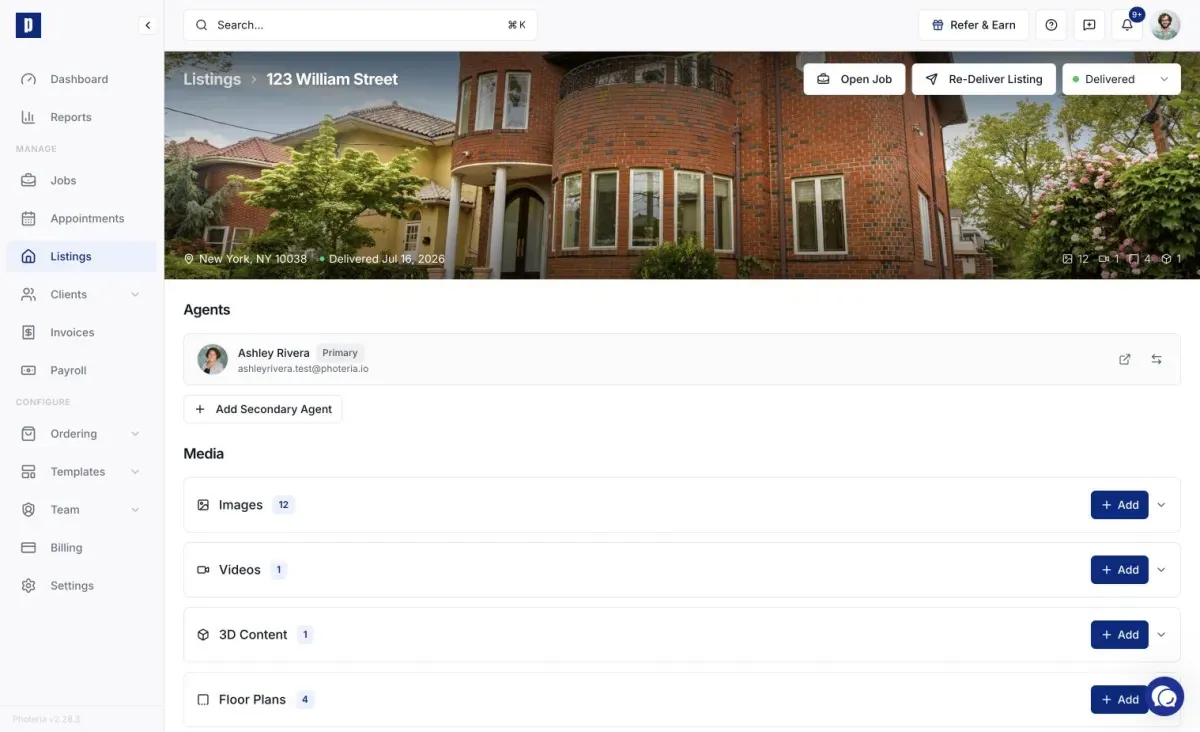
Every listing is built from sections. Sections are the building blocks of your editing experience and of the public property website. You can reorder them, show or hide them, add new ones, rename them, and set their nav labels.

Written By David Dayan

Every listing is built from sections. Sections are the building blocks of your editing experience and of the public property website. You can reorder them, show or hide them, add new ones, rename them, and set their nav labels.

Tip: The Website Editor provides a full-screen editing experience with live preview for configuring sections, styles, and layout. See Property Website Overview for details.

Default sections

A new listing starts with these sections:

SectionDescriptionDeletable?
HeroThe large banner at the top of the website (slideshow or video)Yes
Listing DetailsTitle, description, price, and quick factsNo, hide only
ImagesThe photo galleryYes
VideosEmbedded or uploaded videosYes
3D ContentInteractive 3D tours (Matterport, iGuide, etc.)Yes
AmenitiesProperty amenity tags (pool, garage, etc.) displayed as styled chipsYes
Floor PlansFloor plan images or PDFsYes
Contact InfoThe agent's contact details and optional contact formYes
MapInteractive map showing the property locationYes
Open HousesUpcoming open house dates and timesYes

You can also add a Files section (for any non-media documents like feature sheets, marketing PDFs, etc.).

Reordering sections

The order of sections on the admin page matches the order on the public website.

  1. Grab the drag handle (six-dot grip icon) on the left of any section header.
  2. Drag the section up or down.
  3. Release.

The new order saves automatically.

Showing or hiding a section

Sometimes you want to keep a section's content but hide it from the public website (for example, hiding Map while you verify the coordinates).

  1. Click the eye icon on the right of the section header.
  2. Hidden sections appear dimmed with a "Hidden" badge in the admin view.
  3. Click the eye again to show.

Hidden sections still appear in your admin workspace so you can keep editing, they just don't render on the public website.

Expanding and collapsing

Click a section header to expand or collapse it in the admin view. This is purely for your workspace, and it doesn't affect the public website.

Adding a new section

If a section is missing from your listing, add it:

  1. Scroll to the bottom of the Media area.
  2. Click Add New Item.
  3. Pick from the popover list (sections already on the listing appear grayed out with an "Added" badge).
  4. The new section drops at the bottom, so drag it wherever you want.

New sections come with default titles and nav labels that you can customize.

Section metadata (title, subtitle, nav label)

Sections that appear on the website have editable display settings:

  • Title - the heading shown on the website
  • Subtitle - an optional smaller subheading
  • Nav title - the label used in the website's navigation menu
  • Show in nav - toggle the section on or off in the navigation

Expand the section and look for the Display or Settings panel to edit these.

Leaving a field blank uses the default value.

Deleting a section

  1. Click the trash icon on the section header (available on deletable sections).
  2. For sections that contain media (Hero, Images, Videos, 3D Content, Floor Plans, Open Houses, Files), a confirmation dialog warns you that all content in that section will be permanently deleted.
  3. For sections without media content (Map, Contact Info), the section is deleted immediately, with no prompt.

Important: Deleting a section permanently removes all its content. The Listing Details section cannot be deleted, only hidden.

Section item counts

Media sections show a count badge on the header ("Images 24", "Videos 3") so you can see at a glance how much is in each without expanding.

Amenities section

The Amenities section displays property amenities as styled tag chips on the property website. Tags inherit the website's border style: pill-shaped in Pill mode, rounded otherwise.

Amenities are set on the listing detail page (see Managing Listing Details). The section only appears on the website when you have at least one amenity.

Contact Info section

The Contact Info section pulls from the primary agent assigned to the listing: name, email, phone, photo. You don't enter this manually. A Show contact form toggle controls whether visitors can submit a contact form from the website.

Map section

The Map section shows an interactive map of the property location based on the address entered on the job.

Files section

The Files section holds any non-media documents, such as feature sheets, marketing flyers, HOA documents, and disclosures. Upload PDFs or other files and choose whether they're downloadable from the public website.