Managing listing details
Listing details are the property info that appears on the public website: the title, description, price, quick facts, and amenities. You'll find them in the Listing Details section of a listing. Click Save after editing.
Written By David Dayan
Add the description, price, and property facts that buyers see on the property website. Open the listing and expand Property Details under Marketing. Select Save after making changes.
Describe the property
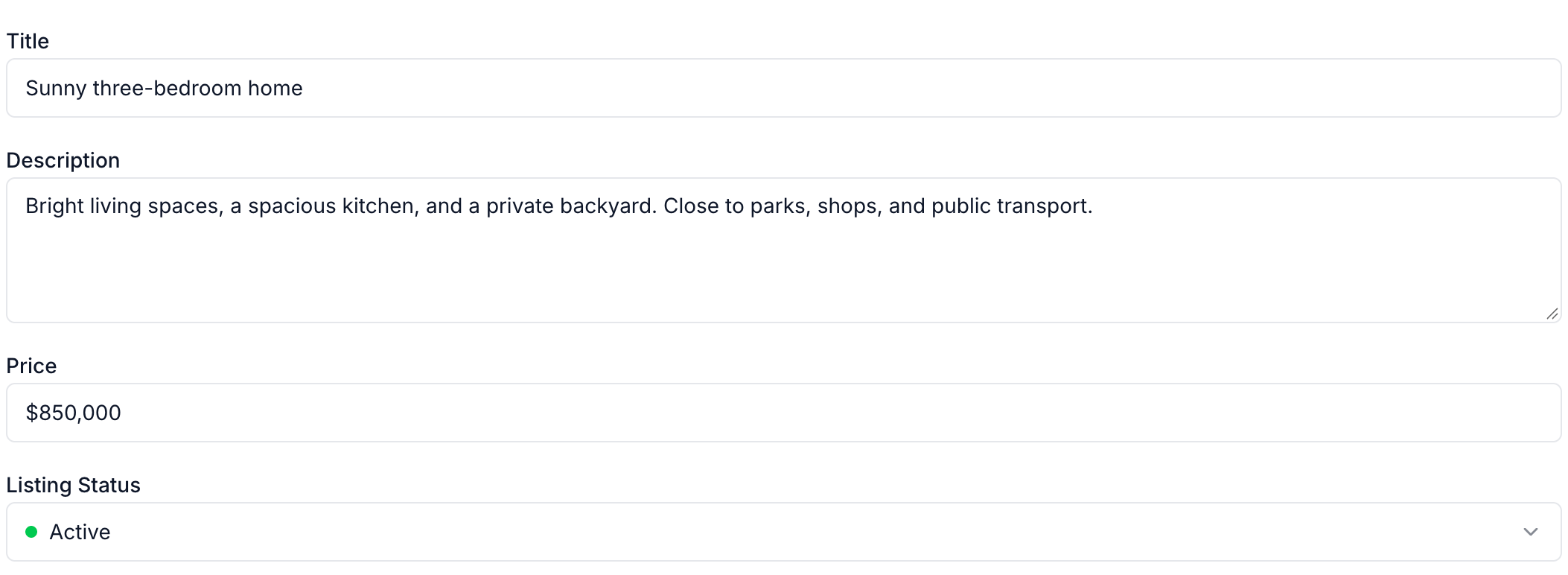
Enter a Title, Description, and Price. The price accepts text, so you can use a sale price such as $850,000 or a rental price such as $4,500/mo.
Use Listing Status to keep the website current as the property moves from active to pending or sold. This is separate from whether you have delivered the listing's media.
To let buyers ask the agent for pricing, turn on Price on request in the Website Editor.
Add quick facts and amenities
Under Quick Facts, select a suggestion such as Beds or Baths, or select Add Quick Fact.
Enter the value and label. Choose an icon if your website layout uses icons.
Drag the handles to put the facts in the order you want them displayed.
Under Amenities, choose suggestions or type an amenity and press Enter to add it.
Select Save.
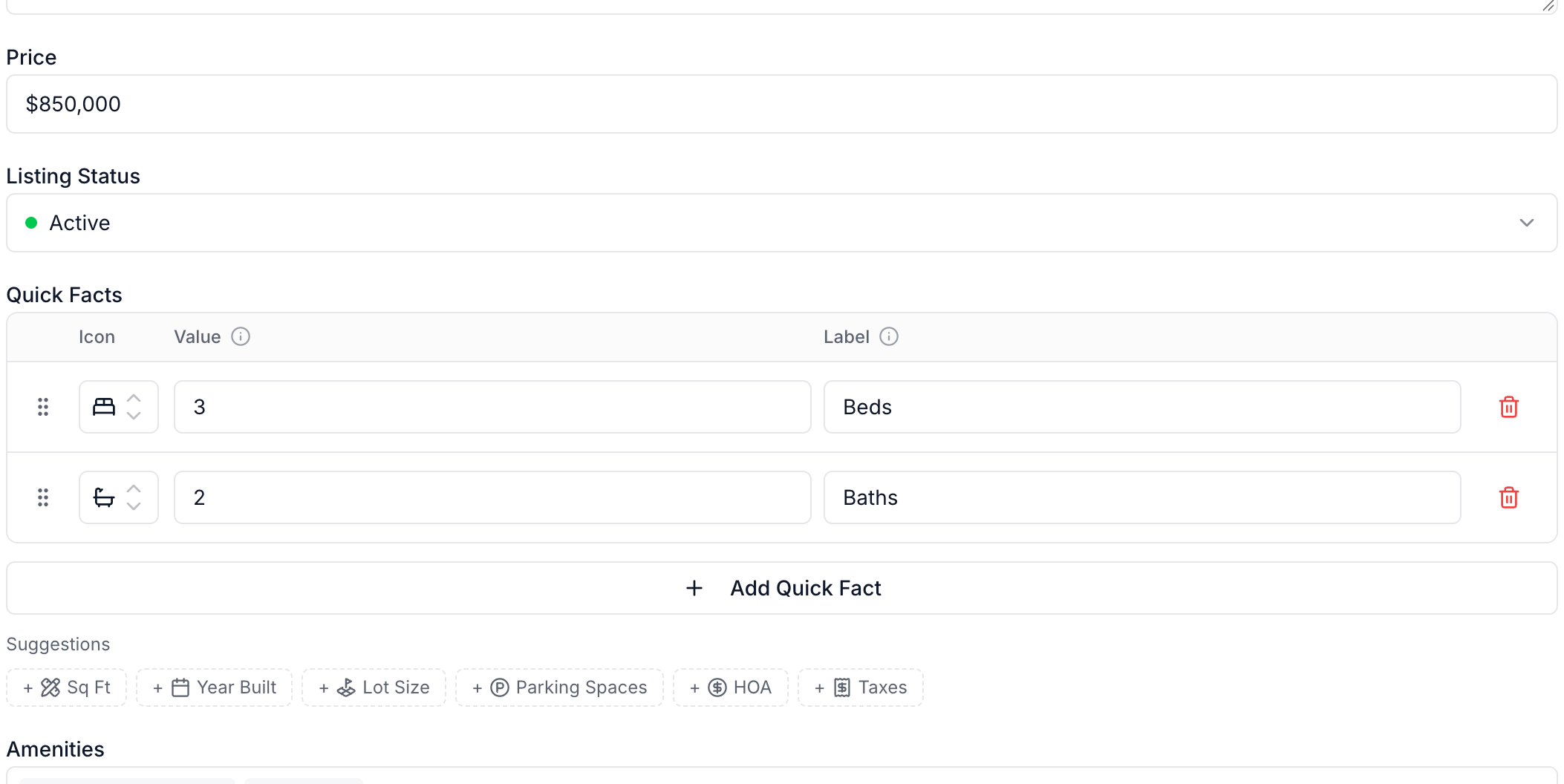
To remove a fact, use its trash control. Remove an amenity with the X beside its name, then save.
Change the property address
Use Open Job, then edit the job's Property card. The address is shared with the listing. Changing the website's Title does not change the property's address.
For page layout, colors, and which sections appear, see Building and publishing a property website.
Was this helpful?
Still need help? Share an idea