Set Up Square Footage Pricing
Set service and package prices and appointment durations by property size.
Written By David Dayan
Square footage tiers let a service charge more and reserve more appointment time as the property size increases.
Add pricing tiers to a service
Go to Ordering → Services, then add a service or edit an existing one.
- Under Pricing Type, select Tiered.
- Enter the price, minimum square footage, and maximum square footage for each tier.
- Select Add Pricing Tier to add another range.
- Leave the final maximum open so the last tier covers every larger property.
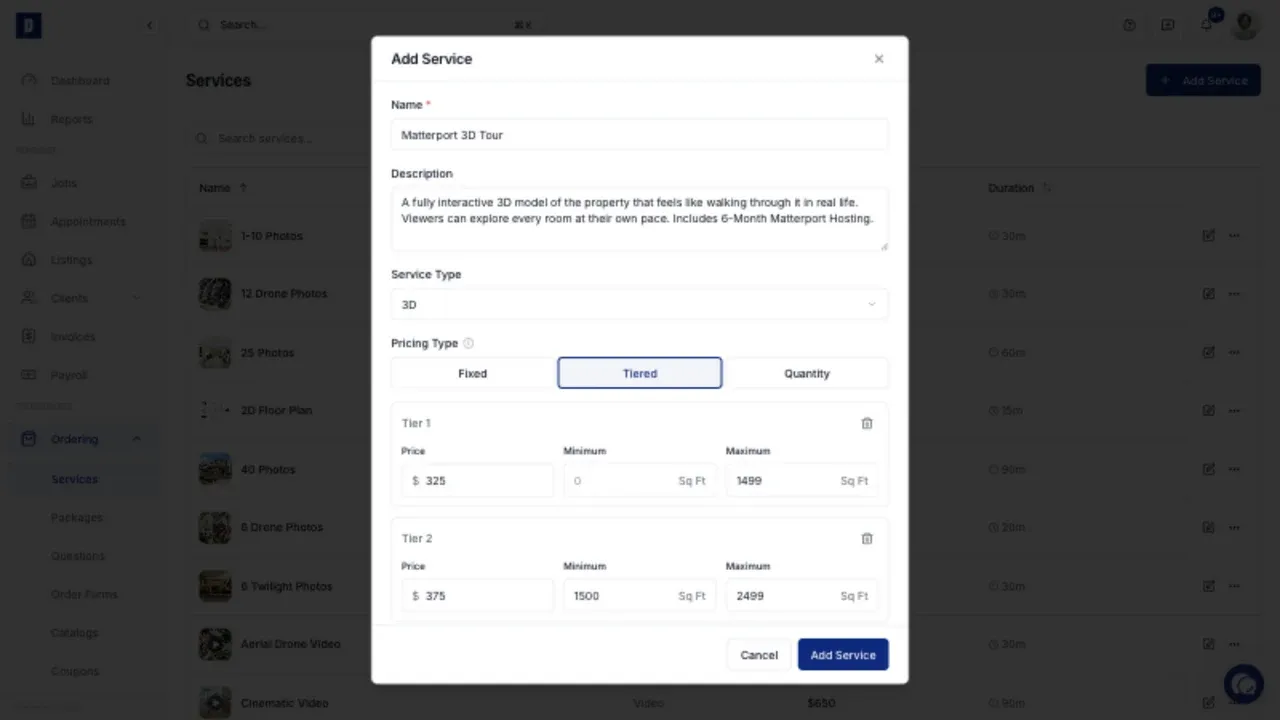
The first tier must start at 0. Each following tier must start one square foot after the previous tier ends. For example, a tier ending at 1,499 is followed by a tier starting at 1,500.
Adjust appointment duration by property size
Keep Requires appointment turned on when the service must be scheduled. Under Appointment Duration Type, select Tiered, then add the duration and square footage range for each tier.
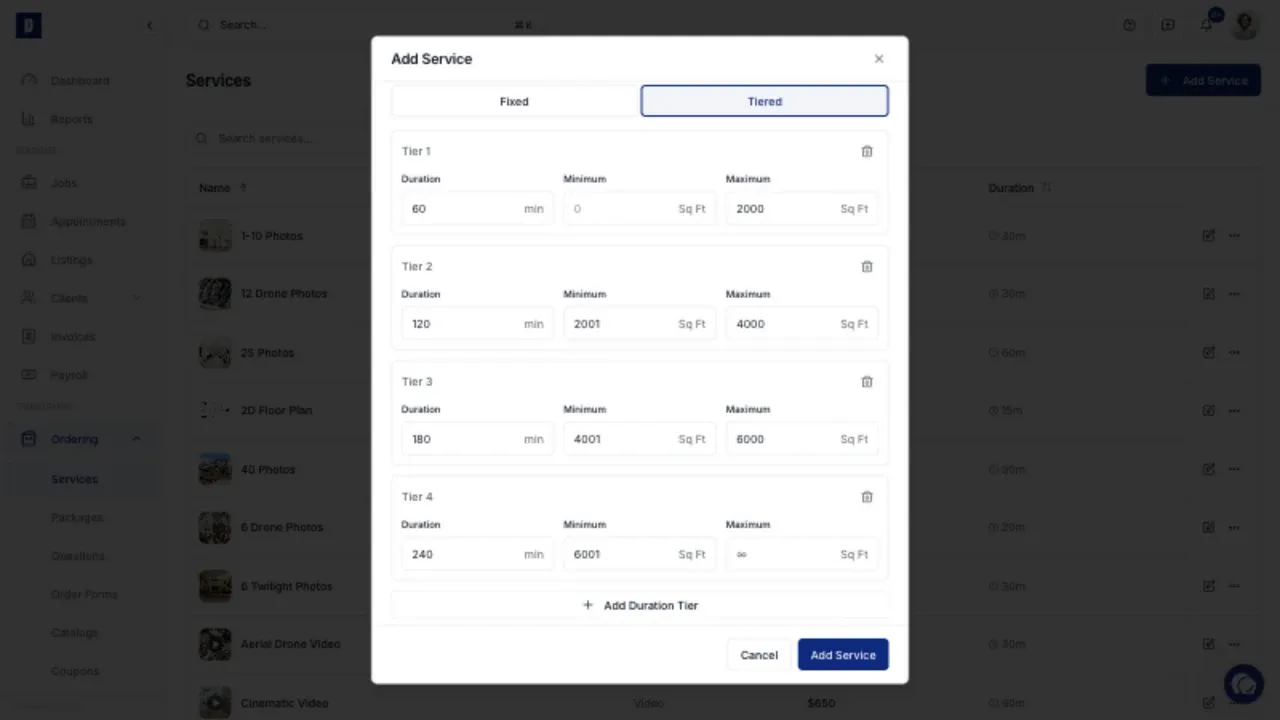
Pricing and duration tiers are separate. Their breakpoints can differ, but matching ranges are usually easier for your team to manage.
What clients see
Before the property size is entered, the order form shows the lowest tier as a starting price. The client must enter square footage in the Property step, then Photeria uses the matching price and duration tiers for the order.
Use square footage pricing in a package
A package can also have a tiered total price. Open Ordering → Packages, add or edit a package, then select the square footage tiered pricing option and enter the ranges.
When a percentage or dollar discount package contains tiered services, its price changes with the property size because the included service prices change.