Creating and Managing Packages
Combine services into packages, set package pricing, and control how the offer appears to clients.
Written By David Dayan
Packages combine services into one client-facing offer. Open Ordering → Packages and select Add Package.
Set up the package
Enter a clear name and description, then choose how the package price is calculated:
- Percent Off subtracts a percentage from the combined price of the included services.
- Dollar Off subtracts a fixed amount from the combined price.
- Set Price charges the package price you enter.
Use a set price when you want the client to see one predictable amount even if the individual service prices change.
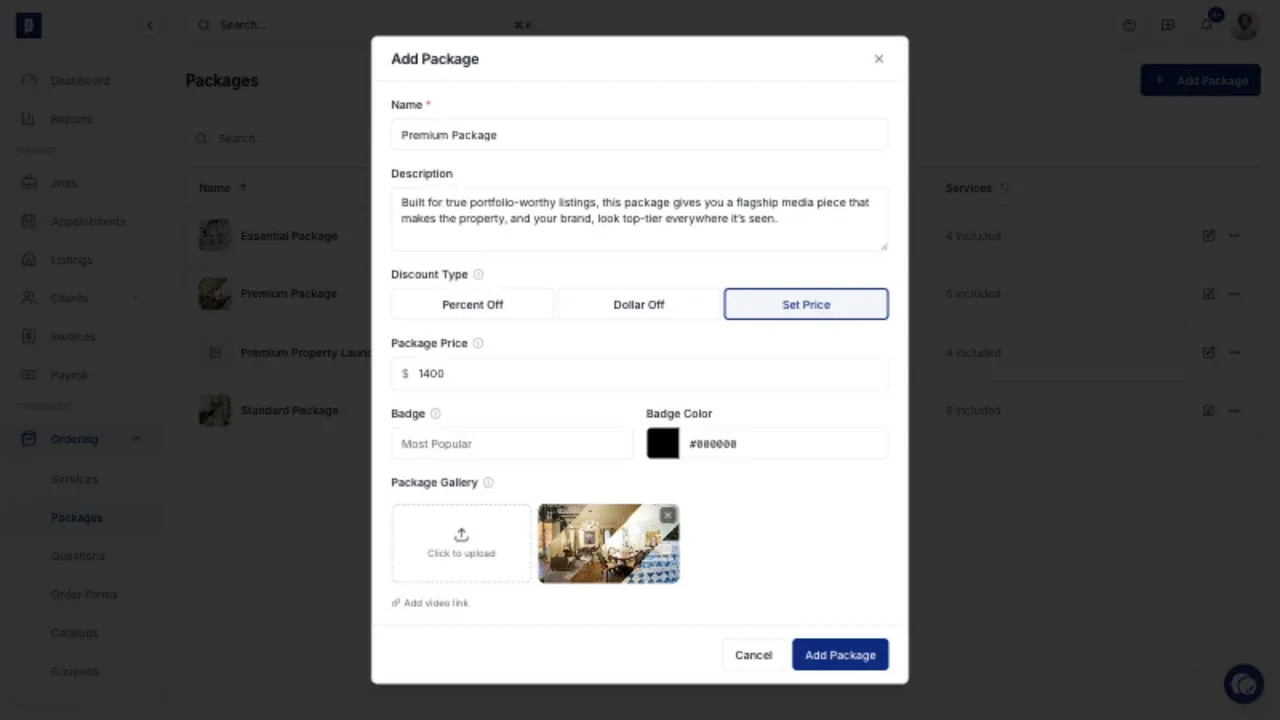
Add a badge and gallery
Use Badge for a short label such as Most Popular or Best Value. Choose a badge color that remains readable on the order form.
Add images or a video when clients would benefit from seeing examples before choosing the package.
Choose the included services
A package must contain at least two services. Select Add service, choose the services, and drag them into the order you want clients to see.
For a quantity-priced service, set the quantity included in the package. The quantity cannot be lower than the service's minimum.
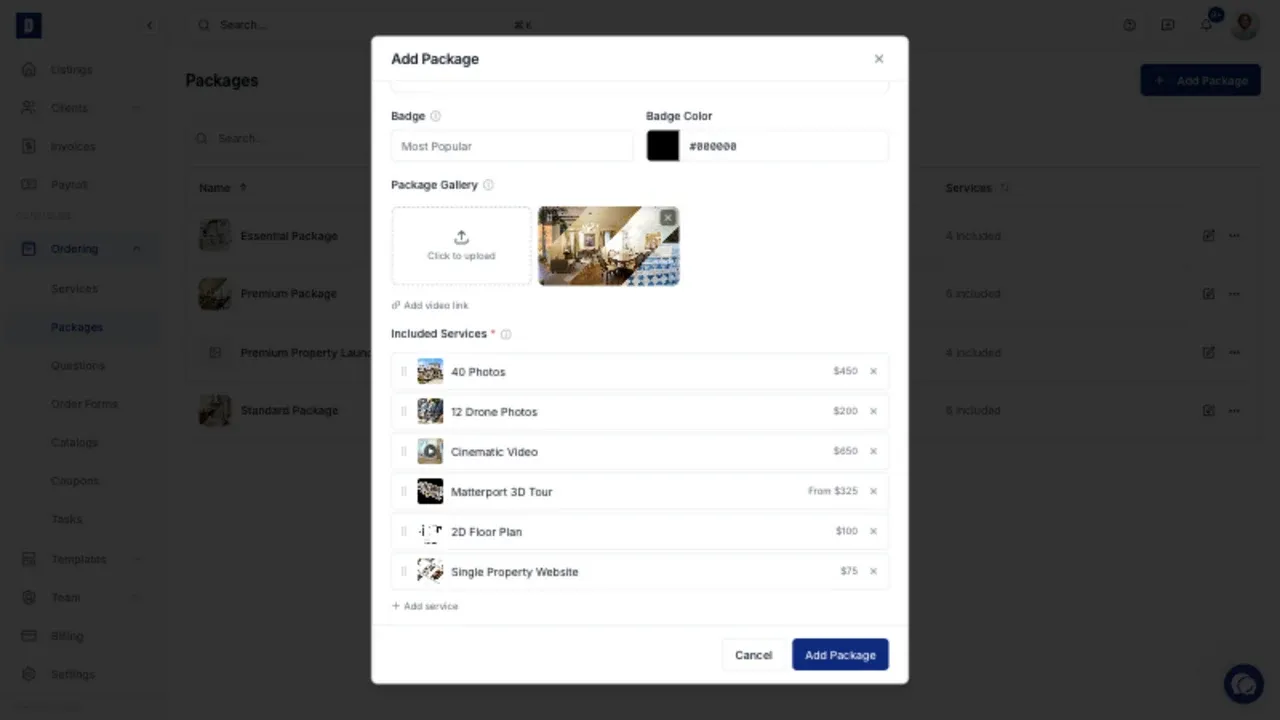
The included services continue to control their own scheduling requirements, Service Types, questions, tasks, and automatic deliverables.
Edit or reuse a package
Use the edit control on a package row to change it. Open the actions menu to duplicate the package or add it to an order form.
Duplicate a package when you want to create another offer with similar services and pricing. Review the copied name, price, badge, and included services before saving it.