Creating and Managing Services
Create services with fixed, tiered, or quantity pricing, then connect scheduling and workflow settings.
Written By David Dayan
Services are the individual items clients can order, such as interior photos, a floor plan, or virtual staging. Open Ordering → Services and select Add Service.
Create a service
Enter the client-facing name and description, then choose a Service Type. Service Types connect the service to scheduling and team assignments. A scheduled appointment can be assigned only to a team member who has the required Service Type.
Choose No service type for work that does not need that assignment rule.
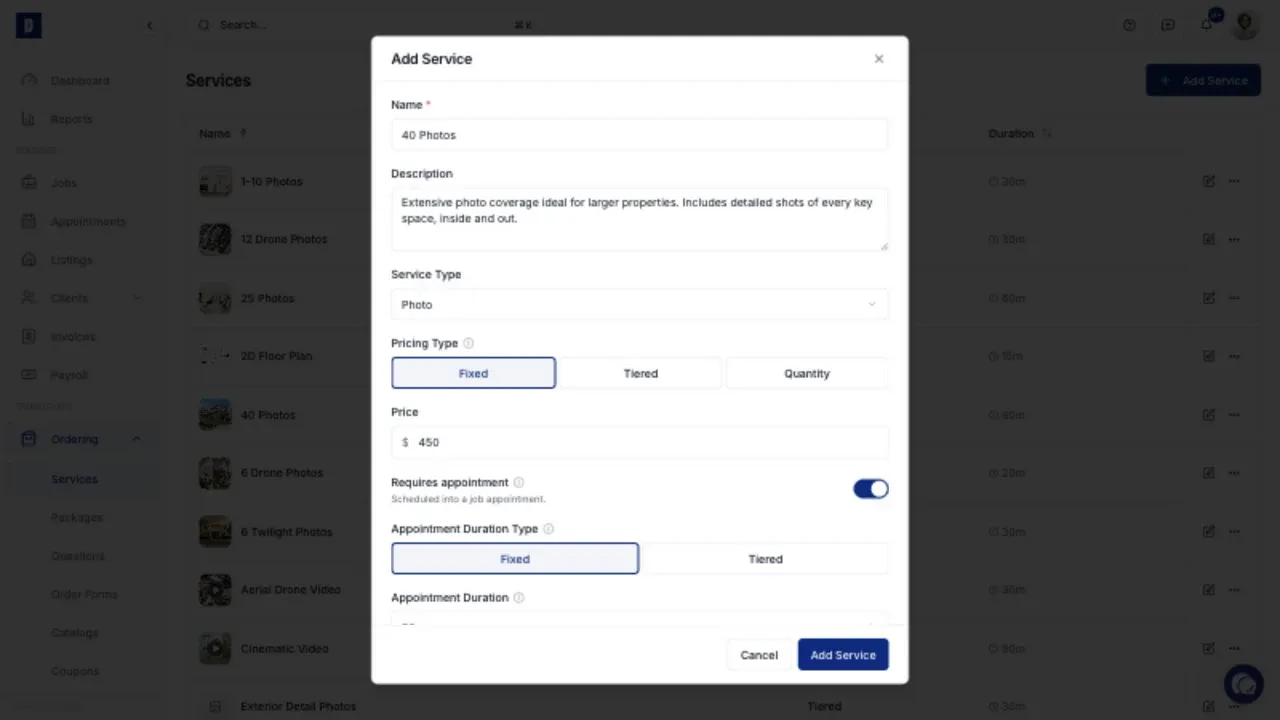
Choose how the service is priced
Select the pricing model that matches how you sell the service:
- Fixed charges one price each time the service is ordered.
- Tiered changes the price based on the property's square footage.
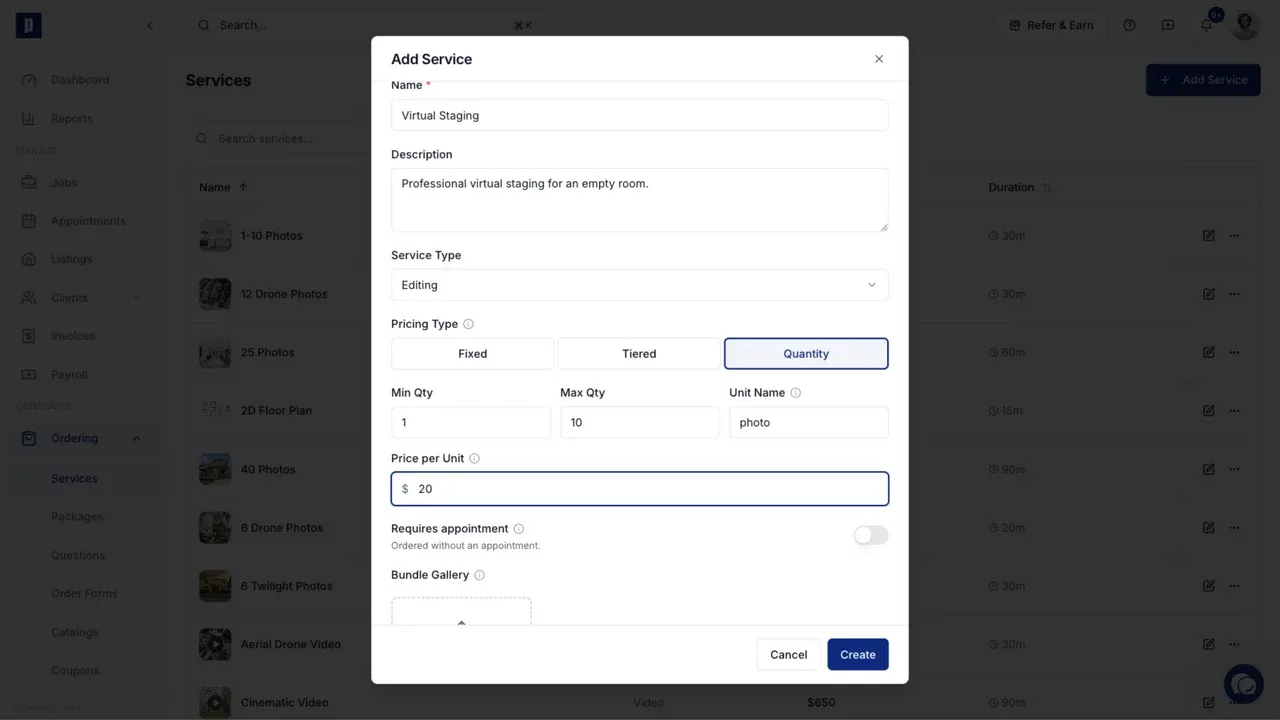
- Quantity charges for each unit the client selects. Set the minimum, maximum, unit name, and price per unit.
For a quantity service, use the singular unit clients should see beside the selector, such as photo, room, or image.
See Sq Ft Based Pricing for tier boundaries and pricing.
Set the appointment rules
Turn on Requires appointment when the service must be scheduled at the property. Choose a fixed or square-footage-based duration. The duration is used when Photeria calculates availability and schedules the appointment.
Turn it off for work that is ordered but not scheduled, such as virtual staging or an add-on delivered after the shoot. A service without an appointment has no duration or team assignment requirement.
Use Appointment Sunset Window when the service must be scheduled within a specific period around sunset.
Add the service workflow
The lower part of the service editor can connect the service to the rest of the job:
- Add gallery images or a video so clients can review examples.
- Recommend related services as add-ons.
- Attach workflow tasks that should be created with the job.
- Attach questions that should appear when the service is ordered.
- Automatically create a property website, marketing materials, or a download page.
Only turn on automatic creation for deliverables that should be prepared every time this service is ordered.

Edit or reuse a service
Use the edit control on a service row to update it. Open the actions menu to duplicate the service or add it to an order form. Duplicating is useful when a new service shares most of the same pricing, scheduling, and workflow settings.