Creating Order Questions
Create required or optional order questions, configure answer choices, and connect them to the right services.
Written By David Dayan
Order Questions collect information that is needed only for certain services, such as rooms that need extra coverage or a preferred video style. Open Ordering → Questions and select Add Question.
Write the question
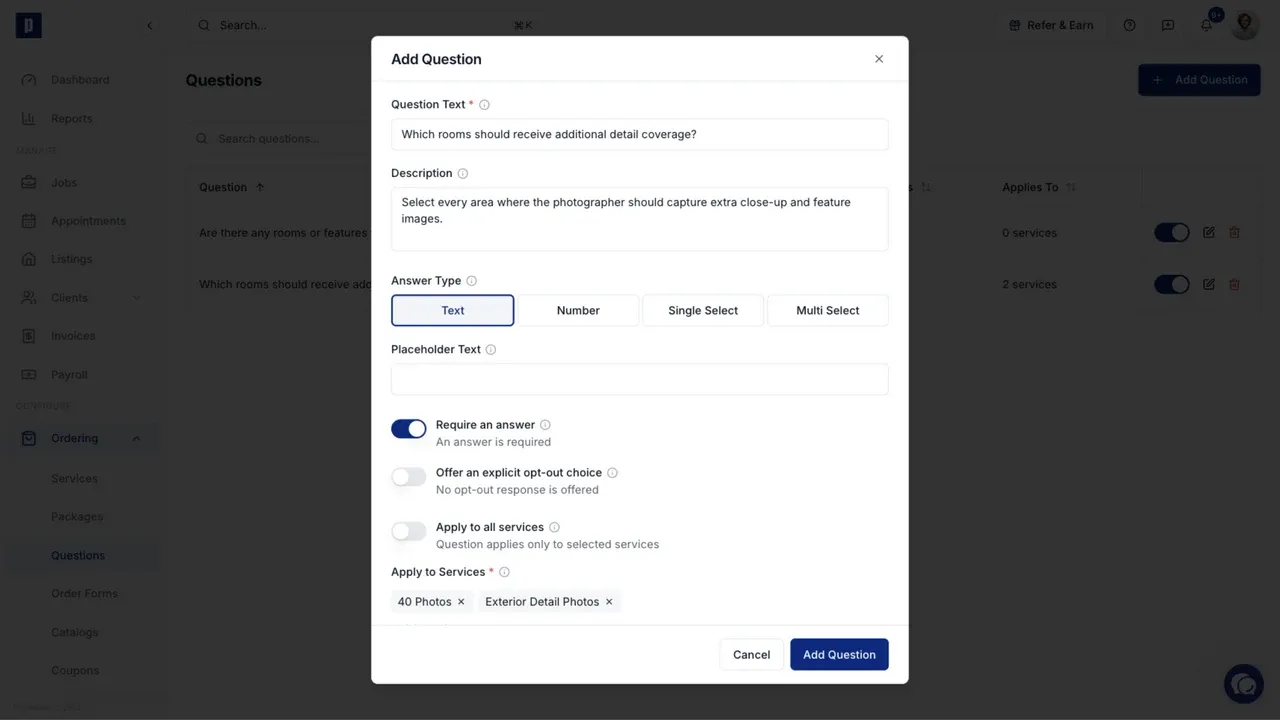
Enter the question clients should answer and add a short description when context will help them respond correctly.
Choose whether the answer is required. Use Offer an explicit opt-out choice when the client should be able to choose a clear response such as Choose for me instead of leaving the answer blank.
Choose the answer type
Select the format that matches the information you need:
- Text for a written response.
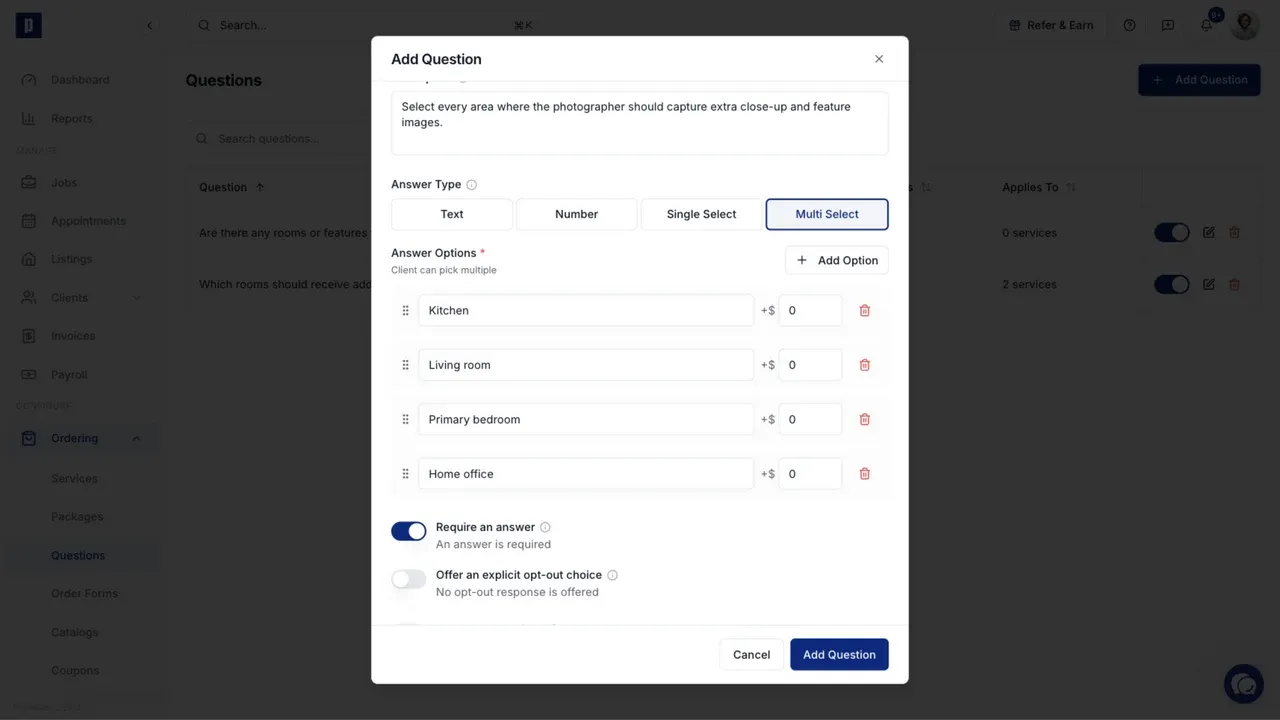
- Number for a quantity. Add a price per unit only when the number should change the order total.
- Single Select when the client must choose one answer.
- Multi Select when the client can choose several answers.
For Single Select and Multi Select, add the available choices and drag them into the order clients should see. An answer can add to the order total when that choice has an additional price.
Decide when the question appears
Turn on Apply to all services when every order should include the question. Leave it off to select the services that should trigger it.
A service-specific question appears when the client chooses one of its connected services. For example, a detail-coverage question can be connected only to the photography services where it is relevant.
Edit or disable a question
Use the edit control to change the wording, answer type, choices, pricing, or connected services. Use the status toggle on the Questions page to stop showing a question without deleting its configuration.