Task Management
Tasks are the internal work items your team completes to fulfill a job, things like "Edit Photos," "Upload to Gallery," or "QC Video." They keep your post-shoot workflow organized and accountable without manual hand-offs.
Written By David Dayan
Tasks are the internal work items your team completes to fulfill a job, things like "Edit Photos," "Upload to Gallery," or "QC Video." They keep your post-shoot workflow organized and accountable without manual hand-offs.
Task Management is currently in Beta.
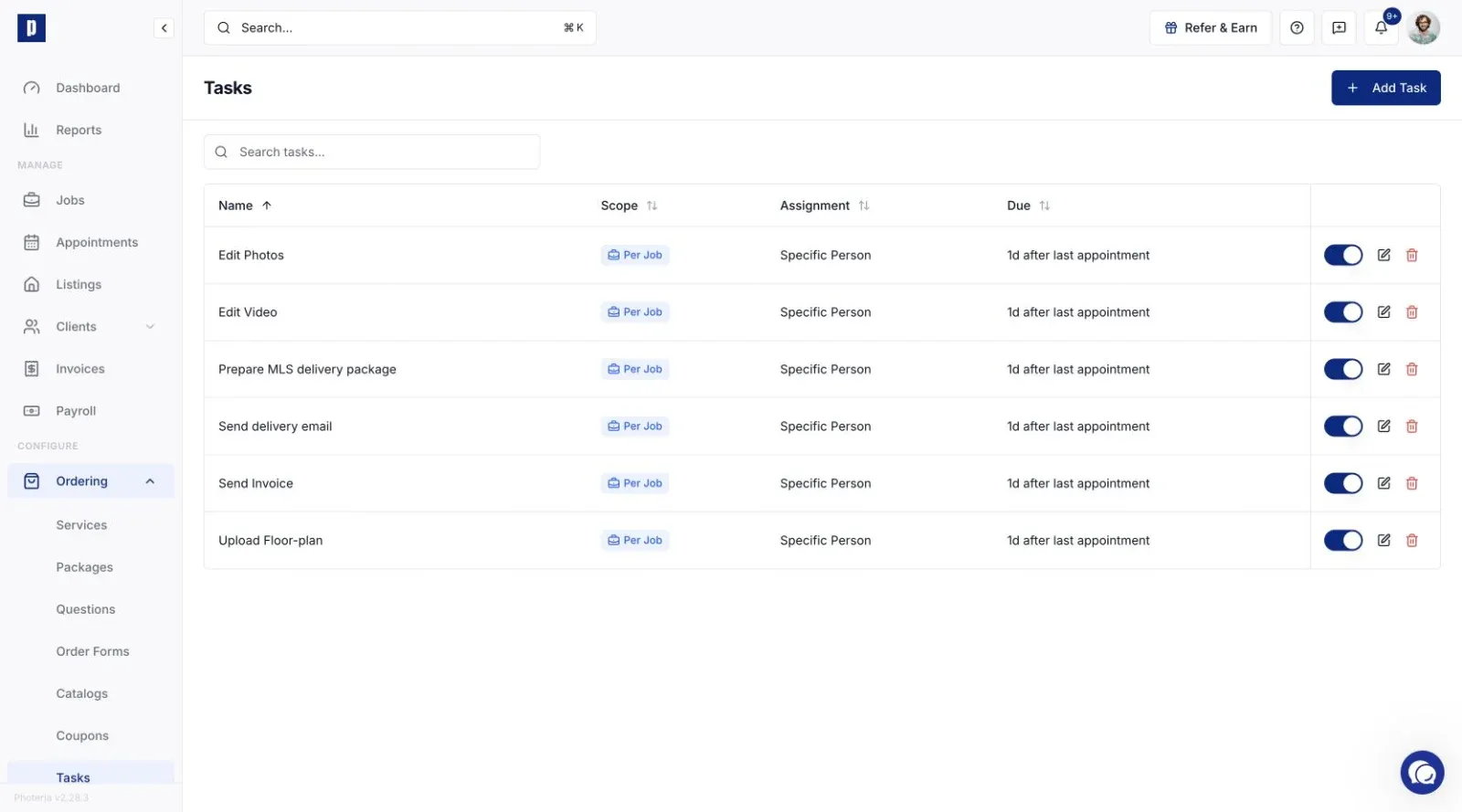
How it works
You define task templates once, then link them to the services you offer. Whenever a job is created with a linked service, Photeria generates the actual tasks for that job automatically. No manual setup per job.
Creating a task template
Go to Ordering → Tasks and click Add Task. The key decisions:
Scope controls how many tasks get created per job:
Per Job - one task, no matter how many times the service appears.
Per Appointment - one per appointment.
Per Service - one per service line item (two drone shoots = two tasks).
Due date is an anchor plus an offset. The anchor is the job creation time (Per Job) or the appointment time (Per Appointment / Per Service). Add an offset like "2 days after," choose weekdays-only if you want weekend due dates to roll to Monday, and set the due time.
Assignment decides who gets it:
Specific Person - always the same staff member.
Whoever Shot It - the photographer on the appointment, and it re-assigns automatically if the photographer changes. Per Appointment / Per Service only.
Skill-Based Routing - auto-assigns to a qualified person by round robin, least assigned, or lowest current load.
Toggle a template off to stop it generating new tasks without deleting it. Deleting a template leaves existing tasks intact.
Linking tasks to services
Edit a service under Ordering → Services and pick which task templates should fire when that service is added to a job. That link is what triggers task creation.
What happens automatically
Tasks are created when their service is added to a job.
Reschedule an appointment and due dates recalculate.
Reassign a photographer and "Whoever Shot It" tasks follow.
Remove a service and its pending tasks are deleted; completed ones are kept for the record.
Completing tasks
Check a task off to complete it (uncheck to reopen); Photeria records who and when. You can do this from the Tasks card on a job or from the My Tasks widget on your dashboard, which groups your work into overdue, due today, and upcoming.
Permissions
Tasks: Manage Templates - create and edit templates, link them to services.
Tasks: Complete Assigned - complete tasks assigned to you.
Tasks: Complete All - complete any task regardless of assignee.
Admins get all three; other roles need them granted. See Roles and Permissions.