Tracking Job Status
Photeria separates three kinds of status on every job so you can track your business the way it actually runs. They're independent of each other, which is the whole point: each answers a different question.
Written By David Dayan
Photeria separates three kinds of status on every job so you can track your business the way it actually runs. They're independent of each other, which is the whole point: each answers a different question.
Job progress (you set this)
A four-state field you control manually:
- Pending - not started; the default for a new job.
- In Progress - scheduling, shooting, editing, or finishing up.
- Completed - delivered and done.
- Archived - hidden from the main list, with its own tab, restorable any time.
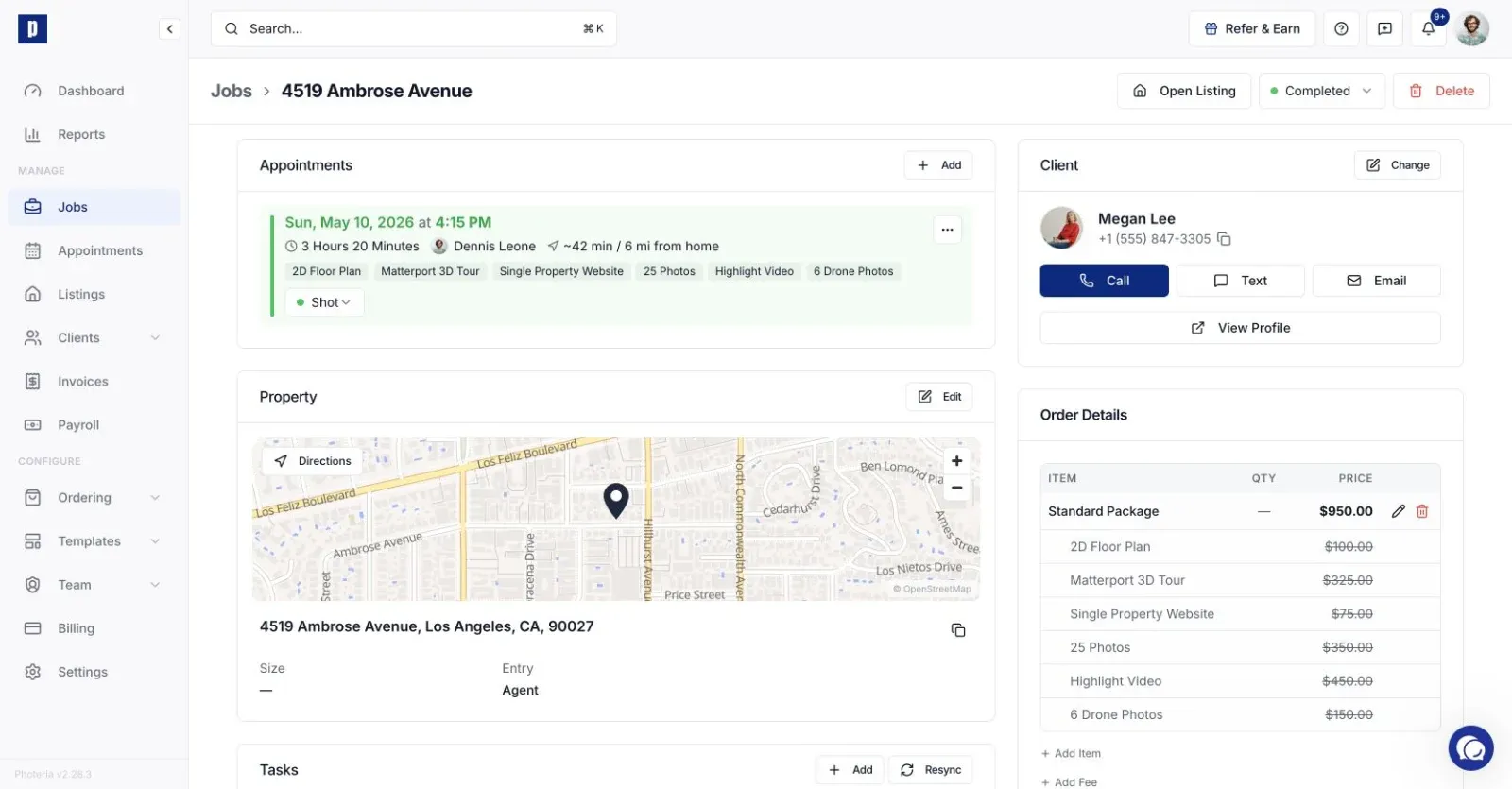
Change it from the progress dropdown on the Jobs list or in the job header; it saves immediately. Progress never auto-calculates from appointments, so update it on whatever rhythm fits your team, eagerly (In Progress when the first appointment books) or lazily (Completed only after payment). Both are fine.
Appointment status (per appointment)
Tracks the on-site progress of each visit:
- Scheduled - booked, hasn't happened yet.
- Arrived - photographer is on-site.
- Shot - on-site work complete.
Set it from the appointment's dropdown on the job. It's fully independent of job progress, so a Pending job can have every appointment marked Shot, or vice versa.
Payment status (automatic)
Updates itself whenever a payment is recorded:
- Unpaid - nothing paid yet.
- Partial - some paid, balance remaining.
- Paid - total paid (or a $0 invoice).
Filtering
The Jobs page has a tab per progress state, each with a count so you can read your pipeline at a glance. On top of that, search by address or agent and filter by photographer, client, or brokerage. Useful combinations: In Progress + photographer ("what's Alex working on?") or Pending + brokerage ("what's on deck for this firm?").
Best practices
- Update appointment status on the day. Arrived when your photographer shows up, Shot when they leave. This keeps the schedule honest and your team coordinated.
- Use progress to reflect the whole job. Don't leave a delivered, paid job in Pending; move it to Completed.
- Archive when truly done to keep your active list clean. You can always pull it back.
- Don't try to delete paid jobs. Photeria blocks this on purpose, so archive them instead and your books stay intact.