Services, Packages, and Fees

Every job in Photeria has an invoice that is built from three types of line items: services, packages, and custom fees. This article explains how each one works and how to manage them on a job.

Written By David Dayan

Every job in Photeria has an invoice that is built from three types of line items: services, packages, and custom fees. This article explains how each one works and how to manage them on a job.

Services

Services are the individual items you offer, such as "Interior Photos," "Drone Aerial Video," or "3D Virtual Tour." Each service has a name, a price, and an optional quantity.

How Service Pricing Works

Services can be priced in different ways depending on how your organization has configured them:

  • Fixed price - A single set price regardless of property size
  • Square footage tiered - The price changes based on the property's square footage. Photeria automatically selects the correct tier when the sqft is entered.
  • Quantity based - The price is calculated per unit (for example, $10 per additional edited photo). You set the quantity when adding the service.

Adding a Service to a Job

From the job detail page, look at the Invoice card on the right side:

  1. Click the Add Item button below the items table
  2. A search popover appears showing all available services and packages
  3. Type to search or scroll through the list
  4. Click on a service to add it to the job

The service is added immediately with its catalog price. For quantity-based services, the default minimum quantity is used.

Editing a Service on a Job

  1. Click the pencil icon next to the service in the invoice table
  2. The quantity and price fields become editable
  3. Adjust the values as needed
  4. Click the pencil icon again (or click elsewhere) to save

Removing a Service

  1. Click the trash icon next to the service
  2. Confirm the removal in the dialog that appears

Removing a service cannot be undone, and the job total updates immediately.

Packages

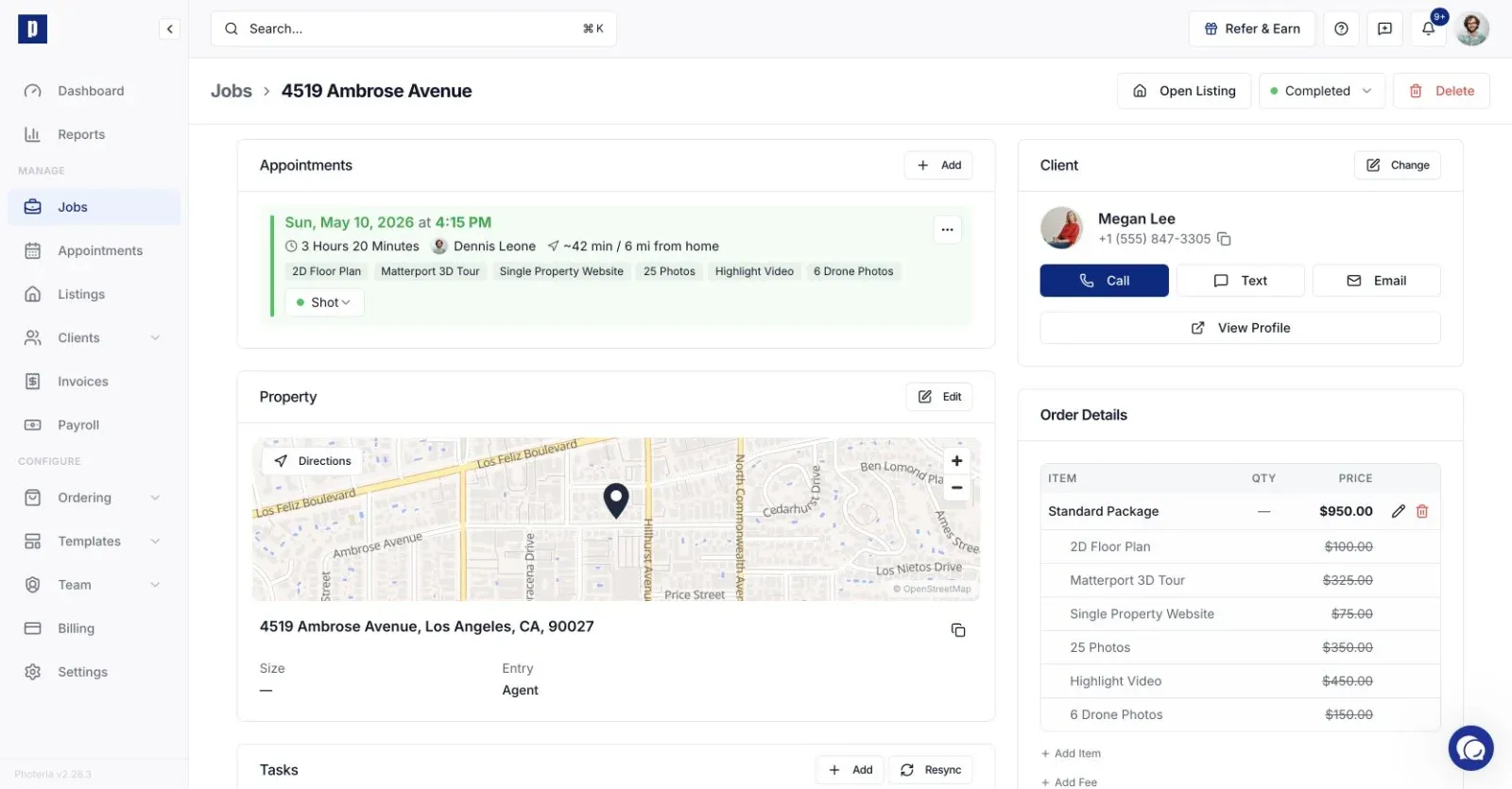
Packages bundle multiple services together at a discounted price. When you add a package to a job, it appears as a group in the invoice table with the package price shown prominently and the individual service prices crossed out to highlight the savings.

Package Pricing Types

Packages can be configured with different discount structures:

  • Set price - A fixed bundle price regardless of the individual service costs
  • Percentage off - A percentage discount applied to the sum of all services in the package
  • Dollar amount off - A flat dollar discount subtracted from the service total
  • Square footage tiered - The package price is determined by the property's square footage

Adding a Package to a Job

  1. Click Add Item on the Invoice card
  2. Packages are listed alongside services in the search popover, usually at the top
  3. Click on a package to add it

When a package is added, Photeria creates the package entry and adds all of its individual services underneath. The services show their full catalog prices (with strikethrough), while the package shows the discounted bundle price.

Editing a Package

  1. Click the pencil icon on the package row
  2. You can edit the package name and the package price
  3. Click the icon again to save

Removing a Package

  1. Click the trash icon on the package row
  2. Confirm the removal

Removing a package also removes all of the services that belong to it.

Custom Fees

Fees are additional charges (or credits) that you can add to any job. Common examples include rush delivery fees, travel surcharges, or one-time discounts.

Adding a Fee

  1. Click Add Fee at the bottom of the Invoice card (below the items table)
  2. A small popover appears with two fields:
    • Fee Name - A short description, like "Rush delivery" or "Travel surcharge"
    • Amount - The dollar amount. Use a positive number for charges.
  3. Click Add Fee to save

Editing a Fee

  1. Click the pencil icon next to the fee
  2. Update the name or amount
  3. Click the icon again to save

Removing a Fee

  1. Click the trash icon next to the fee
  2. Confirm the removal

Understanding the Invoice Total

The invoice total at the bottom of the Invoice card shows your subtotal (services + packages + fees βˆ’ discount) plus tax.

Adjusting the Discount

To apply or change a discount on the job:

  1. Click the pencil icon next to the Discount line
  2. Enter the dollar amount
  3. Click away or press Enter to save

The discount is applied as a flat dollar amount subtracted from the subtotal.

Invoice Creation

Invoices are not created automatically when a job is booked. An invoice is created when the listing is activated or when you click the Create Invoice button on the job detail page.

Until an invoice is created, the job won't appear on the Invoices page. See Client Invoicing for the full invoicing workflow.

Sending an Invoice

Once an invoice exists, you can send it to the client:

  1. Click Send Invoice at the bottom of the Invoice card (or Send Reminder if previously sent).
  2. The Compose Email dialog opens pre-filled with invoice details and the agent's email in the To field.
  3. Review, edit recipients if needed, and click Send or schedule for later.

The client receives an email with a link to view and pay the invoice online.

Recording Payments

To record a payment received for a job:

  1. Click View Invoice at the bottom of the Invoice card to go to the full invoice page.
  2. Click Add Payment and fill in:
    • Amount - how much was paid
    • Method - Cash, Check, Bank Transfer, Credit Card, or Other (with a custom label like "Venmo" or "Zelle")
    • Date - when the payment was received
    • Notes - optional reference like a check number

The payment status badge on the job updates automatically (Unpaid, Partial, or Paid) based on total payments recorded versus the job total. A payment receipt email is sent to the agent automatically.

Tasks

Services can have task templates linked to them. When a service is added to a job, task instances are created automatically for the staff to complete (e.g., "Edit Photos," "Upload to Gallery"). See Task Management for details.