Delivering a Job
Delivery is the final step: it emails the client a branded message with links to download their media and view the property website, and stamps the listing as delivered.
Written By David Dayan
Delivery is the final step: it emails the client a branded message with links to download their media and view the property website, and stamps the listing as delivered.
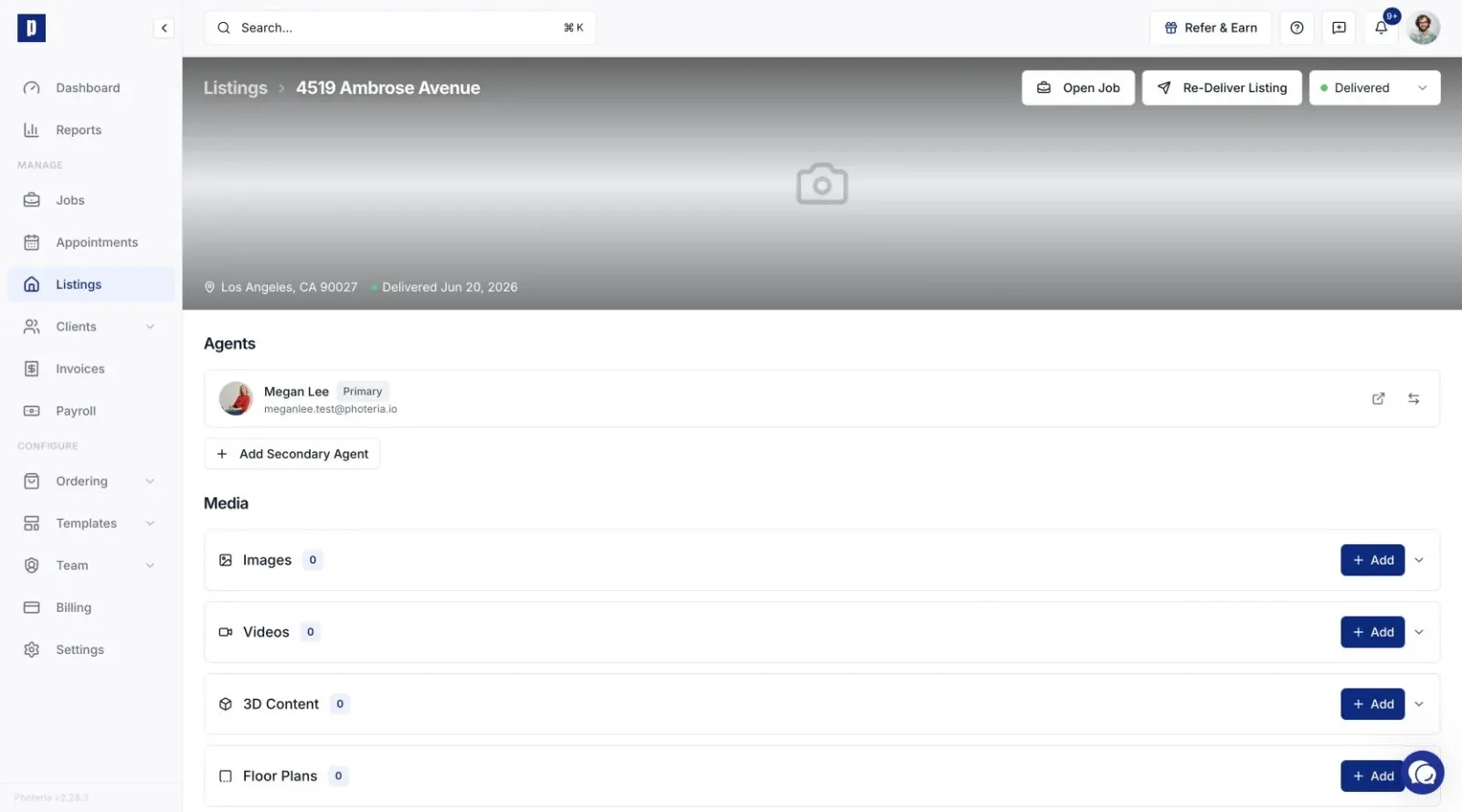
Delivery happens on the listing, not the job. Every job has a listing that Photeria creates with it, and that's where you upload and organize media, build the property website, and deliver. Get to it from the Listing link in the job header, or find it by address under Listings.
Before you deliver
Make sure your media is uploaded and organized, the property website looks right, and the client's email on the job is correct. Open the Website Editor to preview the site live, checking photo order, slideshow, videos, which sections are visible, and your theme and colors.
Delivering
On the listing, click Deliver Listing, review the email preview (subject, hero image, message), confirm the recipient is the right agent, and send. The client receives your branded email with their name, the address, a hero image, and links to the website and download page.
What delivery does, and doesn't, change
Sending marks the listing Delivered. It does not change job progress, so move the job to Completed yourself when you're ready (most teams do this right after delivering).
Re-delivering
After the first send the button becomes Re-Deliver Listing. Use it any time you edit or add media, or the client misplaced the email. There's no limit, and the listing stays marked delivered.
Quick checklist
- Media uploaded and organized
- Property website reviewed
- Client email verified
- Delivery email content reviewed