Creating a Job
Creating a job takes a few minutes through a five-step wizard. Start it with New Job from the Jobs page or the dashboard Quick Actions. Move between steps freely; Photeria skips the Questions step if none of your selected services use questions.
Written By David Dayan
Creating a job takes a few minutes through a five-step wizard. Start it with New Job from the Jobs page or the dashboard Quick Actions. Move between steps freely; Photeria skips the Questions step if none of your selected services use questions.
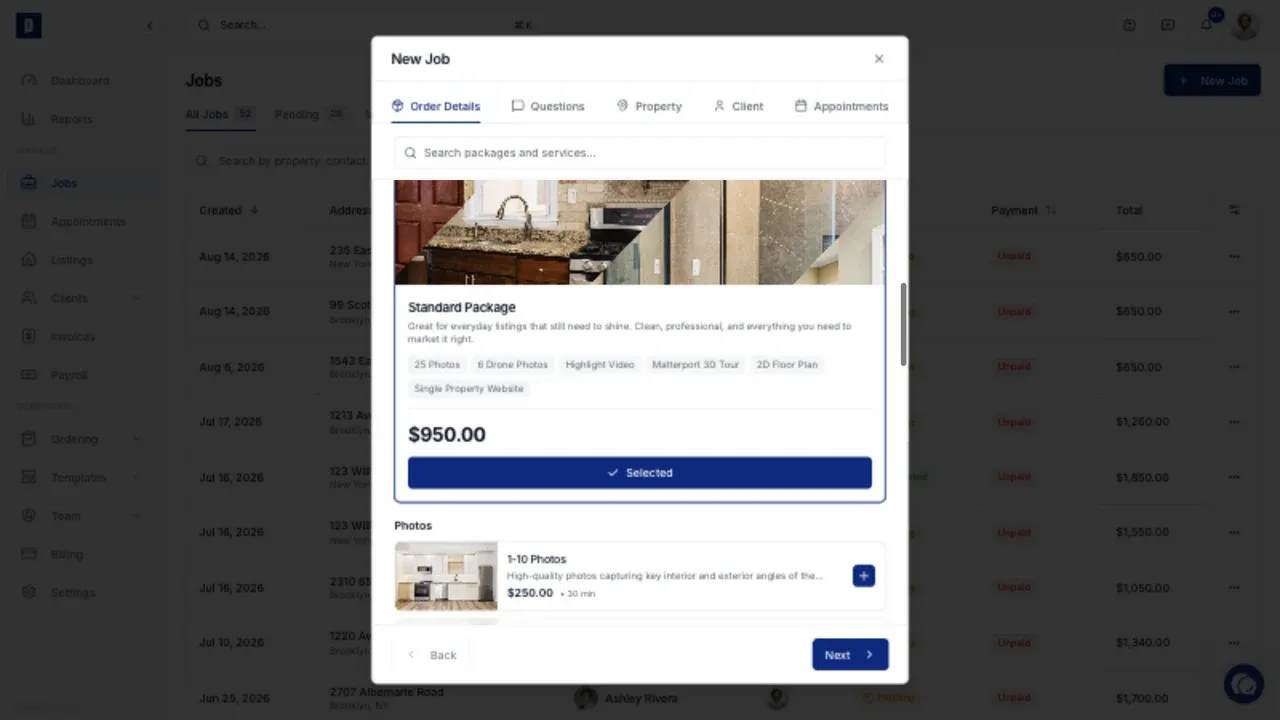
Step 1: Order
Pick what the client is ordering: select packages and check off individual services. If anything uses size-based pricing, enter the square footage so the right price applies. Set quantities for per-unit services, and add a one-off discount if needed. You need at least one service or package to continue.
Step 2: Questions
If any selected service has intake questions ("Is the property occupied?", "Are there pets on site?"), answer them here. Some are required, and some can adjust pricing based on the answer. Skipped automatically when no questions apply.
Step 3: Property
Enter the shoot location. Start typing the address and pick from autocomplete to fill city, state, and zip. Add a unit number and square footage if relevant. Set the entry method:
Agent - the listing agent lets the photographer in
Lockbox - a code (a required field appears)
Owner - the homeowner will be there
Use access notes for anything the photographer should know: gate codes, alarm details, parking, pets.
Step 4: Client
Link the ordering agent. Search and select an existing agent, or use the New tab to enter their details (the agent record is created when you save). Add a secondary agent if two agents are co-listing.
Step 5: Appointments
Schedule the shoot. For each appointment, set the date, time, photographer, and which services it covers. Assigning services per appointment matters when a shoot spans multiple days or photographers, for example a daytime shoot plus a twilight return. Sun-dependent services honor your Sunset Appointment Mode under Settings → Scheduling.
Finishing up
Click Create Job. Photeria may then prompt you to send a confirmation email with the appointment time and address so the client knows when to expect the photographer. You can skip and send it later from the job.