Dropbox
Connect Dropbox to keep media flowing between Photeria and your own storage. It works two ways: videos you upload in Photeria land in Dropbox, and you can pull finished photos, videos, and floor plans from Dropbox into your listings. Any Dropbox plan works, including free.
Written By David Dayan
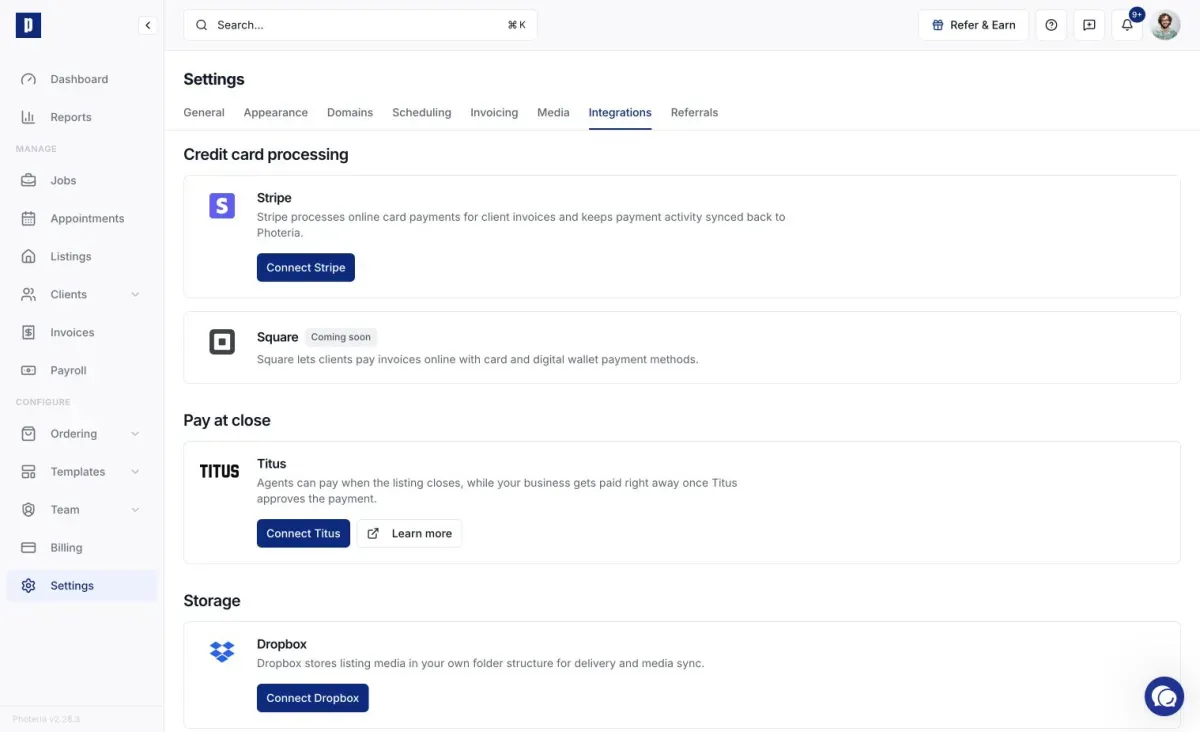
Connect Dropbox to keep media flowing between Photeria and your own storage. It works two ways: videos you upload in Photeria land in Dropbox, and you can pull finished photos, videos, and floor plans from Dropbox into your listings. Any Dropbox plan works, including free.
Dropbox connects at the organization level, so the whole team shares one connection.
Connecting
At Settings → Integrations, click Connect to Dropbox on the Dropbox card, sign in, and grant access.
Root folder
By default, listing folders are created under /Photeria. Click Change to pick a different root folder (or create a new one) using the folder picker.
How listing folders work
Each listing gets its own Dropbox folder, created automatically when the listing is created or activated:
{Root Folder}/YYYY/MM - Mon/Street AddressFor example: /Photeria/2026/04 - Apr/123 Main St. If two listings share a street in the same month, the second gets a numbered suffix (123 Main St 2). Inside, you'll find Finals/Photos, Finals/Videos, Finals/Floorplans, Raw/Photos, and Raw/Videos.
If a listing predates your Dropbox connection and has no folder yet, a Create Folder button appears in its Media section to set one up on demand.
Syncing finals into a listing
To pull finished work in, open a listing's Media section and click Sync Folder. Photeria scans the three Finals subfolders, downloads anything new, and lets you review before saving to the listing. Files already on the listing are skipped (matched by filename). Cancelling mid-sync cleans up anything uploaded so far.
Use Open Folder in the same header to jump straight to the listing's Dropbox folder.
Uploading videos
With Dropbox connected, open a listing's Videos section, click Add Video, and upload a file (up to 150 MB). It lands in Finals/Videos and gets a shared link automatically. The From URL tab is still there for YouTube and Vimeo links.
Deleting a Dropbox-uploaded video in Photeria also removes the file from Dropbox, so the two stay in sync.
Disconnecting
At Settings → Integrations, click Disconnect on the Dropbox card and confirm. Your Dropbox files stay put, but uploads and syncs stop until someone reconnects.
Troubleshooting
"Dropbox connection expired"
Authorization lapsed. Reconnect at Settings → Integrations.
"Sharing permissions not available"
Photeria needs permission to create shared links. Team-plan admins sometimes restrict this, so ask your Dropbox admin.
Upload stuck or times out
Large files take a while on slow connections. Also check your Dropbox storage isn't full.
Sync found 0 new files
Everything in Finals is already on the listing. If you re-edited files, rename them or remove the old versions first.
No Sync button on a listing
That listing has no Dropbox folder yet. Use Create Folder to set one up.