Offering Pay at Close with Titus
Connect Titus, enable Pay at Close, and choose how card payments are processed.
Written By David Dayan
Connect Titus to let eligible agents defer an invoice until their listing closes while your business receives payment after Titus approves the transaction. You can offer Pay at Close alongside Stripe card payments or ask Titus to process both card and deferred payments.
Connect your Titus account
- Go to Settings → Integrations.
- Find Titus under Pay at close and click Connect Titus.
- Complete the business setup in the Titus window, including the requested identity, business, and bank information.
- Return to Photeria. The connection may show Confirming while Titus finishes setup.
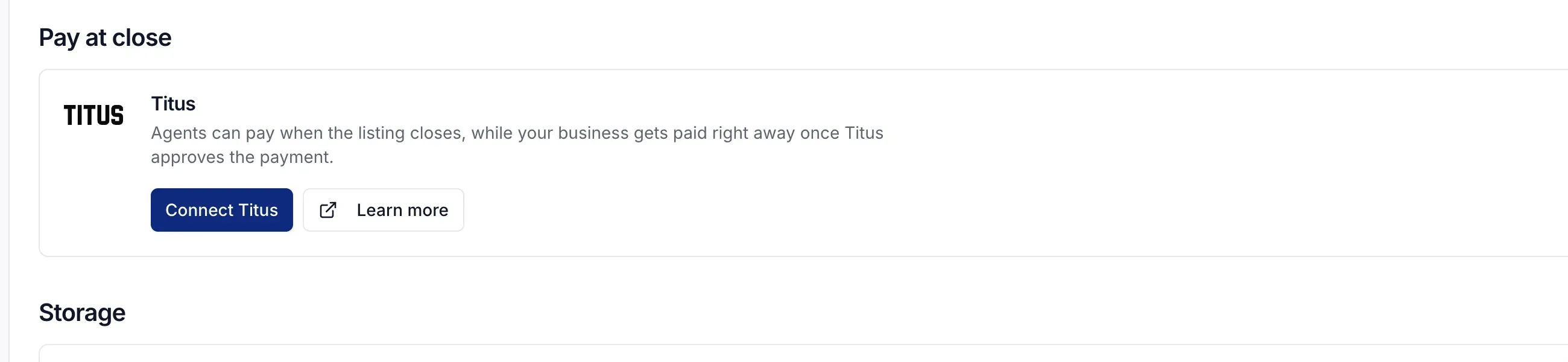
If the card shows Needs attention, open Titus and complete the outstanding requirements. Once connected, use Manage in Titus for account and payout details.
Turn on Pay at Close
- Go to Settings → Invoicing.
- Open Payment Processors.
- Turn on Pay at close.
Eligible agents will see Titus Pay at close when paying an invoice or submitting an order that requires payment. They can review their rate before applying. Titus handles the application and tells Photeria when the payment is approved.
Pay at Close is not offered for properties in Delaware, Indiana, Louisiana, Montana, North Dakota, Nevada, Rhode Island, South Dakota, Vermont, or Washington.
Choose who processes card payments
The Card payments setting under Payment Processors controls regular credit and debit card payments:
- Choose Stripe to keep card payments with Stripe while using Titus only for Pay at Close.
- Choose Titus after Titus approves your account for card processing.
- Choose No card processor selected if you only want to offer Pay at Close or collect payments outside Photeria.
If Titus is connected but not approved for cards, click Request card processing on the Titus integration card. Pay at Close can remain available while that request is pending.
What the agent experiences
When Pay at Close is available, the payment screen shows $0 today and lets the agent review the Titus fee before continuing. Titus opens a secure checkout where the agent completes the application.
An application may be approved immediately, declined, or sent for review. Photeria confirms the order or invoice only after the approved payment reaches the invoice. If Titus is still reviewing the application, the agent can return later instead of submitting the order again.
If a listing does not close, the agent follows the repayment options shown by Titus.
Disconnect Titus
Go to Settings → Integrations, find Titus, and click Disconnect. This stops new Titus payments in Photeria. Existing Titus transactions and obligations remain in Titus, so review them through Manage in Titus before disconnecting.
Troubleshooting
Pay at Close does not appear
Confirm that Titus is connected, Pay at close is turned on under Settings → Invoicing, and the property's state is supported.
The Titus window does not open
Allow popups for Photeria and try again. Titus opens its secure checkout in a separate window.
The application is still pending
Titus may need additional review. Do not submit the same order again. Return to the invoice or order after Titus completes its decision.