Stripe Payments
Connect Stripe and choose it as the card processor for client invoices.
Written By David Dayan
Connect Stripe so clients can pay invoices online by card. Payments collected through Stripe stay synced with the invoice in Photeria.
Connect Stripe
- Go to Settings.
- Open Integrations.
- Under Credit card processing, click Connect Stripe.
- Sign in to Stripe or create an account.
- Complete the business and payout details requested by Stripe.
- Return to Photeria when the connection is complete.
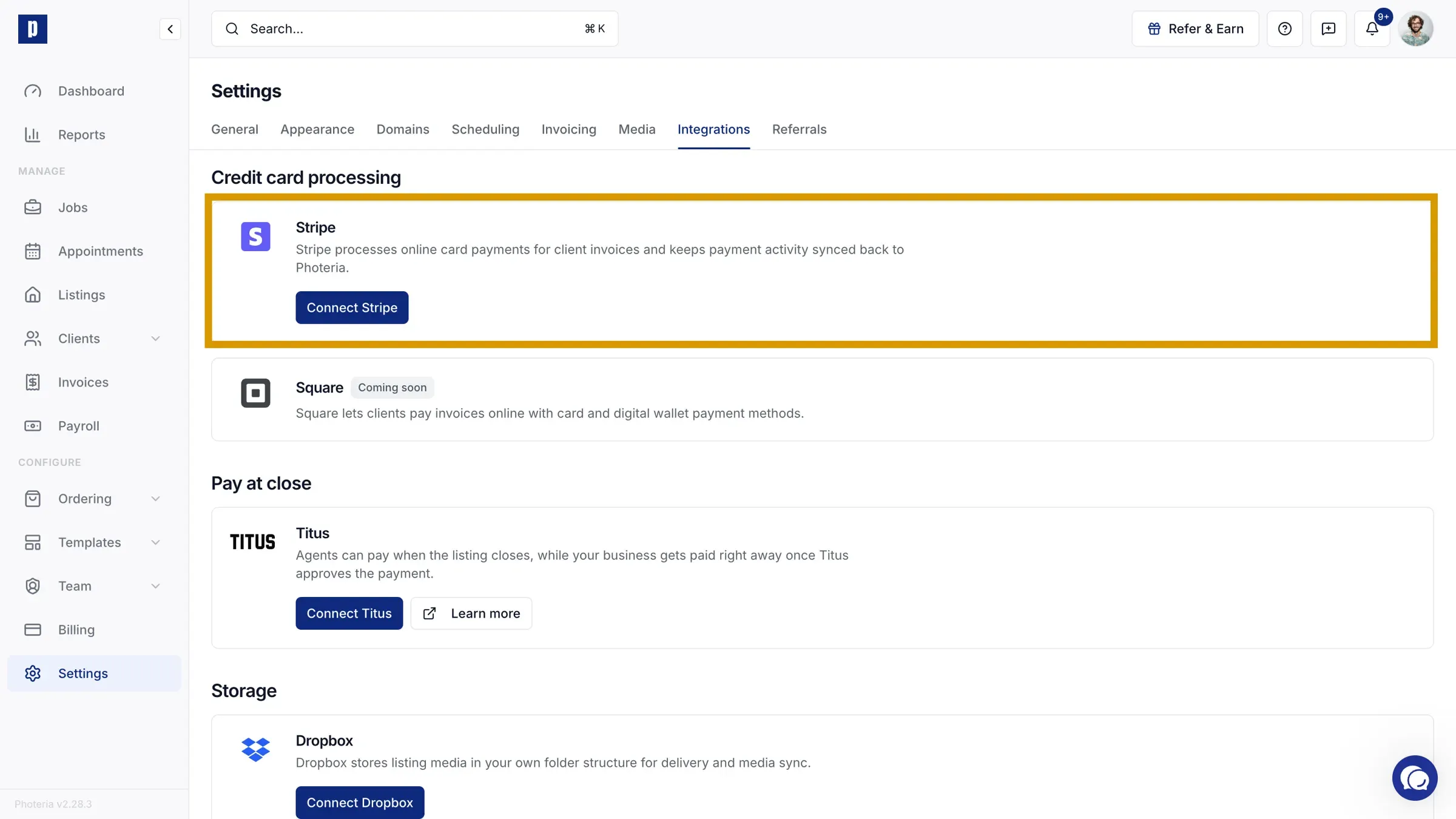
Choose Stripe for card payments
After connecting, go to Settings, open Invoicing, and find Payment Processors. Choose Stripe as the card processor, then save your changes.
Clients can then pay eligible invoices by card. The payment and invoice status update in Photeria after Stripe confirms the payment.
Manage or disconnect Stripe
Return to Settings → Integrations to manage the connected Stripe account or disconnect it. Disconnecting stops new Stripe payments in Photeria. It does not remove your Stripe account or past payment records.
To connect a different Stripe account, disconnect the current account first, then select Connect Stripe again.
See Client Invoicing for the full invoice workflow.