Team Compensation
Compensation plans define how your team gets paid. A plan bundles per-service payout rates, a mileage rate, and a same-appointment rate. Build a plan once, assign it to as many members as you like, and those rates feed Payroll so payouts calculate themselves. Find plans under
Written By David Dayan
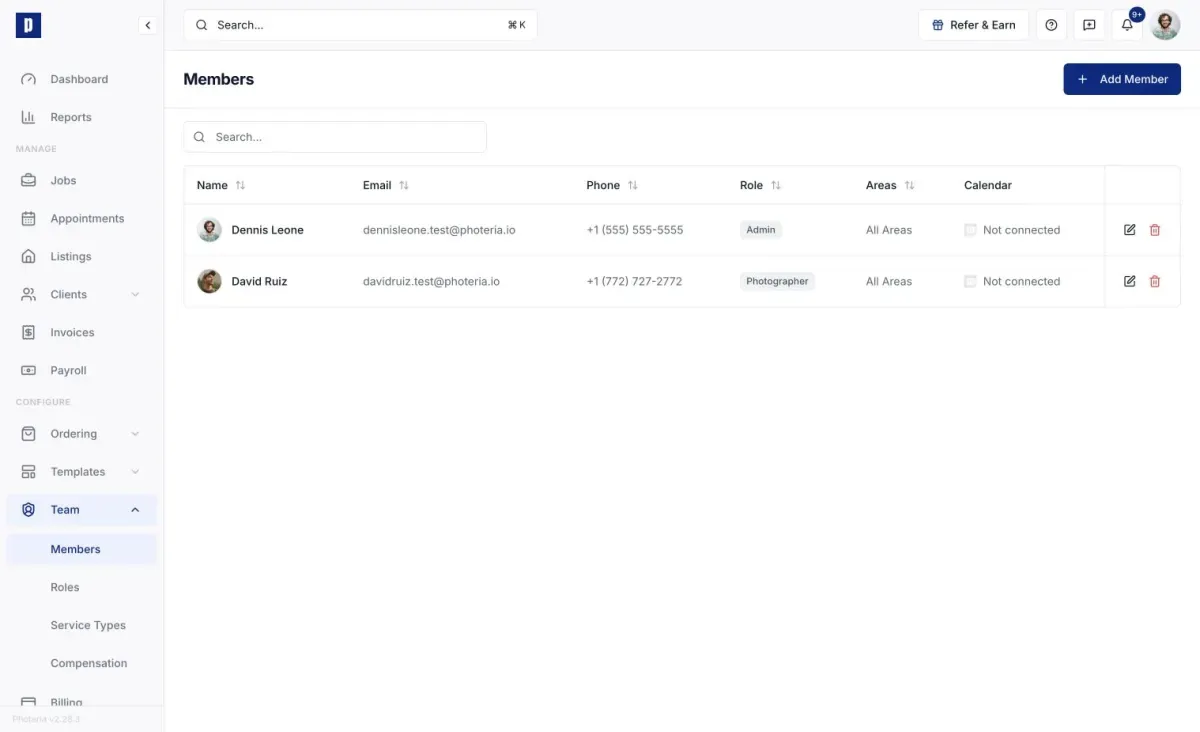
Compensation plans define how your team gets paid. A plan bundles per-service payout rates, a mileage rate, and a same-appointment rate. Build a plan once, assign it to as many members as you like, and those rates feed Payroll so payouts calculate themselves. Find plans under Team → Compensation.
What's in a plan
- Per-service rates - what a member earns for each service they perform. Services priced by square-footage tiers can pay out per tier.
- Mileage rate - earnings per mile driven to an appointment.
- Same-appointment rate - the share a member earns for extra services done on the same appointment, as a percentage (100% means full payout for the extras).
Creating a plan
Click Add Plan, give it a name, set the mileage and same-appointment rates, then enter a payout next to each service you want to pay for (leave a service blank to pay nothing, or enter per-tier amounts for tiered services) and save.
Edit or delete a plan from its row. Deleting removes it permanently, and any members on it are left without a plan.
Assigning a plan
Plans are assigned on the member, not the plan. On Team → Members, open a member and pick their Compensation Plan, Preferred Pay Cadence (Weekly, Biweekly, Monthly, or None), and Payout Method (Manual or Export), then save. You can also do this when first inviting someone.
Why it matters
Once a member has a plan, Photeria can calculate what they've earned from the services they performed and the miles they drove, and those amounts flow straight into Payroll for review and payout.
Permissions
Building and assigning plans requires Team: Manage. Without it, the relevant buttons won't appear. See Roles and Permissions.