Managing Team Members
The Members page is your team roster: invite photographers, set roles, assign Service Types and service areas, and remove people who leave. Find it under Team → Members.
Written By David Dayan
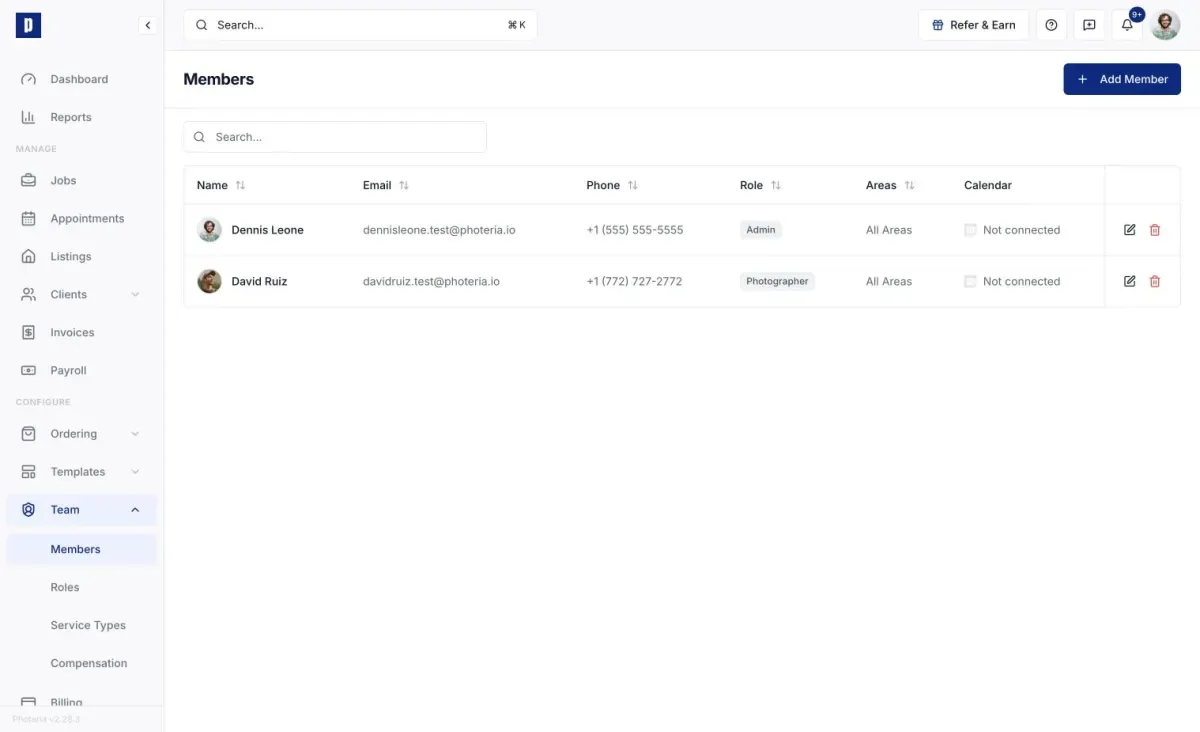
The Members page is your team roster: invite photographers, set roles, assign Service Types and service areas, and remove people who leave. Find it under Team → Members.
Adding a member
Click Add Member, fill in their name, email (where the invite goes), optional phone, and a role, then send the invite. They show as Pending until they accept and set a password.
If an invite needs to go out again, use the resend (paper plane) action on the pending member's row. You may need to wait a bit between sends.
Inviting requires Team: Manage.
Editing a member
Click the edit icon on a member's row to change:
- Role - controls what they can access. You can't change your own role.
- Accepting Orders - whether they appear in the photographer dropdown when scheduling. Turn off to pull someone out of rotation for a vacation or leave without removing them from the team.
- Service Types - which job types they're qualified for. Manage the list at Team → Service Types.
- Service Areas - leave All areas on to cover everywhere, or turn it off to pick specific areas. Only appears if your org has areas configured.
Removing a member
Click the trash icon and confirm. Access is revoked immediately and this can't be undone.
Permissions
- Team: Read - view the roster.
- Team: Manage - invite, edit, remove, resend invites, and assign roles, Service Types, and areas.
If buttons are missing, you're likely missing Team: Manage. Ask an admin with Roles: Manage.