Managing an appointment
Prepare for a visit, record arrival and completion, or reschedule an appointment.
Written By David Dayan
Open an appointment to prepare for a shoot, find property access details, contact the agent, and record your arrival and completion. Each visit has its own page, even when a job has several appointments.
Open the appointment
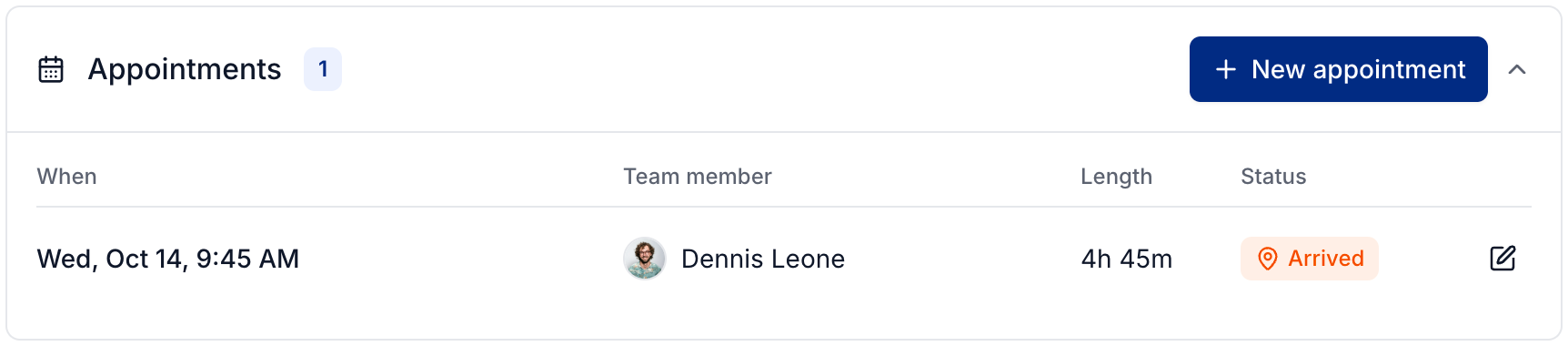
Select an appointment from the Appointments calendar or list. In Map view, select a stop and then Open appointment. You can also select an appointment's date and time on its job.
Prepare for the shoot
Check the assigned photographer, start time, and services before leaving. Under Property, review the entry instructions and any access notes. Select Directions to open the address in maps, or use Call, Text, or Email to contact the agent.
Record arrival and completion
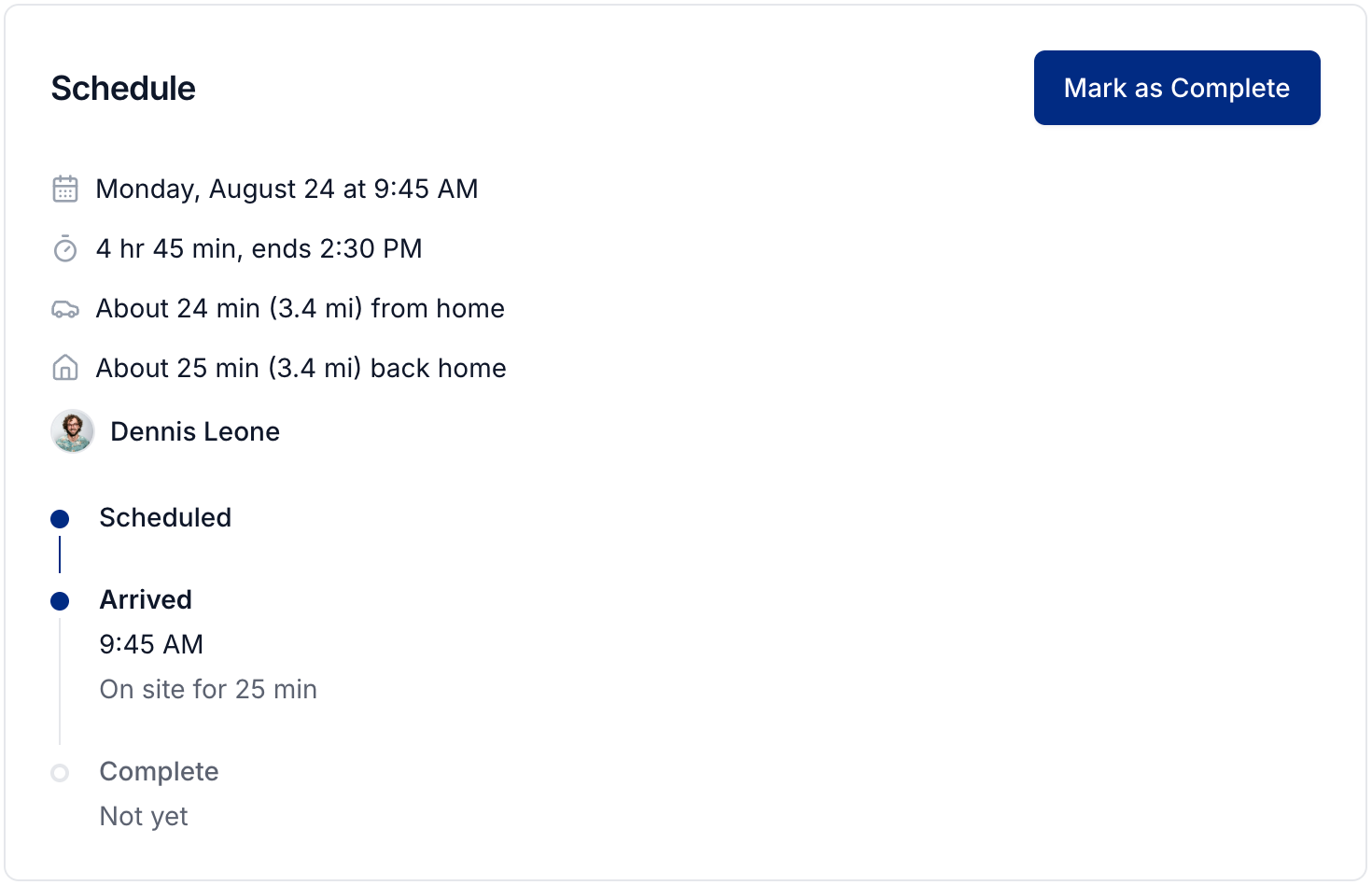
When you reach the property, select Mark as Arrived.
When the on-site work is finished, select Mark as Complete.
The appointment records the arrival and completion times. Use the Status dropdown if you need to correct a status.
Completing an appointment does not complete the job or deliver its media. Use Open Job to continue with editing, tasks, and delivery.
Job managers can update appointment statuses. Photographers with permission to update assigned appointment statuses can do this for their own appointments.
Reschedule or change the photographer
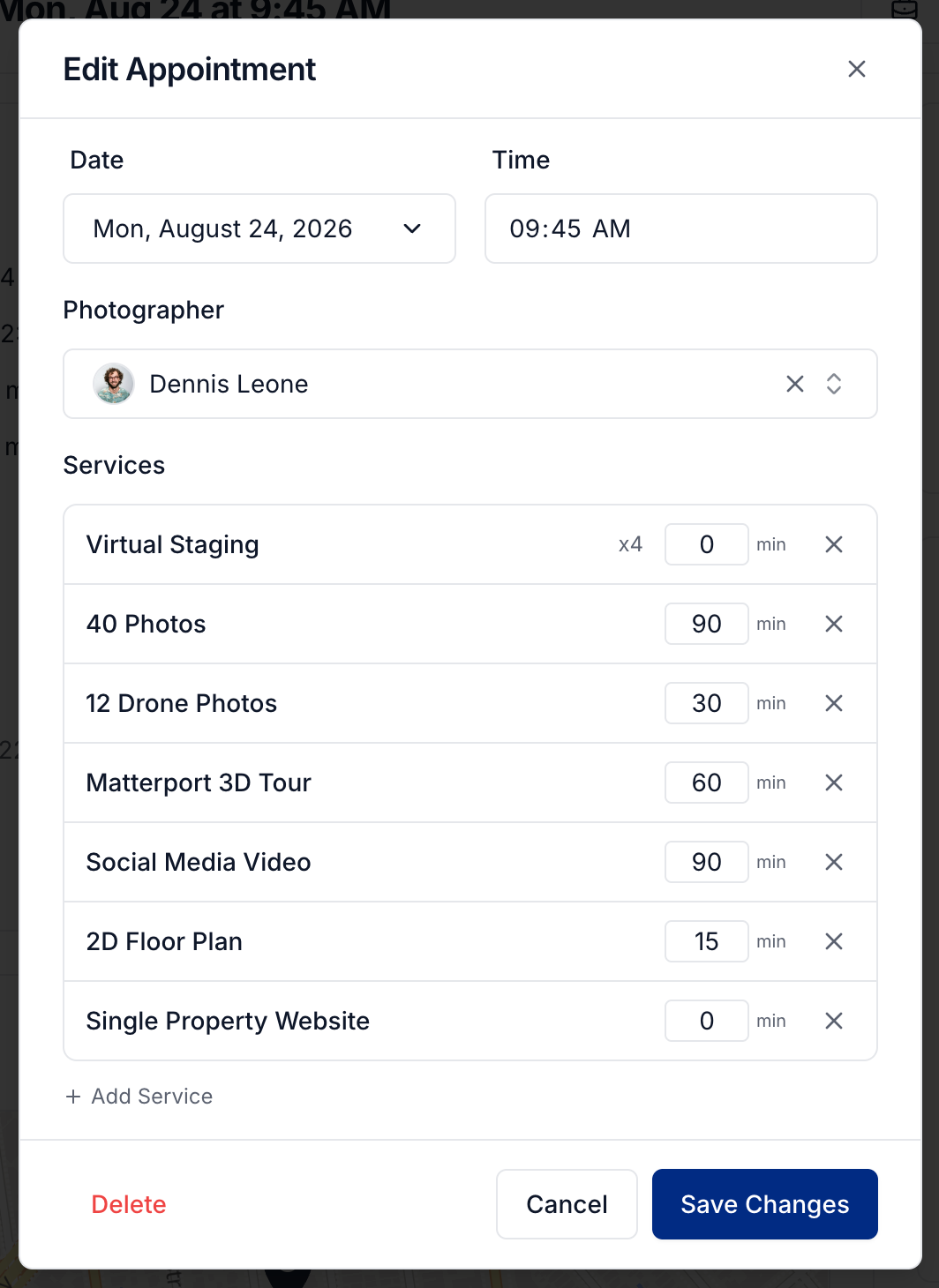
Select Edit on the appointment page.
Change the Date, Time, or Photographer.
Review Services. Add or remove services for this visit and adjust their time estimates if needed.
Select Save Changes.
When you change the date or time of a scheduled appointment, review and send the reschedule email if you want to notify the client.
To add another visit or delete an appointment, use the job's Appointments controls.
Was this helpful?
Still need help? Share an idea