Managing your notifications
Photeria notifies you about new orders, photographer assignments, paid invoices, and other events that need your attention.
Written By David Dayan
Photeria notifies you about new orders, photographer assignments, paid invoices, and other events that need your attention. You decide which ones you get and whether they arrive in the app, by email, or both.
Reading your notifications
Click the bell in the top bar to open your inbox. Clicking a notification opens the job or invoice it's about and marks it as read. Use Mark all as read to clear everything at once, or Mark as read / Mark as unread on an individual notification to manage it without opening it.
Choosing where you get notified
Open your account menu, choose Edit Profile, and find the Notifications section. For each type, turn In-app and Email on or off, then click Save. Preferences are personal, so every team member sets their own.
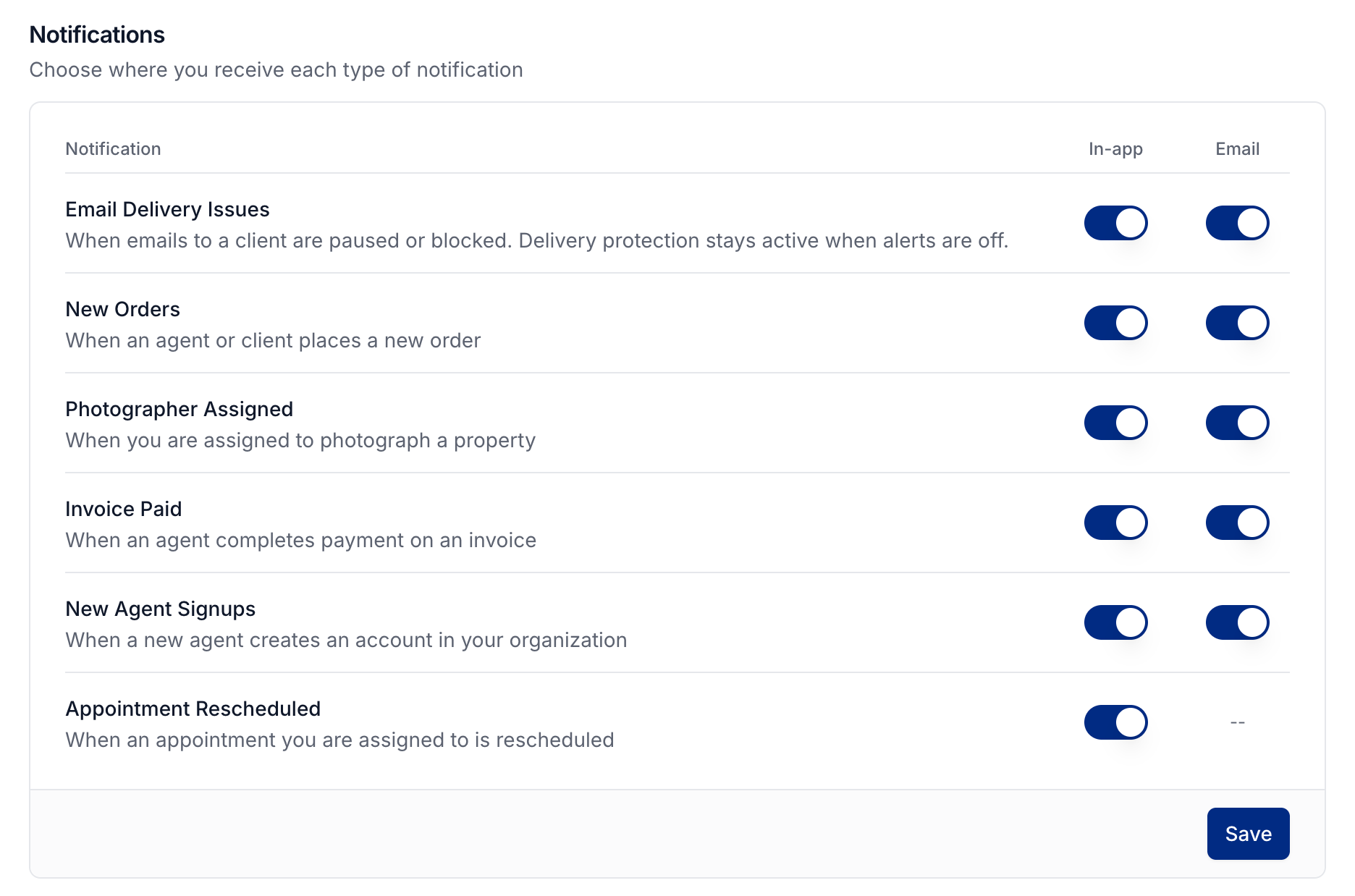
A few things to know:
Critical alerts like a calendar reconnect, a failed Dropbox sync, or a domain problem can't be turned off in the app, because you need to see them.
Some types don't offer email.
Know when client emails stop reaching an address
Turn on Email Delivery Issues to receive alerts when client emails are paused or blocked. Open the affected client's profile to review their email address and resolve the problem.
Turning off this alert changes your notifications only. Delivery protection still pauses or blocks problem addresses.
To change the messages Photeria sends to clients, use Settings → Notifications.
Was this helpful?
Still need help? Share an idea