Editing listing photos
Adjust listing photos in Photeria and keep the original and your saved versions in History.
Written By David Dayan
Adjust listing photos in Photeria and keep the original and your saved versions in History. You need permission to edit the listing.
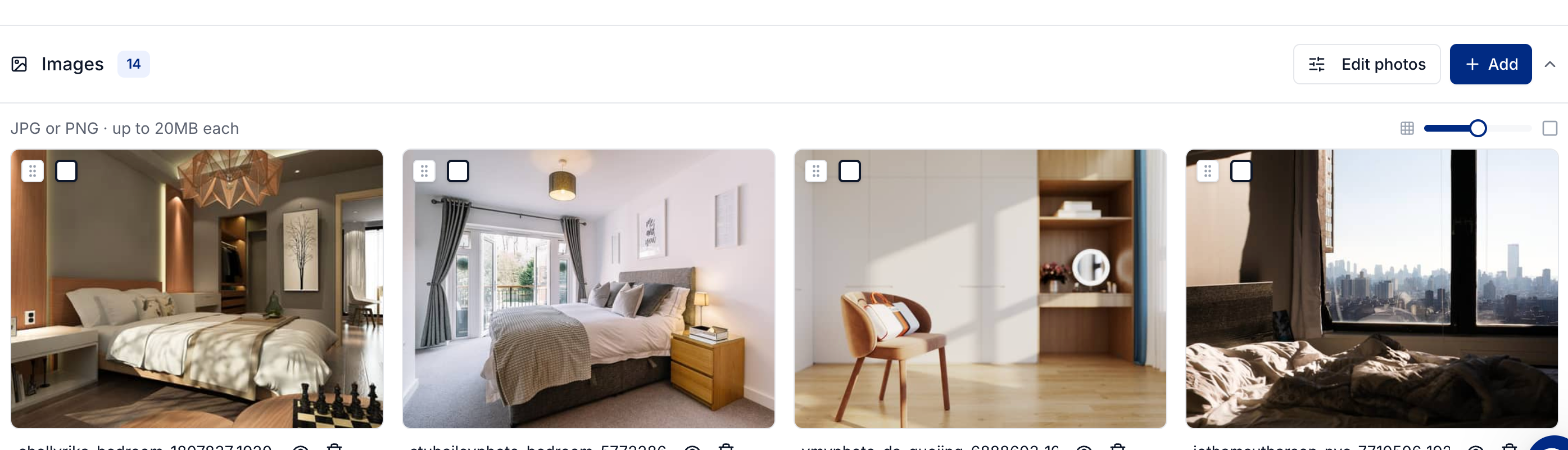
Open a photo for editing
Open the listing and expand Images under Media.
Select Edit photos.
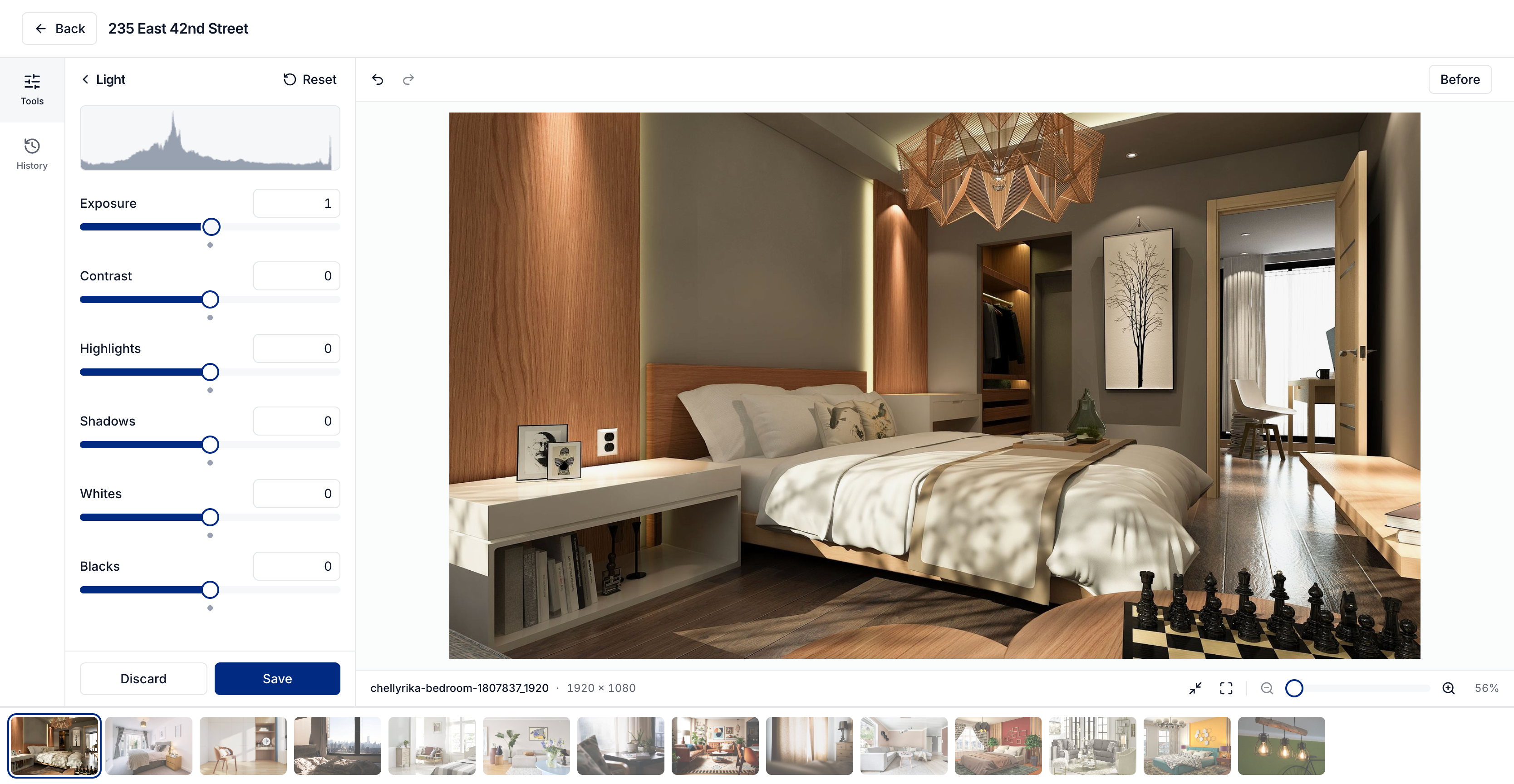
Choose a photo from the strip along the bottom of the editor.
Adjust the photo
Open Light to adjust brightness and contrast, Color to correct color, or Detail to adjust sharpness. Drag a slider or enter a value, then check the photo preview.
Use Reset in a tool to clear that tool's adjustments. Discard clears your unsaved changes across the editor.
Crop, straighten, or cover details
Use Crop to change the framing. Perspective helps straighten building edges, and Lens corrects distortion or changes the vignette.
Use Blur to cover details such as license plates or faces. Text, Lot lines, and Markers let you label a photo or point out part of the property.
Save an edit
Select Save to save a new version and put it in use on the listing. The original and earlier saved versions remain in History.
Each saved version is a finished image. To redo an adjustment from scratch, return to the version you started from and make a new edit.
Use an earlier version
Select a thumbnail in History to put that version in use. This changes the photo used on the listing, so choose it only when you want to replace the current version. In use marks the active version.
If you have unsaved edits, discard them before switching versions.
Keep a version as a separate photo
Open History and select Save as new photo to add the current saved version as another photo on the listing. Use this when you want to keep both versions in the delivered gallery. Save or discard any unfinished adjustments first.
Was this helpful?
Still need help? Share an idea