Reviewing and exporting reports
The Reports page gives you a read on how the business is doing: revenue, cash collected, jobs, client activity, and team and service performance, all for the period you choose. You can also export any of it as a CSV. Find it under Reports in the sidebar.
Written By David Dayan
Use Reports to review revenue, collected payments, client activity, and team performance for a month or year. Export a CSV when you need to work with the figures outside Photeria.
You need Invoices: Read or Invoices: Manage permission.
Review a period
Open Reports from the sidebar.
Choose Month or Year, then choose the period to review.
Use Add filter to focus on a client or brokerage.
Compare Revenue with Cash Collected to distinguish sales from payments received. Outstanding Balance helps you see how much remains unpaid.

Use the Breakdown tabs to review services, top agents, team performance, payment methods, or inactive clients. The period and client filters apply to these details too.
Export a CSV
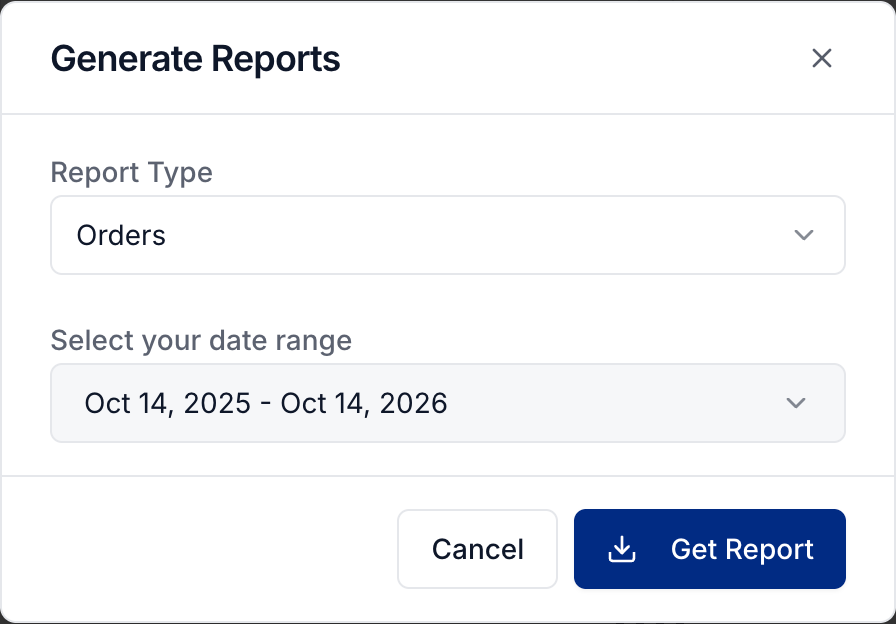
Select Generate Report.
Choose the Report Type. For example, choose Orders for individual orders or Payments for collected payments.
Open the date range, choose a preset or custom range, then select Apply.
Select Get Report to download the CSV.
Use Overview for a summary, Services, Clients, or Photographers for performance by group, Inactive Clients for follow-up opportunities, or Outstanding Balances for unpaid orders.
Was this helpful?
Still need help? Share an idea