Importing clients from HDPhotoHub
Bring your agents and brokerages from HDPhotoHub into Photeria.
Written By David Dayan
Bring your agents and brokerages from HDPhotoHub into Photeria. Review the records and choose what to import before adding anything.
Connect your account
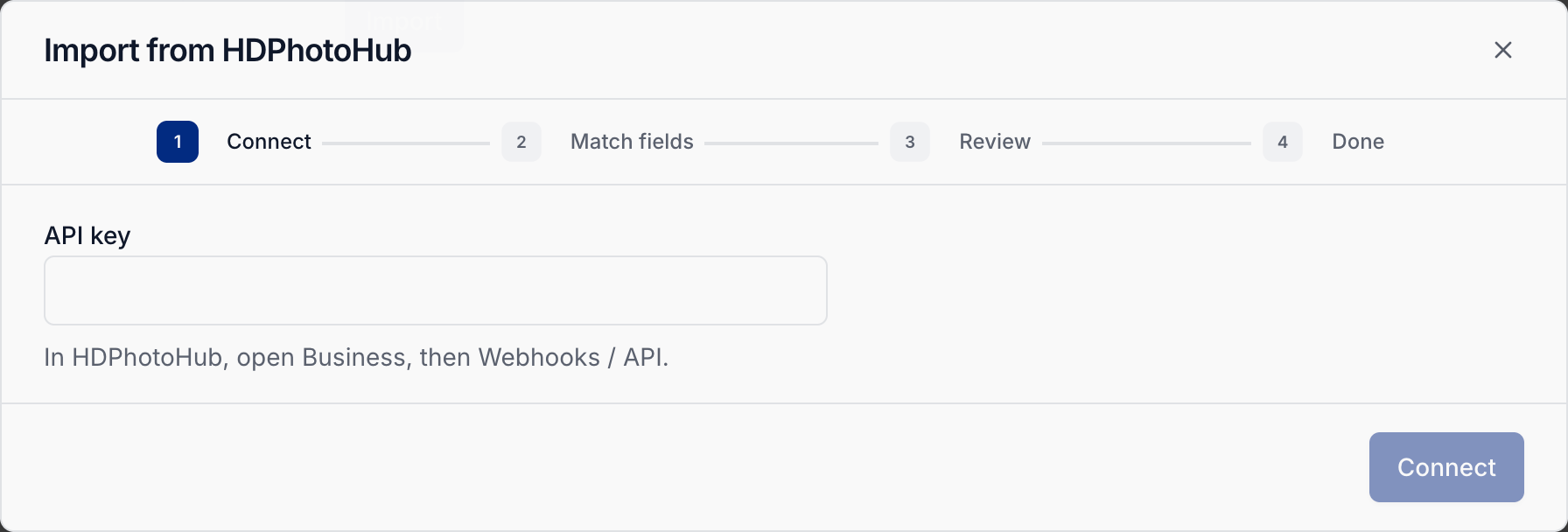
In HDPhotoHub, open Business → Webhooks / API and copy your API key.
In Photeria, open Settings → Importing and select Import under HDPhotoHub.
Paste the key into API key and select Connect.
Match and review the records
Match the HDPhotoHub fields to the Photeria fields. Each Photeria field can be chosen only once.
Keep Link agents to their brokerage on if you want to preserve those relationships.
Select Continue.
Review each record's status. Use View fields to inspect the details, and select the records you want to import.
Saved Photeria values take priority. The import can add missing details to a matching record without replacing information you already have.
Import your selection
Select Import with the displayed record count. When it finishes, choose View agents to check your client list.
If an import stops partway through, the completed records stay saved. Select Review again to review and finish the remaining records.
For a spreadsheet export instead, see Importing agents from a spreadsheet.
Was this helpful?
Still need help? Share an idea