Creating marketing templates for your clients
Build reusable templates so your clients can create marketing with their own listing photos, details, and brokerage colors.
Written By David Dayan
Build reusable templates so your clients can create marketing with their own listing photos, details, and brokerage colors. Start from a Photeria template or a blank design, then publish it when it is ready for clients to use.
You need a staff account to manage templates.
Start a template
Open Ordering → Marketing and click Create Template.
Choose a ready-made template to customize, or choose Blank.
For a ready-made template, select Create template to open your own draft copy.
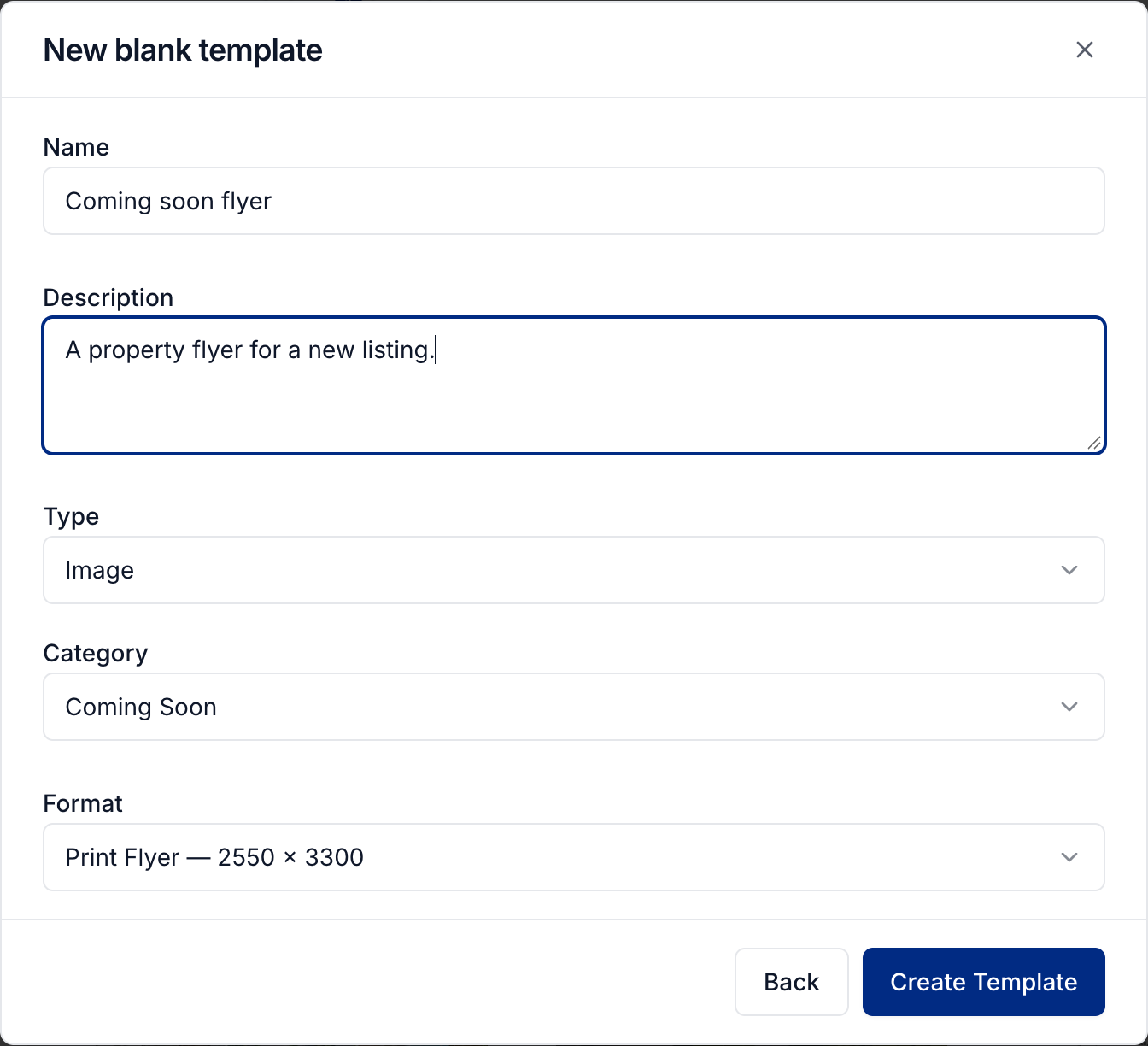
For Blank, select Continue, enter a Name, and choose its Type, Category, and Format. Then select Create Template.


Choose Image for a flyer or social graphic, or Video for an animated design. The format sets the canvas dimensions. A custom format can be up to 4000 pixels in either dimension.
Fill in listing details automatically
Use Tagging to connect an element to the information it should use in each client's design. For example, tag the address text with Listing 1 Full Address and the main photo with a listing photo.
Select a text, image, or shape element on the canvas. Use Layers if another element covers it.
Open Tagging.
Choose the matching listing, agent, brokerage, or business field.
Repeat for the other details that should change between clients and listings.
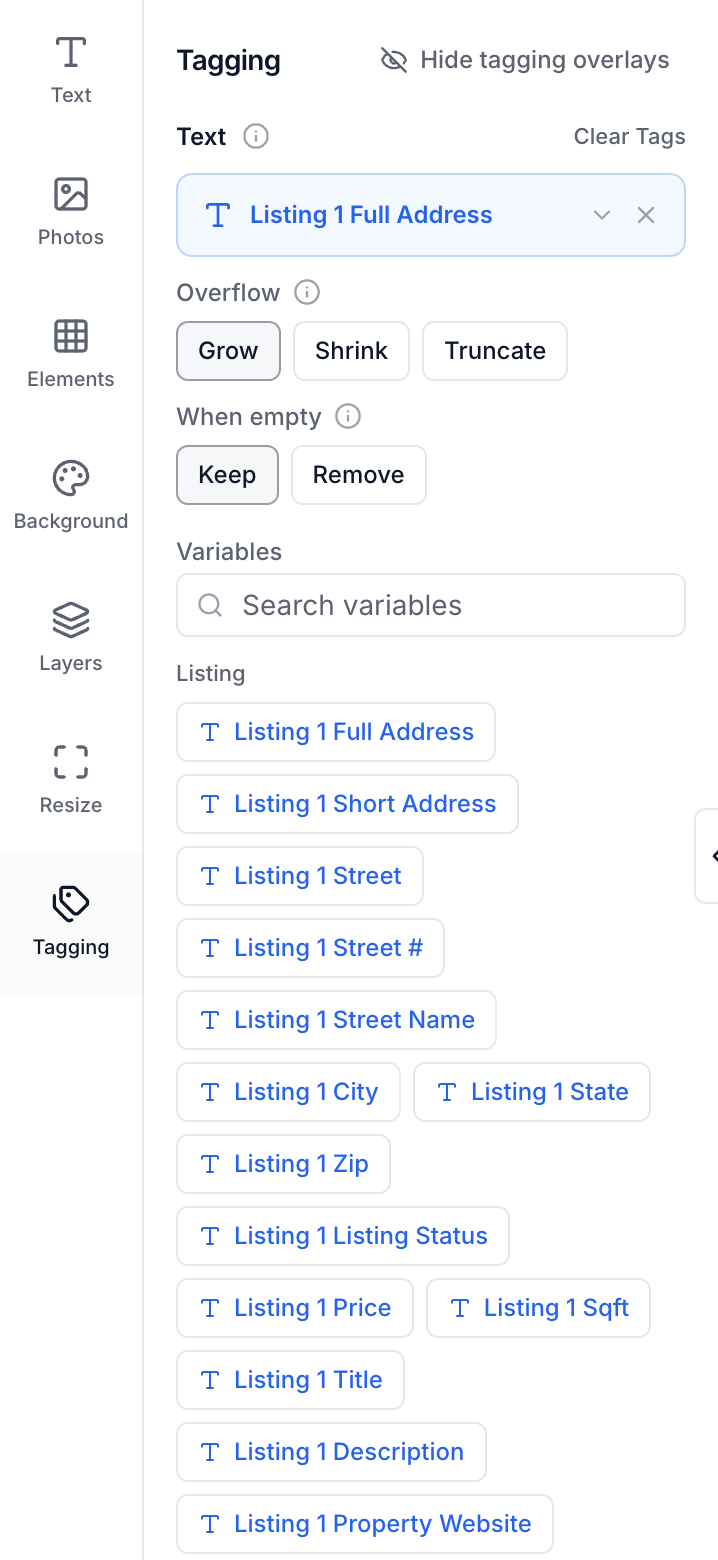
Color tags let a template use the client's brokerage colors. Choose a Readable on color tag for text that needs to stay legible against a tagged background.
Keep fixed wording, such as a Just Listed heading, untagged. For a template using several properties, assign each property's elements to its own listing number. Clients choose the listings when they create their design.
See Creating marketing materials for text, image, and download controls, or Creating marketing videos for animation and timing.
Save and publish
Click Save Changes in the editor.
Return to Ordering → Marketing.
Use the template's Draft status control to publish it.
Published templates are available to clients who have access to them. Keep unfinished templates in Draft. Unpublishing a template removes it from the choices for new designs; existing client designs remain available.
Limit a template to selected clients
Open the template's menu and choose Settings. Under visibility, choose Specific, then select the brokerages or agents who should receive it. Select Save Changes.
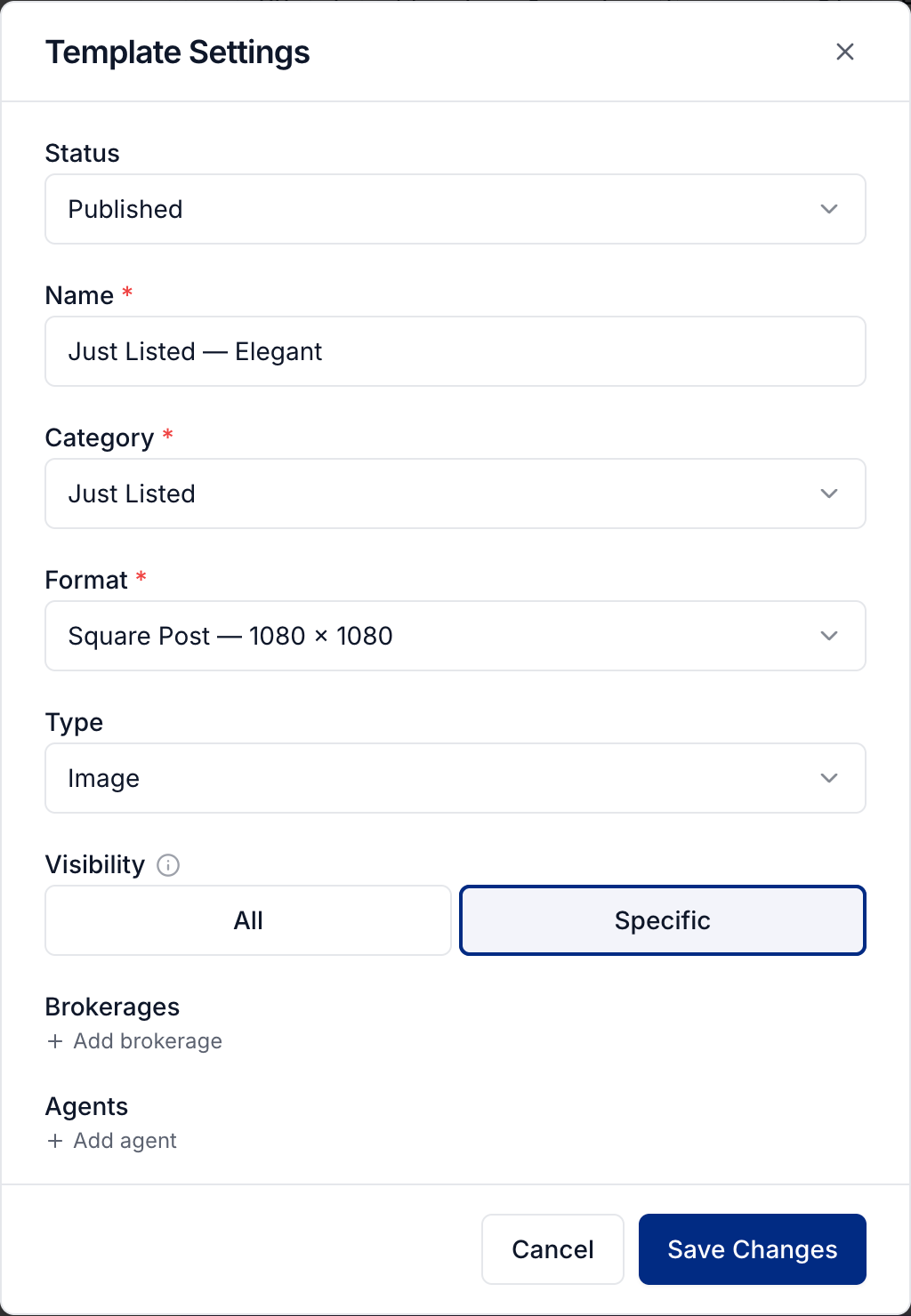
This is useful for a brokerage's branded flyer or a custom template made for one client. Use Duplicate when you need a separate version while keeping the original.
Give clients access to marketing
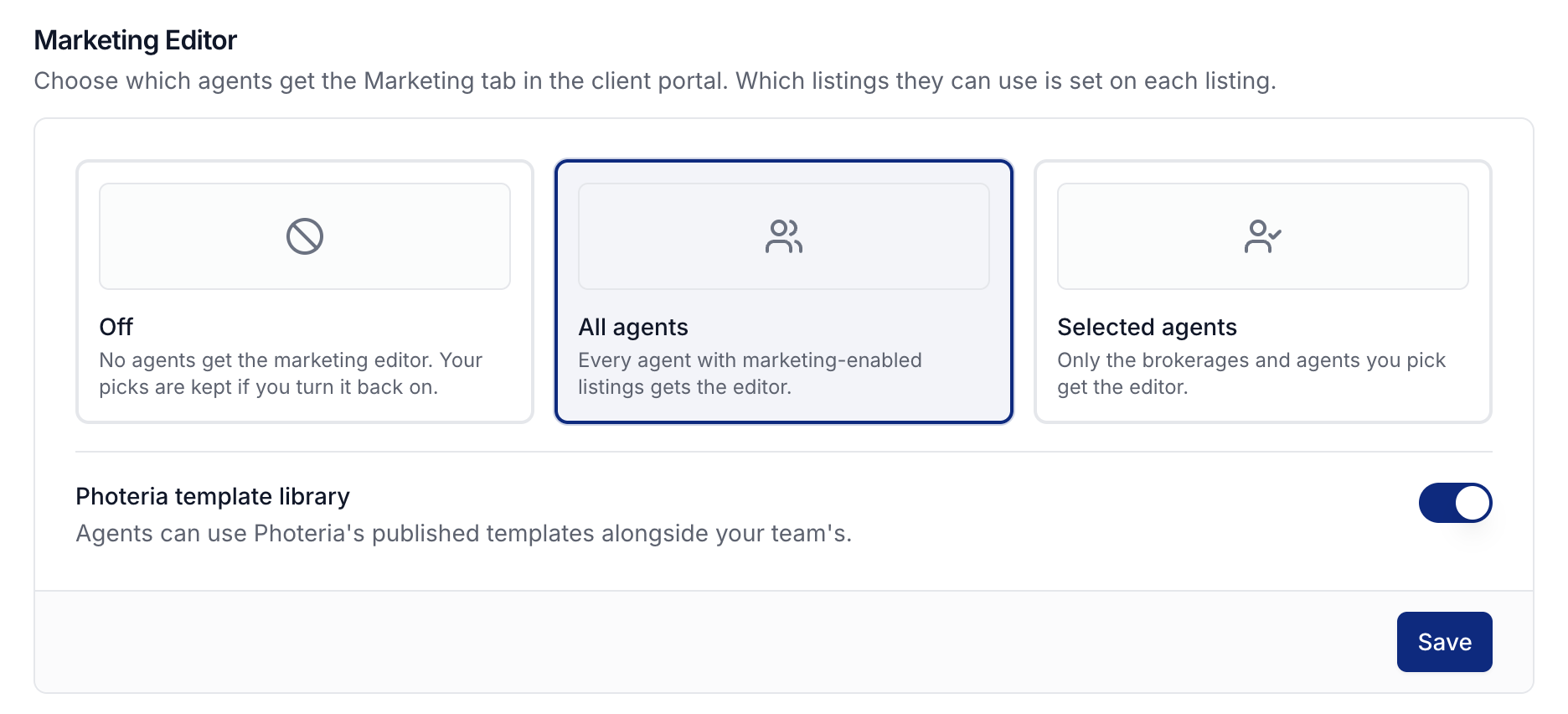
Open Settings → Client portal to choose who can create marketing materials. Select All agents or Selected agents, then choose the brokerages or individual agents if you selected limited access. Click Save. Choose Off to turn off client access. Each listing also needs marketing enabled before clients can use it in a design.
Use the Photeria template library setting to include Photeria's ready-made templates alongside your own published designs.
Was this helpful?
Still need help? Share an idea