Tracking job progress
Photeria separates three kinds of status on every job so you can track your business the way it actually runs. They're independent of each other, which is the whole point: each answers a different question.
Written By David Dayan
Track the order, each visit, and payment separately. Finishing an appointment does not complete the whole job or mark an invoice paid.
Update the job's progress
Open the job and use the status dropdown at the top:
Pending for a new order that has not started.
In Progress while your team schedules, photographs, edits, or prepares delivery.
Completed when the job is finished.
Archived to remove a finished job from the active list while keeping its records.
To restore an archived job, find it in Jobs → Archived, open it, and choose its new status.
Record appointment progress
Select an appointment's date and time on the job to open the appointment. Use Mark as Arrived when you reach the property and Mark as Complete when the on-site work is finished. Use the status dropdown on the appointment to correct a status.
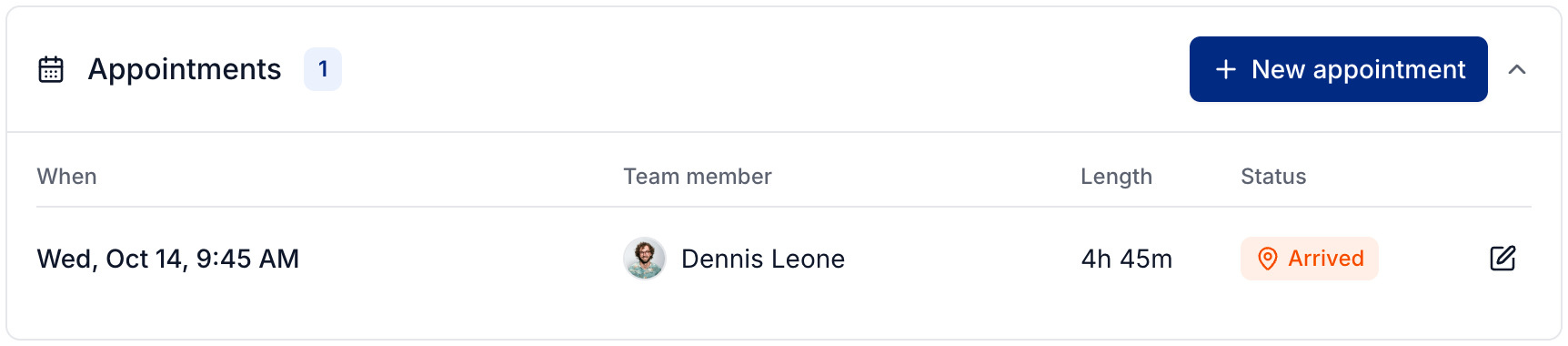
See Managing an appointment for preparation, rescheduling, and contact details.
Check payment
Payment status updates when payments are recorded. Unpaid means no payment has been recorded, Partial means a balance remains, and Paid means the bill is settled.
Open the job's invoice to review its balance and payment history. See Managing client invoices.
Find jobs that need attention
Use the Pending, In Progress, Completed, and Archived views on Jobs. Search by property or contact, and use Show filters to narrow the list to a team member, client, or brokerage.
Archive jobs with recorded payments when you no longer need them in the active list. They cannot be deleted while those payments remain recorded.
Was this helpful?
Still need help? Share an idea