Managing your listings in the client portal
Written By David Dayan
Keep your property's description, price, and open-house dates up to date from your photographer's client portal. Each listing also gives you access to its delivered media, property website, and invoice.
Open a listing
Sign in to your photographer's portal and open Listings. Search for the property, then select it. Use the status filter to narrow the list when you have several properties.
Update property details
Under Property Details, update the Display Title, List Price, Listing Status, or Property Description.
Add Quick Facts, such as beds, baths, and square footage, and any Amenities you want to highlight.
Select Save Changes beneath the property details.
These details describe the property on its website. Changing the list price does not change what you owe your photographer.

Add an open house
Find Open Houses and select Add Open House.
Choose the date, Start Time, and End Time.
Select Add.
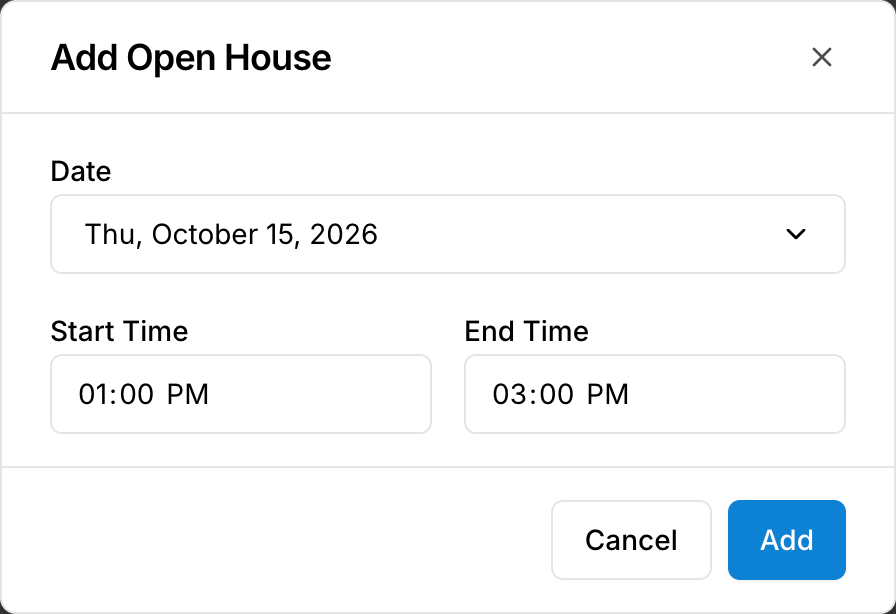
Use the edit or delete action beside an existing open house when its schedule changes. Your photographer must include an Open Houses section on the property website for the dates to appear there.
Share the property website
Select Manage website on the listing. Use Copy or Share for the website link. Choose Unbranded when you need the version without brokerage or photographer branding.
Under Analytics, choose a time period to review visits to the property website.
Website availability and editing access depend on what your photographer has enabled for this listing. Contact them if you need a website or a change that is not available in your portal.
Collect media and check payment
Select Manage media to open your delivered files. Follow Downloading and sharing listing media for download sizes, logos, and sharing.
The Order Summary shows the appointment and payment balance. Select View invoice to review or pay the invoice.
Update access instructions
Use Access notes under Property for instructions your photographer needs, such as parking or building access. Select Save changes in that section when you finish.
Was this helpful?
Still need help? Share an idea