Managing clients and referrals
Keep each agent's contact details, brokerage, relationship, and referral history together in Clients.
Written By David Dayan
Keep each agent's contact details, brokerage, relationship, and referral history together in Clients. Tags help you find groups of clients for follow-up.
To bring over a client list, see Importing agents from a spreadsheet.
Add or update an agent
Open Clients → Agents and select Add Agent, or open an existing agent and select Edit. Enter their contact details, choose their brokerage if applicable, and select Save. Use Import on the Agents page to add clients in bulk.
Open the agent's profile to find their jobs, invoices, emails, and notes. Pricing and invoicing preferences are under the profile's Settings.
Resolve an email delivery problem
If emails to a client fail, open their agent profile and check the warning below their email address.
Select Review email address.
Correct the Email field if needed, then select Save.
If the address is correct and sending remains blocked, contact support.

For a temporary problem, the warning tells you when a new email can try again. After repeated failures, check the address or contact support before sending again. A permanent rejection or spam complaint blocks future sends.
Previous emails are not resent automatically. After resolving the problem, send any missed invoice or delivery message again from its usual place in Photeria.
Track the relationship and lead source
Open the agent and select Edit.
Set Relationship to Lead, Client, Former Client, or Lost Lead.
Set Lead Source to how they originally found your business.
Select Save.
You maintain the relationship yourself. Booking activity does not change it automatically. Keep the original lead source as the relationship develops so you can remember what brought the client to you.
Record a referral
Choose Referral under Lead Source, then select the referring client in Referred By. Select Save.
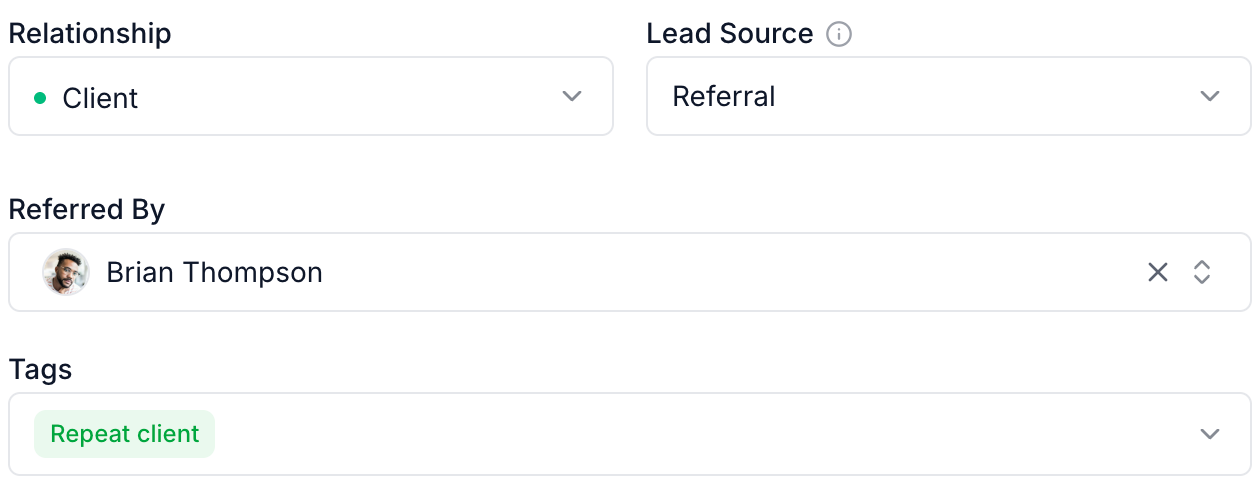
The saved referrer links to their profile. On that profile, Clients referred opens the list of clients they brought to you. Changing the lead source away from Referral removes the referrer link.
Group clients with tags
In the agent editor, open Tags and select the labels that apply. You can assign several tags, such as VIP and Builder, then select Save.
To create a reusable tag, type its name in the picker and choose the create option. Managers can use the menu beside a tag to rename it, change its color, or delete it. These changes apply across your company. Deleting a tag removes it from every client.
On Clients → Agents, select Show filters, then Add filter to narrow the list by Relationship, Tags, Brokerage, or Referred By. Choosing several tags finds clients with any of those tags. Other filters narrow that result further.
Compare clients and lead sources
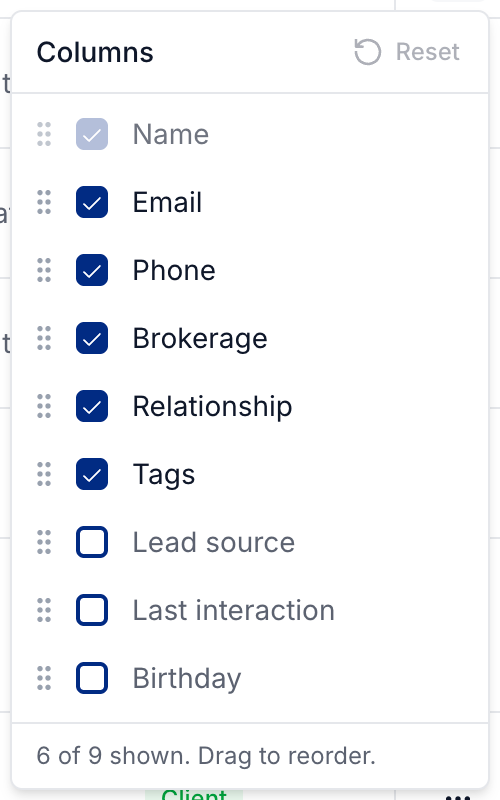
Select Edit table columns on the Agents page and enable Lead source to compare how clients found your business. Drag columns in the picker to put the details you use most near the front. Click the Lead source column heading to sort by source.
Save a filtered list as a saved view, such as leads to follow up with or clients at one brokerage. Your team shares these views.
Manage brokerages
Open Clients → Brokerages to manage a brokerage's contact details, agents, and notes. You can set a pricing catalog for the brokerage and override it for individual agents when needed.
Was this helpful?
Still need help? Share an idea