Creating listing marketing videos
Create a short listing video from a marketing template, then adjust how long each slide appears and how its photos and text move. Download the finished video as an MP4 for sharing.
Written By David Dayan
Create a short listing video from a marketing template, then adjust how long each slide appears and how its photos and text move. Download the finished video as an MP4 for sharing.
Start with a video template under Marketing in the client portal. Follow Creating marketing materials to choose your listing and open the design.
Set the pace
Each slide has its own place on the timeline beneath the canvas. Click a slide to edit it and drag its edge to change its duration. Drag slides into a new order when you want to change the sequence.
Use the plus control after the last slide to add another. Select an element to see its timing bar. Move the bar to change when that element appears, or drag its ends to change how long it stays visible.
Keep address and contact details on screen long enough to read. Use the play button above the timeline to preview the whole video after changing timing.
Animate a photo or text
Select the element on the canvas or in Layers.
Click Animate in the toolbar.
Choose Enter for how it arrives, Exit for how it leaves, or Loop for movement while it remains visible.
Choose an animation and adjust the controls shown for it.
For a slow move across a property photo, use Loop → Pan. For a move toward a detail, use Loop → Zoom, choose In or Out, and set Toward and Amount.
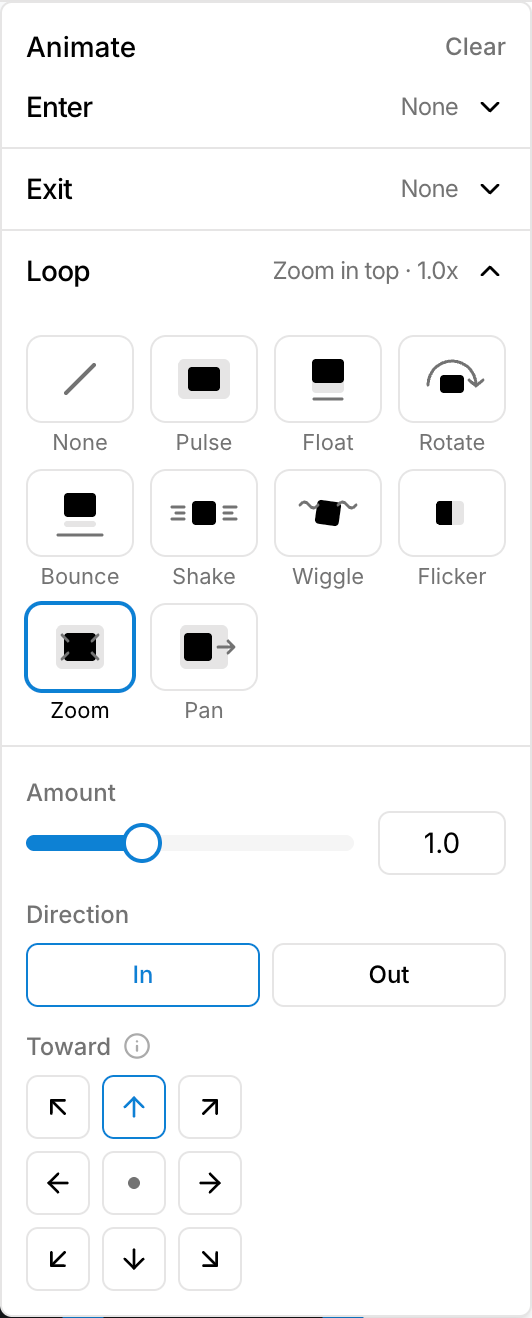
Use None in a section to remove that part of the animation. Clear removes the selected element's animations.
Change the transition between slides
Click the transition control between two slides.
Choose a transition, such as Fade, Slide, or Wipe.
Set Duration (seconds) and the direction when available.
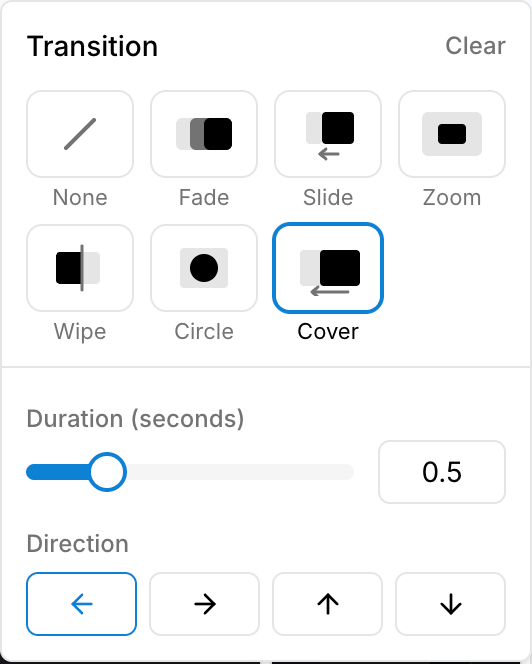
Choose None for an immediate cut. Preview the change in the timeline before moving on to the next transition.
Save and download
Click Save Changes.
Click Download.
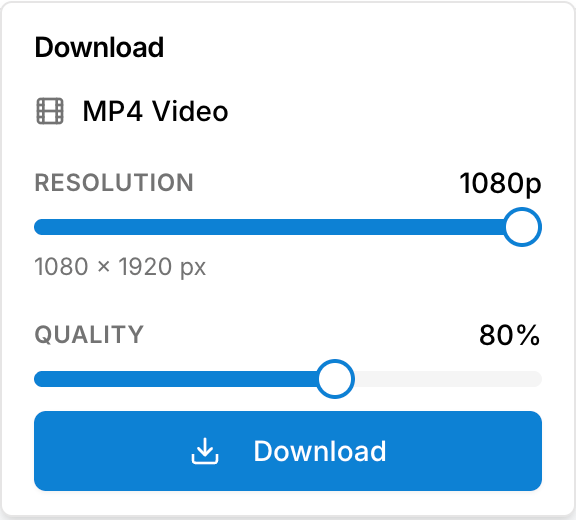
Choose the Resolution and Quality for MP4 Video. Available resolutions depend on your design's dimensions.
Click Download in the panel and keep the editor open until the export finishes.
Was this helpful?
Still need help? Share an idea