Importing agents from a spreadsheet
Bring an existing client list into Photeria with a CSV file.
Written By David Dayan
Bring an existing client list into Photeria with a CSV file. Match the columns, review the agents, and choose whether to add their brokerages before importing.
Prepare your file
Export your spreadsheet as CSV with a header row. Include a first name, last name, email, and phone number for each agent. You can import up to 5,000 rows at a time.
Include a brokerage column if you want agents linked to their brokerage. Agents with email addresses already in your organization are skipped rather than overwritten.
Upload and match the columns
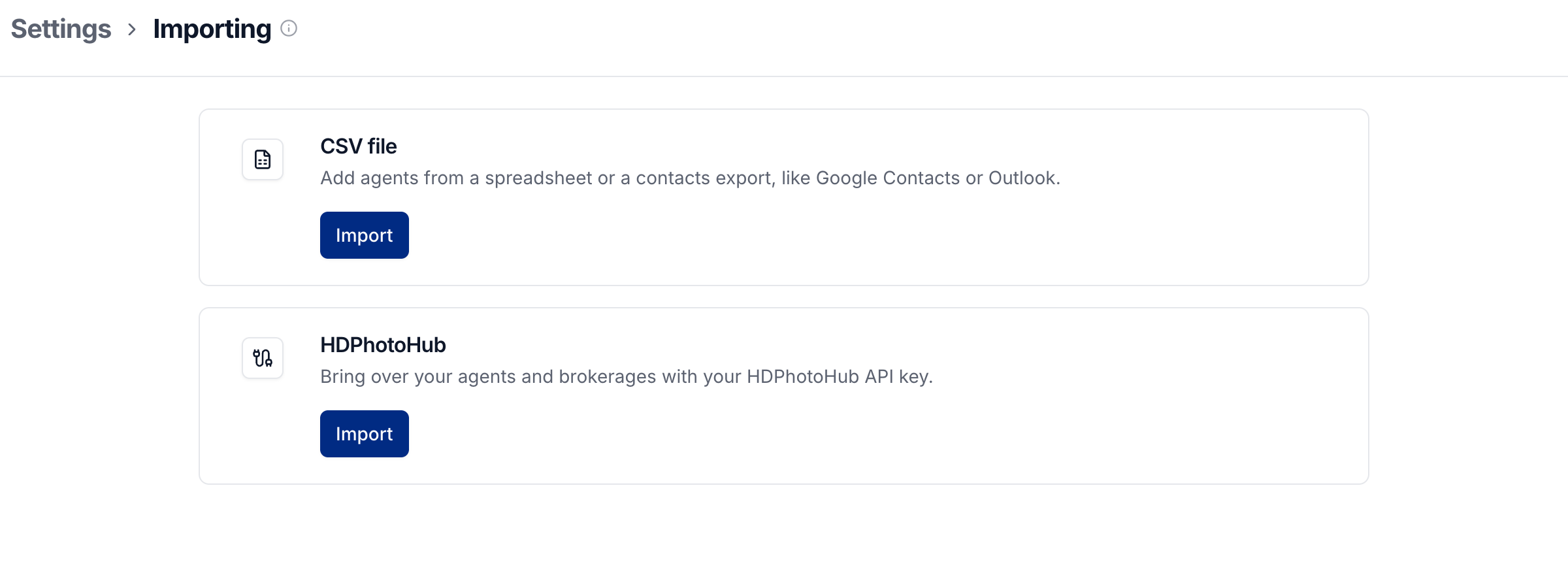
Open Settings → Importing and choose CSV file.
Choose your CSV file or drop it into the upload area.
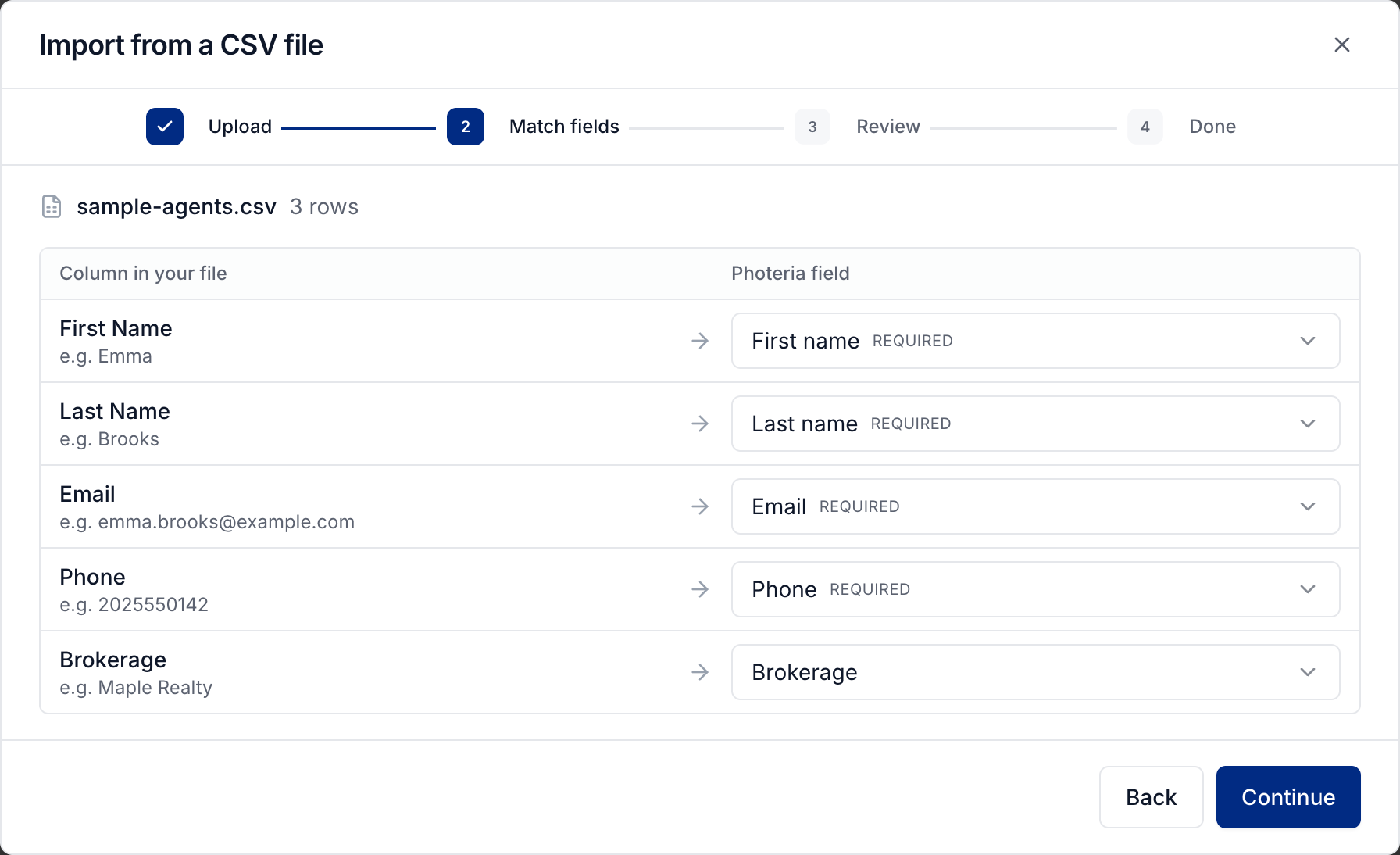
Under Match fields, check the Photeria field beside each column. Match all four required fields, and skip columns you do not want to import.
Select Continue.
Review and import
Check the agents under Review. Correct invalid rows in your spreadsheet and upload the revised file before importing them.
If the file names brokerages that do not exist yet, turn on the option to add them when you want Photeria to create those brokerages too.
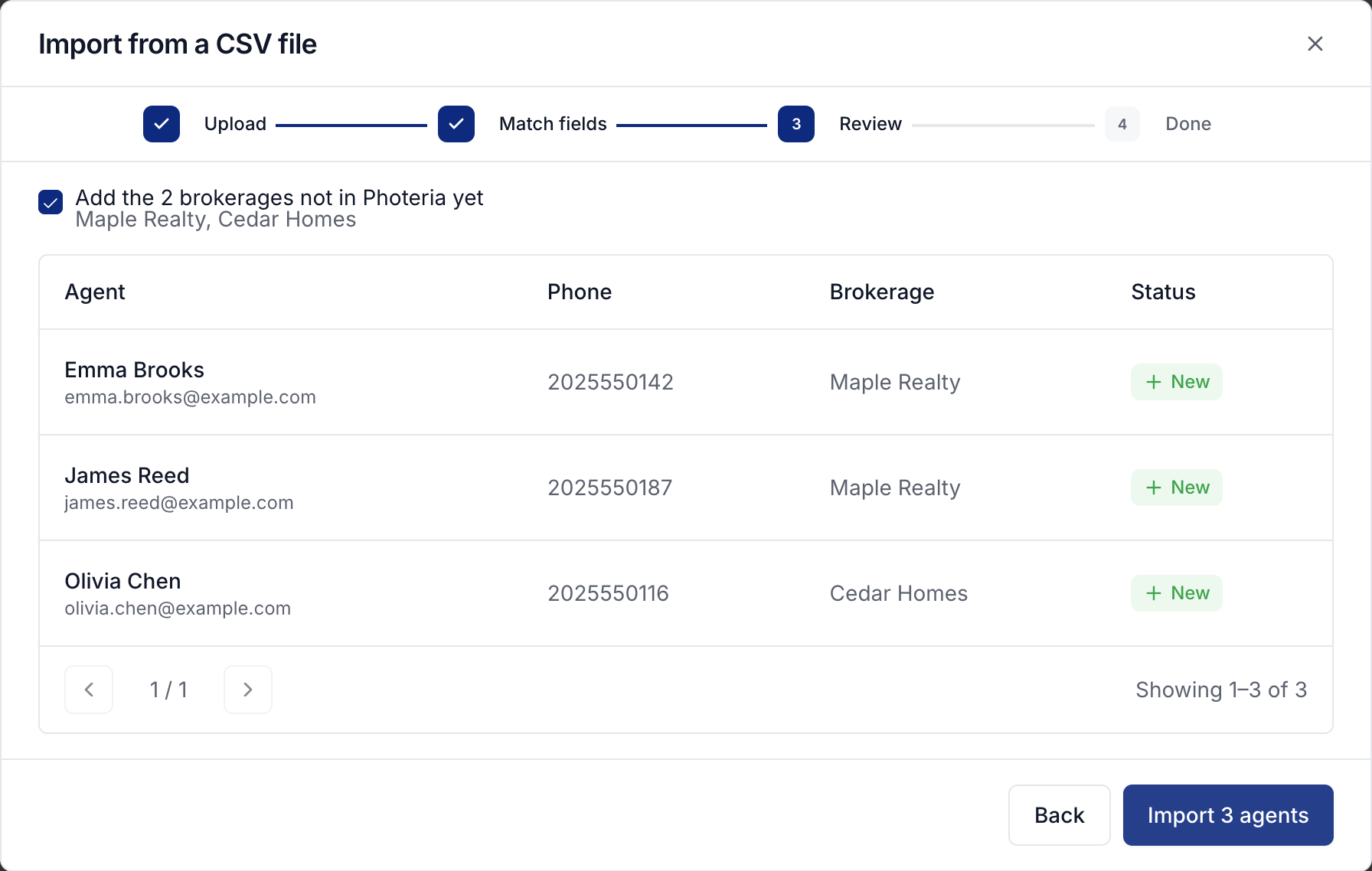
Select Import with the displayed agent count. When it finishes, select View agents to check your client list.
See Managing clients to edit individual agents and their settings.
Was this helpful?
Still need help? Share an idea